![Logo landing page 232x64 with border.png]](https://support.safetica.com/hs-fs/hubfs/Marketing/Safetica_logo_/Logo%20landing%20page%20232x64%20with%20border.png?width=145&height=40&name=Logo%20landing%20page%20232x64%20with%20border.png)
Product plans: Standard | Premium | Enterprise | On-Prem (see: Limits by plan)
Introduction: What are categories?
You can categorize every app and website detected in your environment so Safetica knows how to treat it. There are two types of categories:
- App and web categories: Detected apps or websites are matched to an app category or web category (e.g., "Social networks" or "Cloud storage"). These are vital for your app and web policies to work effectively and be more precisely focused.
- Default app/web categories: Safetica provides default categories (powered by ZveloDB on Safetica Platform, or the built-in categorization on Safetica On-Prem). You cannot rename or delete these.
- Custom categories: You can create custom categories that contain only the apps or websites you add.
- Behavior categories: Every app/web category is assigned to one of four behavior categories. These tell Safetica how to interpret an app or web in the Behavior analysis and in Dashboard sections. They simplify user activity auditing and allow you to quickly spot productivity patterns and security risks across your company. There are four behavior categories:
| Behavior category | Description |
| Business | Work-related activities, apps, and web visits. |
| Non-business | Personal or leisure activities. |
| Suspicious | Activities that may pose security risks or policy violations. |
| Uncategorized | Apps/websites not assigned to any app or web category (and therefore, not to any behavior category). |
✍️ For Behavior analysis to produce accurate results, assign as many apps and web to a behavior category as possible.
Permissions
To open the Categories section and manage categories, you need the Data destinations, data classification, and categorization permission.
How to change behavior category
You can move any app or web category between Business, Non-business, and Suspicious behavior categories.
- Go to Categories.
- Drag the category from its current column to the desired one.
✍️Changes to behavior categories are reflected in Behavior analysis and the Dashboard sections.
✍️App/web categories within each column are always sorted alphabetically – they are not prioritized.
Want to see more about behavior categories? Watch the video below:
How to add a custom app or web category
Option 1: From the Categories section
Create an empty category to add apps or websites into later:
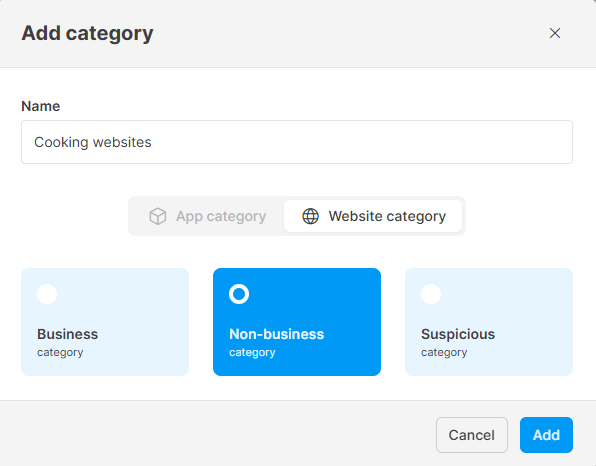
- Go to Categories.
- Click Add category.
- Enter a name for the new category (the name must be unique).
- Select the category type: App category or Website category.
- Select the behavior category: Business, Non-business, or Suspicious.
- Click Add.
The new category appears in the selected column in alphabetical order.
Option 2: From the Apps or Websites sections
Categorize a specific app or website into a custom category created on spot:
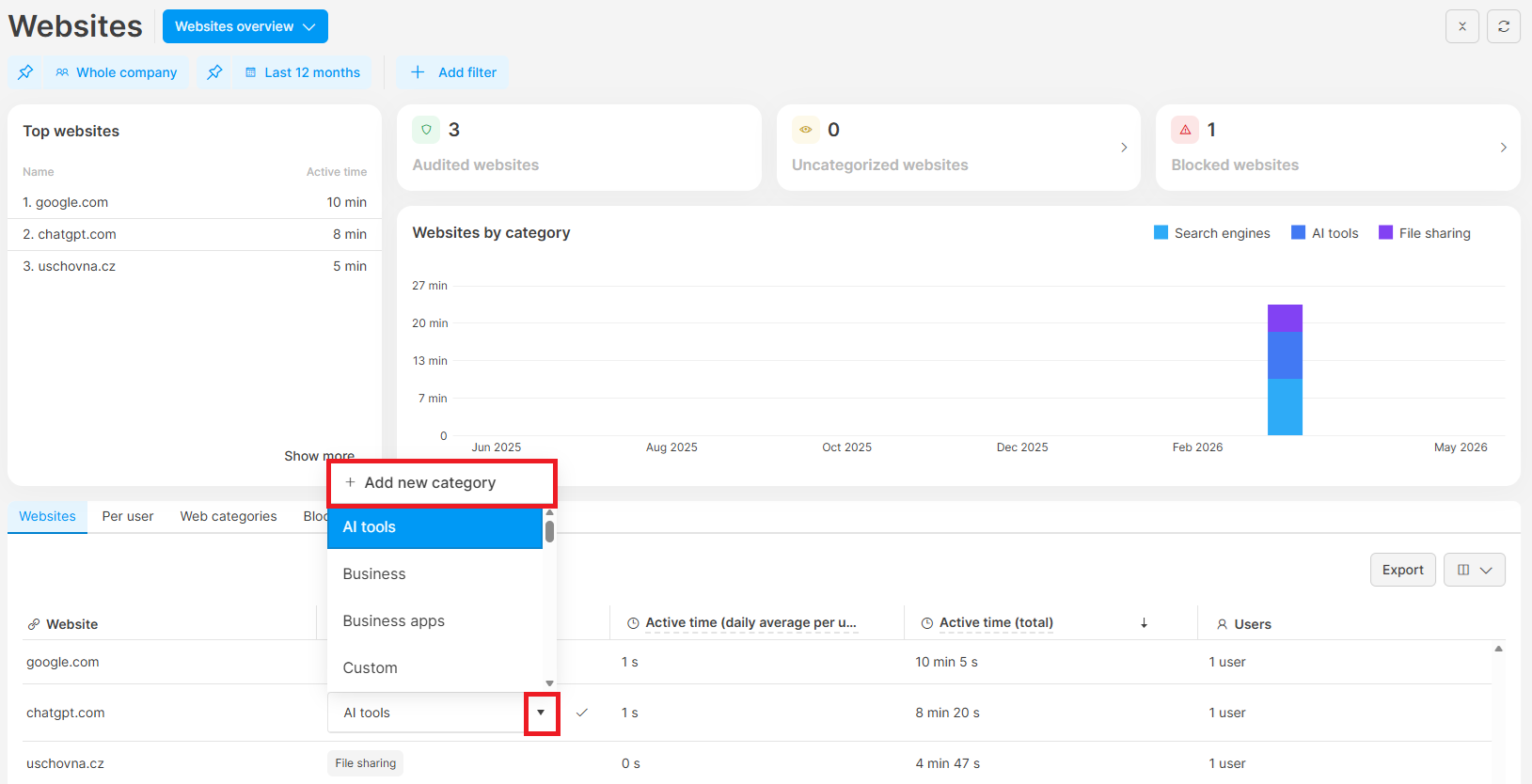
- Go to Apps (or Websites).
- Find the app/website you want to categorize.
- In the App category (or Web category) column click the pencil icon.
- Open the dropdown and click Add new category.
- Enter a name for the new category.
- Select the category type: App category or Website category.
- Select the behavior category: Business, Non-business, or Suspicious.
- Click Add.
The app or website will be immediately added to the new category. The category will appear in the selected column of the Category section in alphabetical order.
Example: Your company uses two instant messengers – Microsoft Teams (approved for work) and WhatsApp (personal). You want policies and Behavior analysis to treat them differently.
To do this, create two custom categories:
- Approved messengers under Business → add Microsoft Teams.
- Personal messengers under Non-business → add WhatsApp.
Then set up policies to treat these categories differently (for example, allow Approved messangers and block Personal messangers). Learn more here and here.
Once set up, policies and Behavior analysis will distinguish between the two messengers and handle them according to their category.
How to view what a category contains
- Go to Categories.
- Click the category to open its detail.
- For custom categories, the detail shows all the apps/websites you've added.
- For default categories, the detail shows all the apps/websites you've added. Default categories also contain additional items from ZveloDB (Safetica Platform) or built-in categories (Safetica On-Prem)), but those aren’t shown.
How to rename a custom category
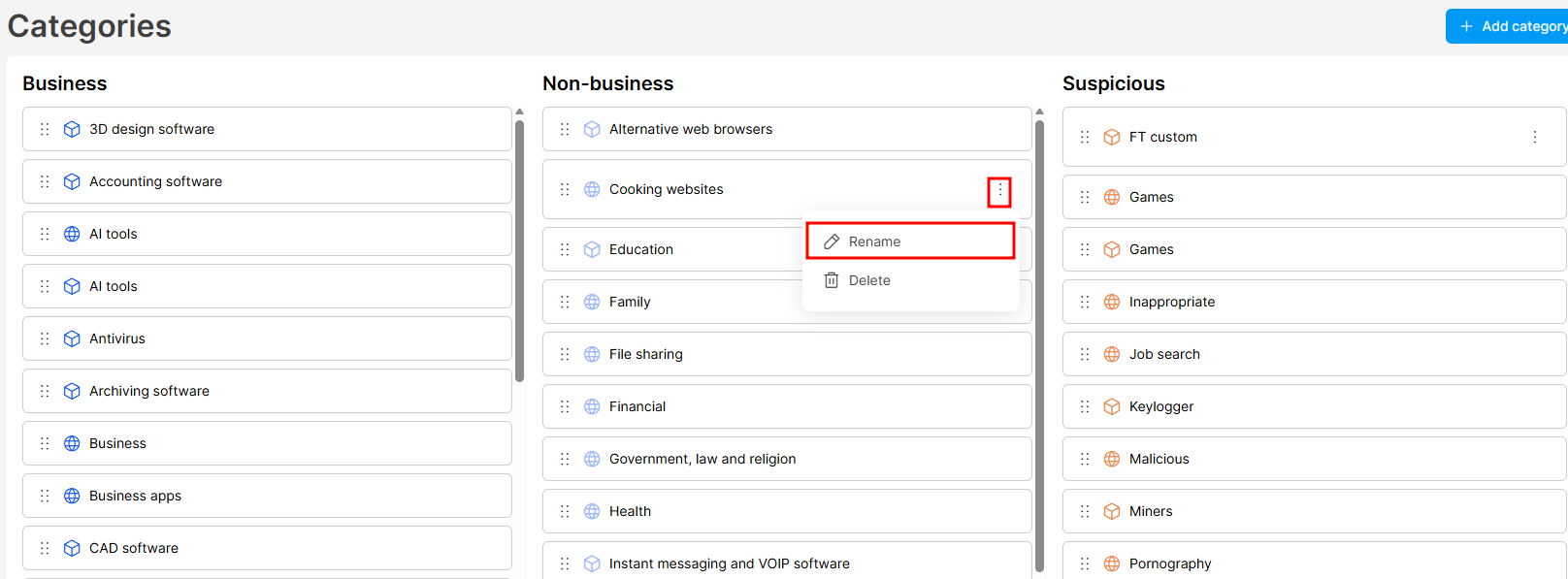
You can rename custom categories only. Default categories cannot be renamed.
- Go to Categories.
- Click the three dots next to the category name.
- Select Rename.
- Enter the new name (must be unique) and click Save.
The category is renamed and re-sorted alphabetically.
How to delete a custom category
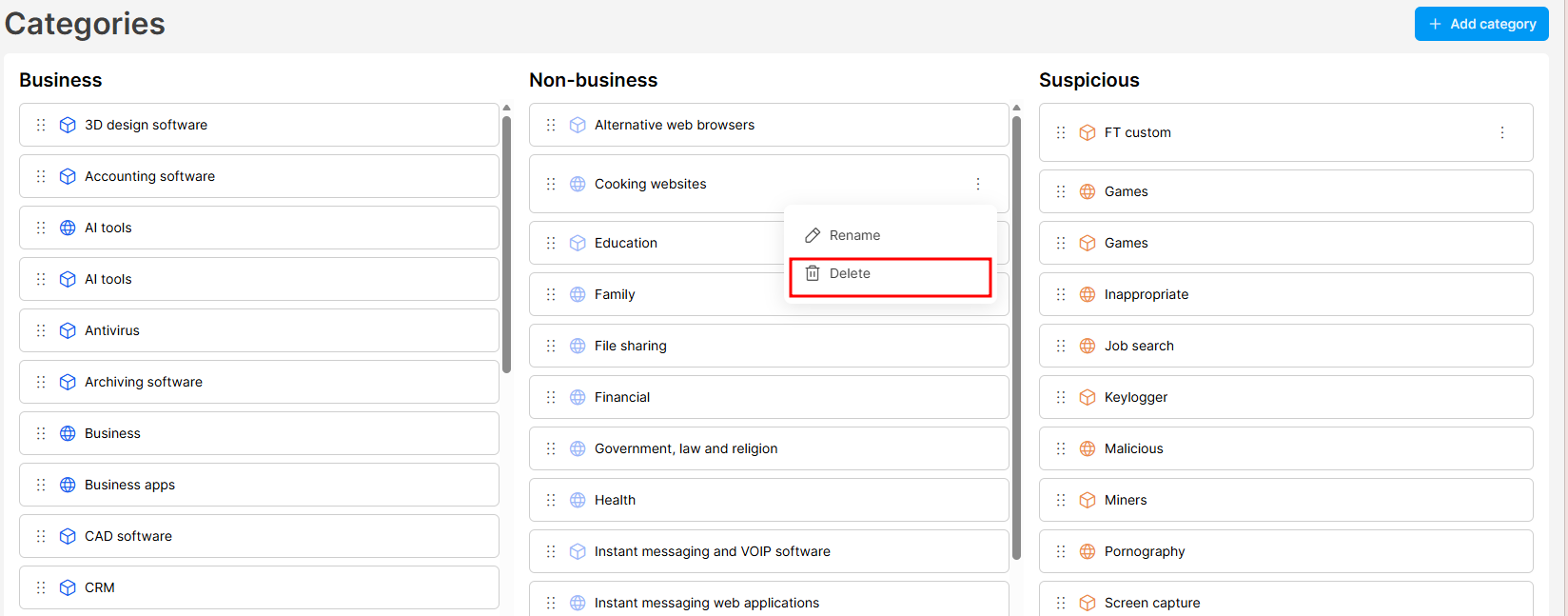
You can delete custom categories only. Default categories cannot be deleted.
❗ Deleting a category is permanent. Safetica removes the category from every policy, data classification rule, and destination group that uses it. Apps and webs assigned only to the deleted category become Uncategorized.
- Go to Categories.
- Click the three dots next to the category name.
- Select Delete and review all affected policies, classifications, and destinations.
- Type the category name in the confirmation field.
- Click Delete.
How to categorize apps and websites
Learn how to categorize apps and websites here.
FAQ
Q: Can I rename or delete a default category?
A: No. Only custom categories can be renamed or deleted. However, you can change the behavior category of any default category by dragging it between columns.
Q: Why don't I see all apps and webs in a default category's detail?
A: For performance reasons, default categories show only items detected in your environment or added manually. The full underlying categorization (ZveloDB on Safetica Platform; built-in categorization on Safetica On-Prem) still applies in the background.
Q: How do I add apps or webs into a category?
A: You can assign apps and webs to both default and custom app/web categories. See the dedicated article here.