![Logo landing page 232x64 with border.png]](https://support.safetica.com/hs-fs/hubfs/Marketing/Safetica_logo_/Logo%20landing%20page%20232x64%20with%20border.png?width=145&height=40&name=Logo%20landing%20page%20232x64%20with%20border.png)
Product differences:
- For now, the Admin role is available only for Safetica On-Prem.
Introduction: What are account roles?
Account roles let you control what each Safetica admin account is allowed to do. Instead of configuring individual permissions for every account, you can assign one of two predefined roles or select custom permissions manually:
- 💻Safetica On-Prem only: Admin: Full access to the Safetica console. The account can view and change any settings.
- Auditor: Read-only access to the entire Safetica console. The account can view all sections but can't make any changes.
- Custom: Choose specific permissions for the account individually. Use the Custom role when an account needs more than read-only access but shouldn't have full Admin rights. Learn more about individual permissions here.
Permissions
Managing accounts and their roles is available only to Safetica admins who have the Settings and configuration permission.
How to assign a role to an account
- Go to:
- ✨ Safetica Platform: Settings > Safetica settings > Accounts and permissions.
- 💻 Safetica On-Prem: Settings > Accounts and permissions.
- Click an existing account, or click Register account / Add account to create a new one.
- In the Role field, select Admin, Auditor, or Custom.
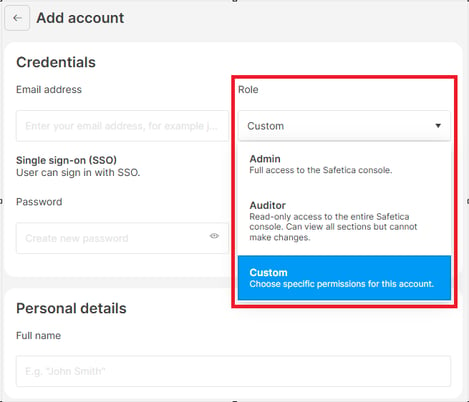
- If you select Custom, the full list of permissions expands so you can set each one individually. Learn more about individual permissions here.
- Click Save.
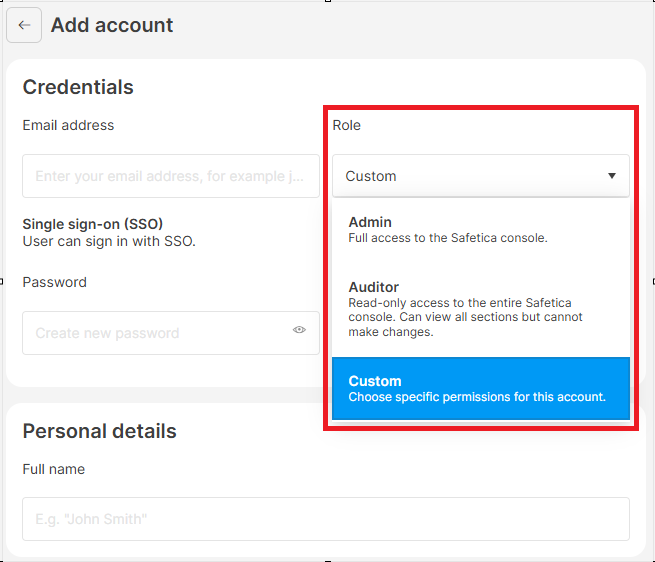
The selected role appears in the account detail and in the Permissions column of the accounts table.
✍️The Admin and Auditor roles are predefined: their permissions are fixed and can't be edited. When you need more granular control, choose Custom.
What an auditor sees in the console
An account with the Auditor role can open every section of the Safetica console (for example Policies, Settings, Users, or Devices) and view all details, including the detail pages of individual policies.
All editing options are disabled: buttons, fields, and toggles that would change a setting are greyed out, so an auditor can't modify or delete anything.
❗ Currently, Reports are not accessible to accounts with the Auditor role (not even for viewing).
Example: An external compliance auditor needs to review your data security policies and records. The IT department creates a new account for them and assigns them the Auditor role. They can browse the entire console, including policy details, without being able to change anything.
FAQ
Q: Can I save my own custom role and reuse it across accounts?
A: No. The Custom option sets permissions for one account at a time. There are no saved or reusable custom roles. Admin and Auditor are the only predefined roles.
Q: Can an auditor see all data in the console, including user records?
A: Yes. The Auditor role gives read-only access to the entire Safetica console, including records and settings (but excluding reports). Auditors just can't change anything.
Q: Can I change the permissions of the Admin or Auditor role?
A: No. Admin and Auditor are predefined roles with fixed permissions. If you need to tailor what an account can do, choose the Custom role instead.