![Logo landing page 232x64 with border.png]](https://support.safetica.com/hs-fs/hubfs/Marketing/Safetica_logo_/Logo%20landing%20page%20232x64%20with%20border.png?width=145&height=40&name=Logo%20landing%20page%20232x64%20with%20border.png)
Introduction: Review AI tool usage in one place
Your users work with AI tools all day, on the web and in desktop apps, and company data goes into them. AI governance shows this in one place: every AI tool your users worked with in the last 30 days (including tools you did not know they had adopted), how much each tool is used, what data reached it, and what happened to that data.
AI governance is built around one question: where did sensitive data reach an AI tool without any data policy deciding about it? Those are your gaps, and AI governance points you to them.
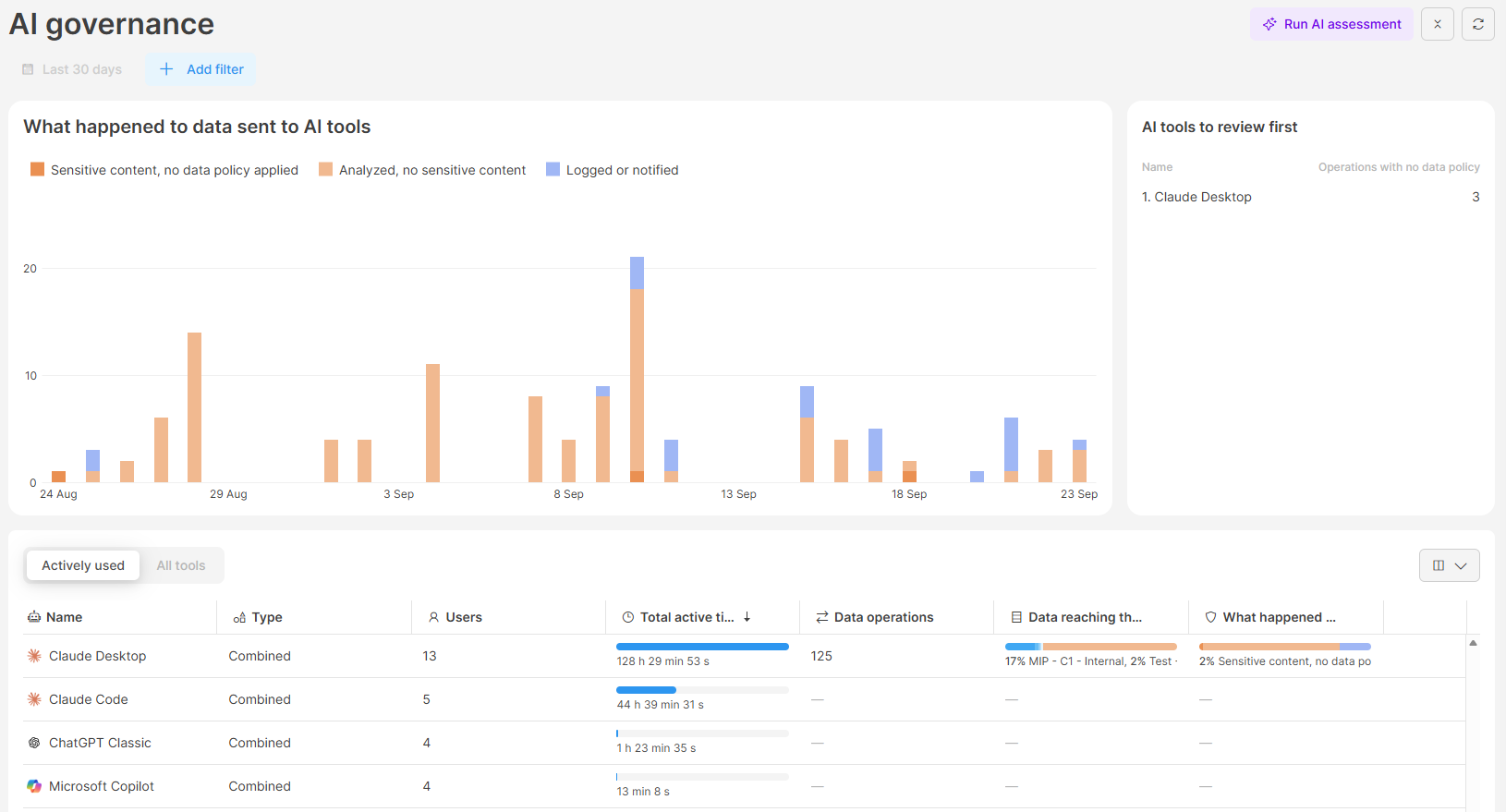
To get a summary of your AI exposure, click Run AI assessment in the page header. It starts the AI exposure assessment guided prompt. Learn more here
Prerequisites
- The apps and websites you want to track are in the AI tools category. Safetica assigns this category to recognized AI services automatically; you can add any other app or website yourself. Learn more here
- Your devices run a Safetica Client 11.38.17+ on Windows, or 11.40.7+ on macOS. Older versions still report active time and users, but the Data operations, Data reaching this tool, and What happened to data columns show Not reported by this device.
- You have data classifications defined, so that AI governance can tell what kinds of data reach each tool. Learn more here
Permissions
AI governance is available to Safetica admins with the User data permission.
What happened to data: the five outcomes
Everywhere in AI governance - in the table, both widgets, and the tool detail - data operations are grouped into five outcomes. Each outcome describes what actually happened to the data. In charts, the first two show as orange, the other three as blue.
No data policy applied (orange). These are your potential gaps:
| Outcome | Meaning |
|---|---|
| Sensitive content, no data policy applied | Content analysis found a data classification match, and no data policy applied to the operation. Review these first. |
| Analyzed, no sensitive content | Content analysis found nothing that matches your data classifications, and no data policy applied to the operation. |
A data policy was applied (blue), regardless of data classification:
| Outcome | Meaning |
|---|---|
| Blocked | A data policy stopped the operation. |
| Logged or notified | The data left. The data policy only recorded the operation or notified the user. |
| Allowed | A data policy applied and deliberately let the operation through. |
How to find the AI tools in use
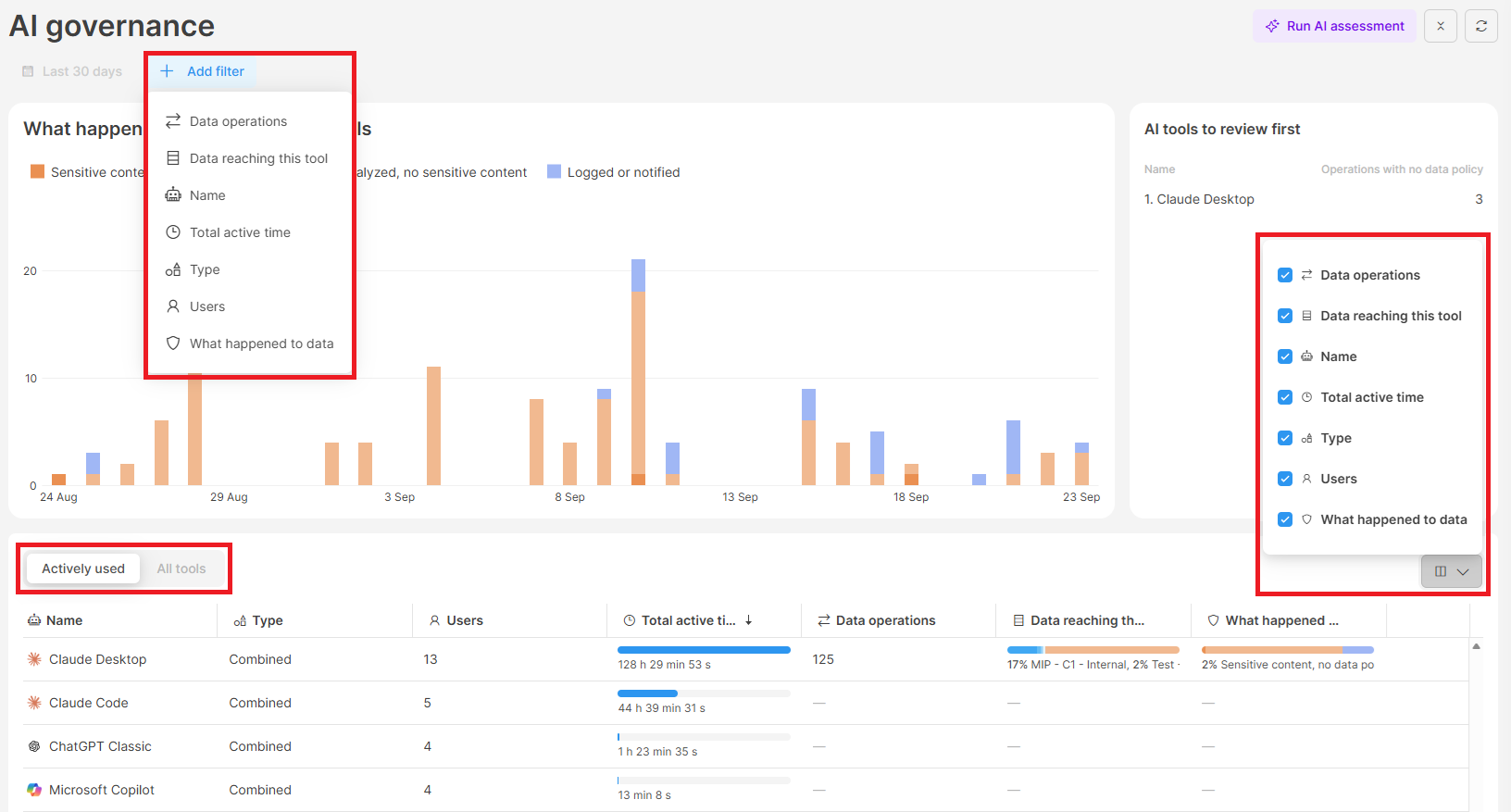
- Go to AI governance.
- Choose the scope above the table:
- Actively used: Tools with signs of real use, such as recognized AI services, websites that received more than one upload, and desktop apps with recorded usage.
- All tools: every app and website in the AI tools category with any recorded activity.
- Click Add filter to filter the table and widgets by Name, Type, Users, Total active time, Data operations, Data reaching this tool, or What happened to data.
AI governance shows AI tools from the last 30 days, and you cannot change the period. The Show more links in a tool's detail panel open Apps, Websites, and Data operations with the same period pre-selected, and there you can change it.
Each row in the table shows:
- Name: The tool.
- Type:
- Application: A desktop app.
- Website: A web address.
- Combined: A recognized AI service whose desktop app and website are rolled up into one row, for example the ChatGPT desktop app and chatgpt.com. Its figures are aggregated across both.
- Total active time: How long users spent in the tool. The bar compares the tool to the most used one in the list.
- Users: How many users used the tool.
- Data operations: How many data operations reached the tool, blocked ones included.
- Data reaching this tool: The data classifications involved, as shares of all the tool's data operations, for example 75% Internal documents, 25% Unclassified.
- What happened to data: The five outcomes as shares of all the tool's data operations.
How to spot data policy gaps
Two widgets above the table summarize info about the tools currently listed.
What happened to data sent to AI tools
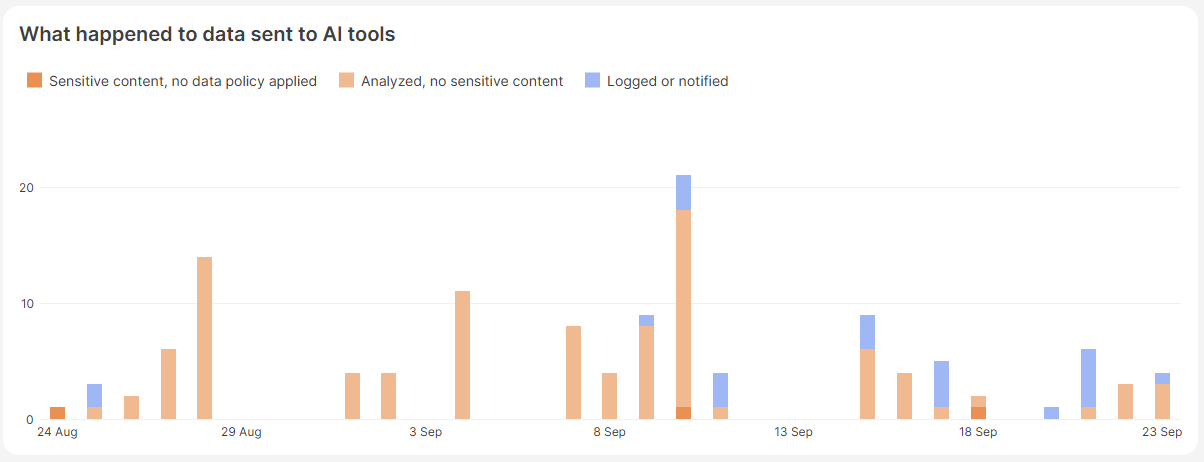
What happened to data sent to AI tools is a daily timeline of the last 30 days, stacked by the five outcomes (by what actually happened to the data). Everything orange is data that no data policy applied to - review it first.
To focus on one outcome:
- Click an outcome in the chart legend.
- The table now lists only tools with operations that have this outcome.
- To clear the filter, click the same outcome again.
AI tools to review first
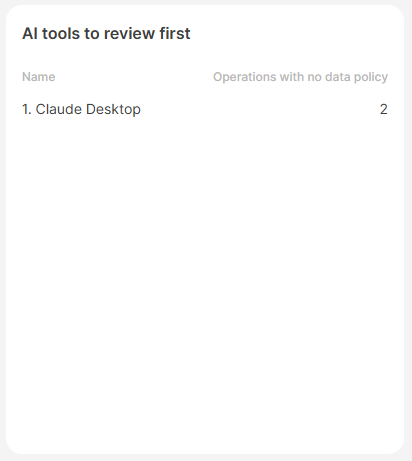
AI tools to review first lists tools ranked by Operations with no data policy, which is the number of operations with the outcome Sensitive content, no data policy applied. Start at the top - that is where creating or extending a data policy pays off the most. Click a tool to open its detail.
How to review a single AI tool: The tool detail
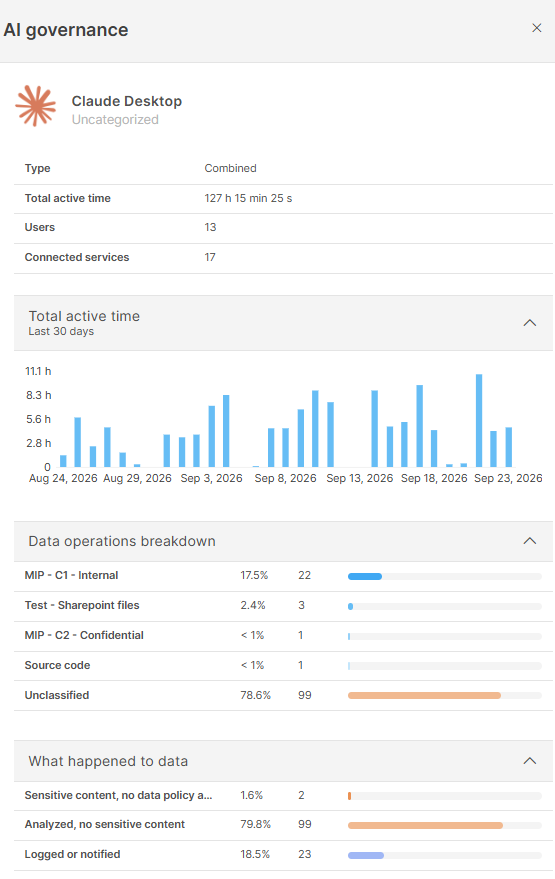
The AI tool detail shows whether a tool was tried once and abandoned or is in regular use, what data reaches it, and who to talk to about it.
- Click a tool in the table or in the AI tools to review first list.
- Review the summary at the top: Type, Total active time, Users, and either Category (for an application or website) or Connected services (for a Combined tool, the number of websites and apps rolled up into it).
- Review the sections below the summary:
- Total active time: A daily chart of active time over the last 30 days, so you can tell one-off experiments from regular use.
- Data operations breakdown: The data classifications of the data that reached the tool, with the count and share of each.
- What happened to data: The five outcomes for this tool, with the count and share of each.
- Who used this tool most: The five users with the highest active time.
- Who sent sensitive data most often: The five users with the most data operations, with the data classifications involved. They are not necessarily the heaviest users.
- Websites and apps: For Combined tools only - the individual websites and desktop apps rolled up into the tool, with their active time and users.
- Click Show more in a section to open the records behind it, pre-filtered to this tool and the last 30 days.
A large Unclassified share can mean two things. Either nothing sensitive reached the tool, or your data classifications do not cover the kind of data your users send to it. If a tool with heavy use shows mostly Unclassified data, check whether your data classifications need adjusting before you conclude that the tool is safe. Learn more here
How to add or remove a tool from AI governance
AI governance lists two kinds of tools:
- Apps and websites from the AI tools category: You can manage them in the Categories section.
- Combined tools: Recognized AI services. They are managed by Safetica.
Apps and websites: managed by you
To add an app or website, assign it to the AI tools category in Categories. Learn more here
To remove an app or website that was categorized as an AI tool by mistake, move it to another category:
- Click the tool in the table.
- Click the category tag in the Category row of the summary.
- Select the category the tool belongs to, or click Add new category to create one.
The tool disappears from AI governance immediately. The change also applies to any policy that targets the category.
Combined tools: managed by Safetica
AI governance lists recognized AI services (Combined tools) automatically. Safetica decides which websites and desktop apps belong to each recognized AI service. This means:
- You cannot change what a Combined tool includes (for example, add a new domain or desktop app to it).
- You cannot remove a Combined tool. It has no category of its own, and its websites and apps stay recognized as part of the service even if you change their category.
If your users work with a variant that Safetica does not recognize yet, assign it to the AI tools category. It then appears in AI governance as a separate Application or Website row.
FAQ
Q: Does the outcome Sensitive content, no data policy applied mean that Safetica missed something?
A: No. Safetica recorded the operation and analyzed its content - that is how it knows the content was sensitive. What is missing is a data policy that decides about data sent to this tool. To close the gap, create or extend a data policy so that it covers the tool. Learn how to close the gap
Q: Why is an AI tool my users work with missing from the list?
A: Check the All tools scope first - the tool may have only a little recorded activity in the last 30 days. If it is still missing, the app or website may have been used for less than 15 seconds, or it is not in the AI tools category. Assign the category to it in Categories. Learn more here