![Logo landing page 232x64 with border.png]](https://support.safetica.com/hs-fs/hubfs/Marketing/Safetica_logo_/Logo%20landing%20page%20232x64%20with%20border.png?width=145&height=40&name=Logo%20landing%20page%20232x64%20with%20border.png)
Applies to: Safetica Platform
Product plans: Premium | Enterprise (see: Limits by plan)
Introduction: Why ask Safetica AI instead of clicking through the console?
To answer a question like "Who sent sensitive data to an AI tool last week?", you normally have to know which Safetica console section holds the records, go there, combine the right filters, and read the result. Safetica AI answers the same question from a sentence you type.
Safetica AI reads your Safetica data (records, insights, policies, data classifications, data destinations, users, devices, and the admin trail) and replies with the names, the figures, and a short interpretation. It is read-only: it explains and recommends, and it never changes a setting.
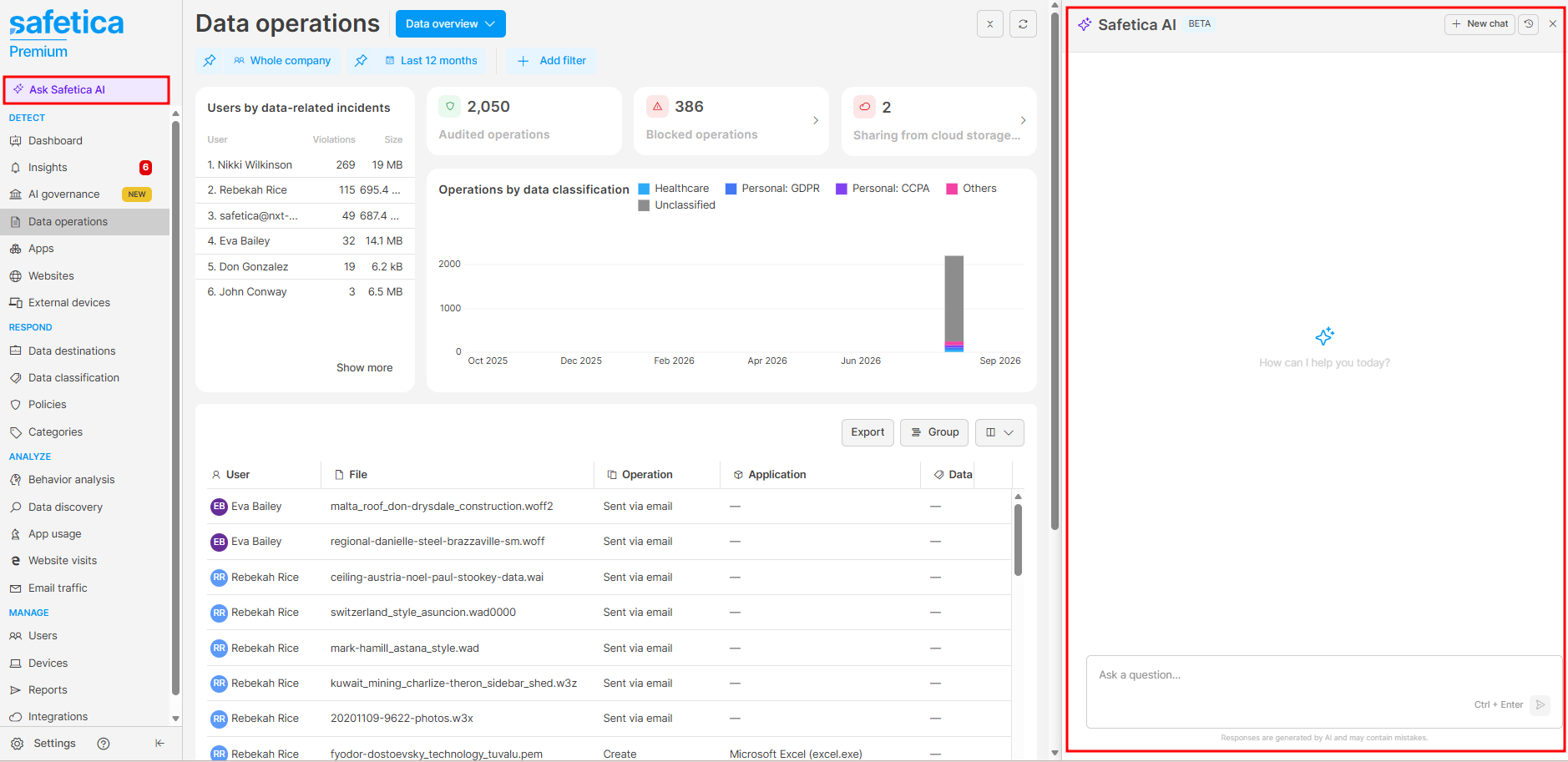
You open Safetica AI with the Ask Safetica AI button in the sidebar of the Safetica console. The panel stays open while you move around the console, so you can act on an answer without closing it.
Permissions
- Safetica AI is available to Safetica admins with the User data permission.
- Safetica AI answers only from data the signed-in admin can see in Safetica console.
- Admins restricted to selected teams get answers based those teams only.
- If a question needs a section the admin has no access to (for example Policies or Data destinations), Safetica AI names the section and answers nothing else about it.
How to ask Safetica AI a question
Safetica AI answers questions about your Safetica data and about how Safetica features work.
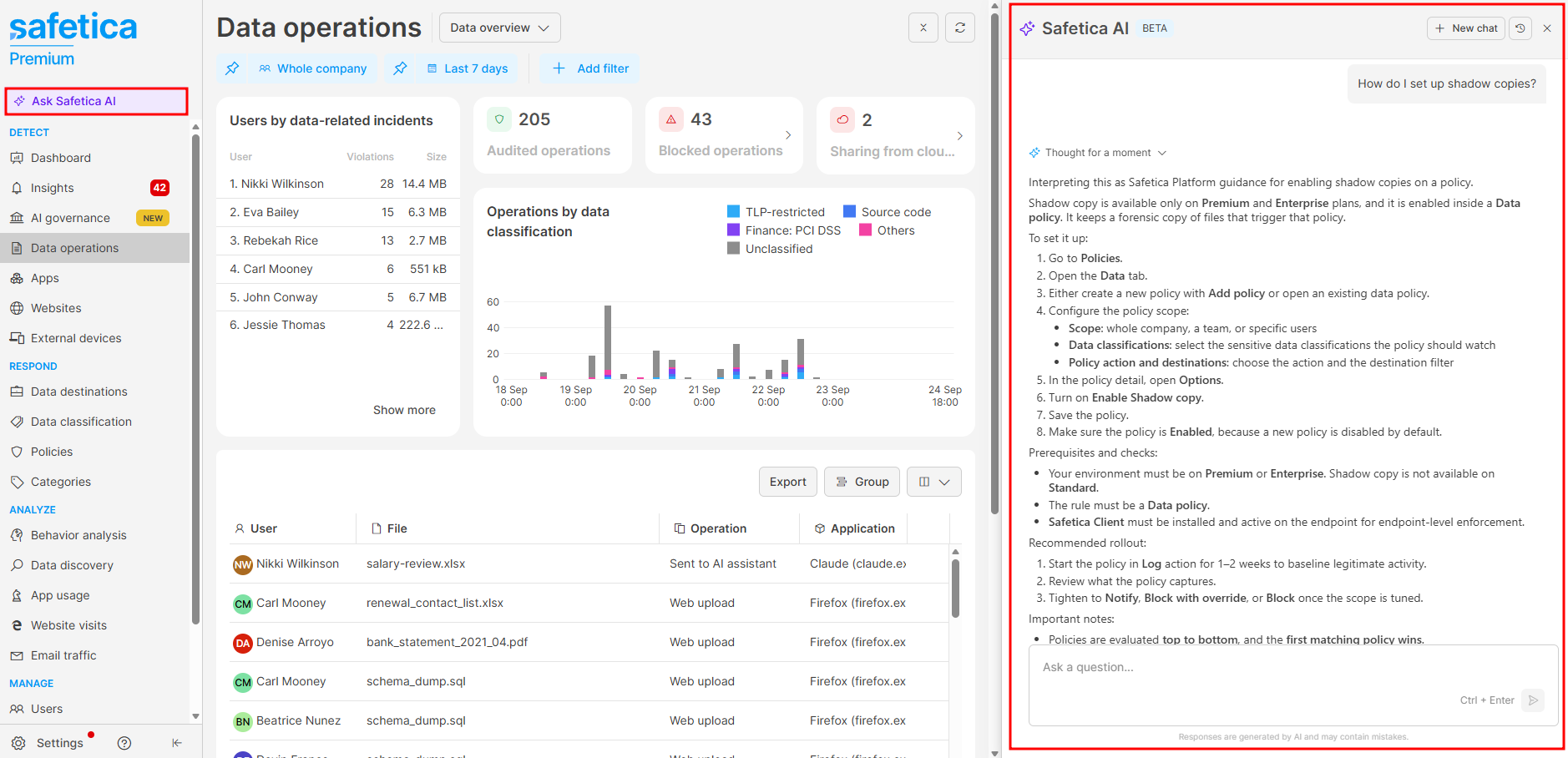
- Click Ask Safetica AI in the sidebar of the Safetica console.
- Enter your question and send it. While Safetica AI works, the panel shows the current phase (Planning, Executing, Verifying) and what it is reading, for example Searching file operations.
- Review the answer. Click Thought for a moment above the answer to see which records and settings Safetica AI consulted.
- Ask a follow-up question in the same conversation, or click New chat to start a different topic.
What you can ask
You can ask, for example:
- Records: "Which files did the Finance team upload to Dropbox last week?" or "How many files went to USB drives in the last 30 days?"
- Insights: "Why did yesterday's insight about Eva Bailey trigger?" or "How many open insights do we have?"
- Policies and configuration: "Which websites does the policy Block AI uploads cover?" or "Is dropbox.com in our Untrusted data destinations?"
- Users, devices, and teams: "When was John Smith last active?" or "Which devices run an outdated Safetica Client?"
- Trends: "Show the data flow to cloud drives over the last 30 days."
- Admin trail: "Who changed the policy Protect source code last month?"
- How Safetica works: "How do smart tags work?" or "What does the Block (with override) action do?"
State the period you mean. When you don't, Safetica AI picks a default and says so in the answer: the last 7 days for questions about individual operations (for example "which files went to Dropbox?") and the last 30 days for overview figures (for example "show the data flow to cloud drives").
Safetica AI sees where you are in the console. It knows which section you have open, so you can refer to it: "who are the top users in this section?" It does not see the filters you have applied, so state them in your question.
How to return to an earlier conversation
Safetica AI saves your conversations. Each admin sees only their own.
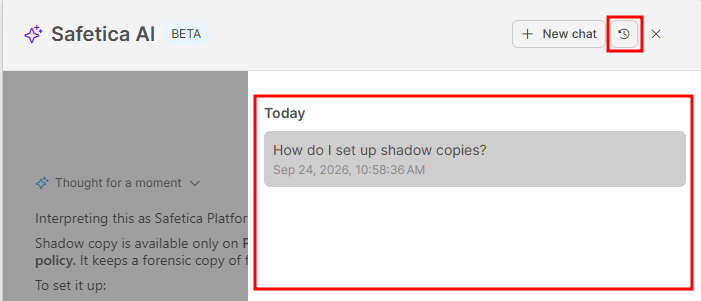
- Click Ask Safetica AI in the sidebar to open the panel, which starts a new conversation.
- Click the clock icon (Toggle chats) in the panel header.
- Click the conversation you want. Conversations are grouped by Today, Yesterday, Last 7 days, and Older.
The conversation opens where you left it, and you can continue it with follow-up questions.
Guided prompts
Besides answering your questions, Safetica AI runs guided prompts: predefined analyses that produce a report with the same structure on every run. Safetica offers the following guided prompts:
- AI exposure assessment: Click Run AI assessment in AI governance. Learn more here
Security and privacy
- Read-only: Safetica AI reads records and configuration through the same permission-controlled services the Safetica console uses. It cannot create, change, or delete a policy, classification, destination, account, or any other setting.
- What is never read: Safetica AI does not read the contents of your files.
- Where your data goes: To generate an answer, it sends your question, the conversation so far, and the records and configuration it read (names, counts, timestamps, policy names, and data classifications) to Azure OpenAI under Safetica's enterprise agreement. Customer data stays within that secured environment and is not used to train AI models.
- Where conversations are stored: In your Safetica environment, per admin. Another admin cannot open your conversations.
Responses are generated by AI and may contain mistakes. Safetica AI checks every figure against the records it read, but before you act on a figure that drives a decision, verify it in the corresponding console section.
FAQ
Q: Why does Safetica AI tell me I have no access to a section?
A: Safetica AI mirrors your console permissions. If your account cannot open a section in Safetica console, Safetica AI does not answer questions about it, not even about how the feature works in general. Ask whoever manages the accounts in your Safetica console to extend your permissions.
Q: Why do Safetica AI's figures differ from a Dashboard widget?
A: Dashboard widgets are pre-aggregated with their own methodology, and some count only files with a data classification. When you ask for a count, Safetica AI reads the records themselves, so its total matches Data operations rather than the widget. If you want the widget's figure, name the widget in your question, for example "What does the Dashboard show for file operations by data destinations in the last 30 days?"
Q: Can I use Safetica AI for tasks outside Safetica, such as translating text?
A: No. Safetica AI answers only questions about your Safetica data and about how Safetica features work. It declines other tasks and offers a Safetica investigation instead.