![Logo landing page 232x64 with border.png]](https://support.safetica.com/hs-fs/hubfs/Marketing/Safetica_logo_/Logo%20landing%20page%20232x64%20with%20border.png?width=145&height=40&name=Logo%20landing%20page%20232x64%20with%20border.png)
Applies to: Safetica On-Prem
Looking for the Safetica Platform version? See: Safetica Platform: How to change Safetica console password
How to change your own password
All admins, regardless of their permissions, can change their own password to Safetica console.
❗If you sign in via an Active Directory (AD) security group, you cannot change your password in the Safetica console. Your password is managed through AD.
To change your own password:
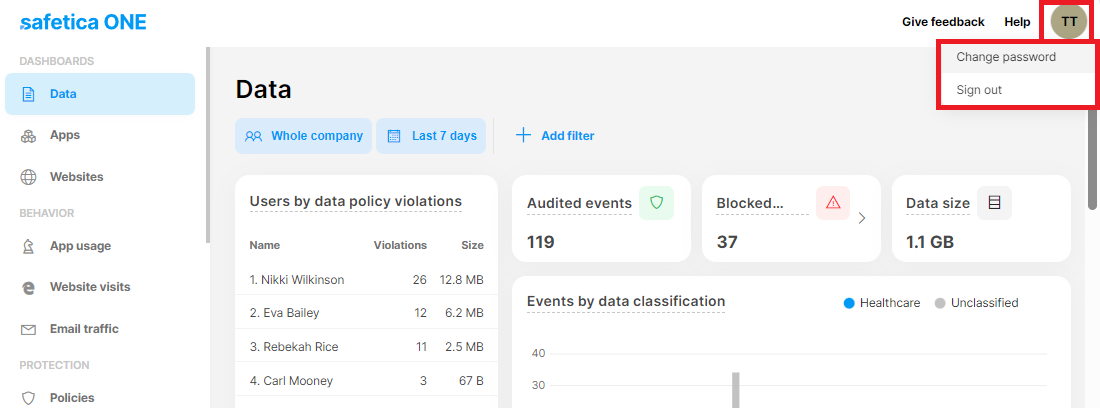
- Click your avatar in the top-right corner.
- Click Change password in the drop-down menu.
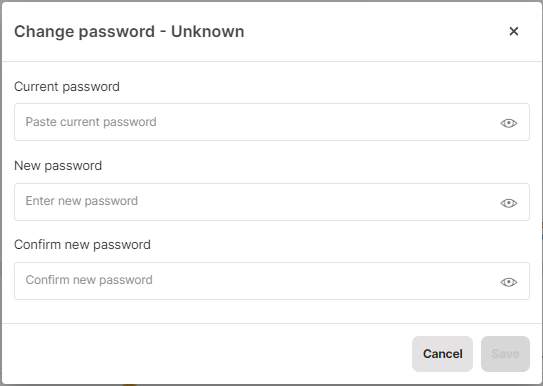
- Enter your current password and your new password. Click the eye icon to show passwords in plain text.
- Click Save to apply your new password.
Password requirements
Your new password must be 12-256 characters long and contain at least:
- 1 upper case letter
- 1 lower case letter
- 1 special character (blank space is not allowed as a special character)
- 1 number
How to reset another admin's password
You need the Settings and configuration permission to reset another admin's password.
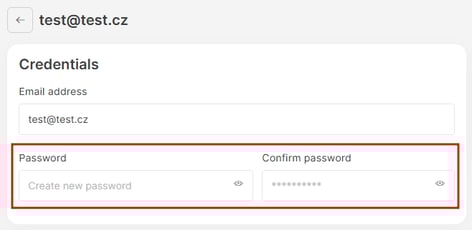
- Go to Settings > Accounts and permissions.
- Click the account you want to update.
- Enter the new password in both the Password and Confirm password field.
- Save your changes.
FAQ
A: If you forget your password, contact an admin who has Settings and configuration permission and ask them to reset it for you.
Q: How do I reset/recover my Safetica On-Prem admin passwords if the regular method fails?
A: If you have trouble resetting your admin passwords for Safetica On-Prem, please contact Safetica Support at support@safetica.com.