![Logo landing page 232x64 with border.png]](https://support.safetica.com/hs-fs/hubfs/Marketing/Safetica_logo_/Logo%20landing%20page%20232x64%20with%20border.png?width=145&height=40&name=Logo%20landing%20page%20232x64%20with%20border.png)
Introduction: Why to connect your Google Workspace organization
By connecting your Google Workspace organization to Safetica, you will:
- Connect Safetica to your company’s Google Workspace environment.
- Synchronize your Google directory and its users (accounts).
- Extend the scope of auditing from devices to the cloud.
- Extend the scope of user management from on-premises environments (such as Active Directory) to Google Workspace users.
- Ensure that user identities coming from different sources (e.g. local Active Directory, Entra ID, Google Workspace) are unified under a single user in Safetica, avoiding duplicates.
How to connect your Google Workspace organization
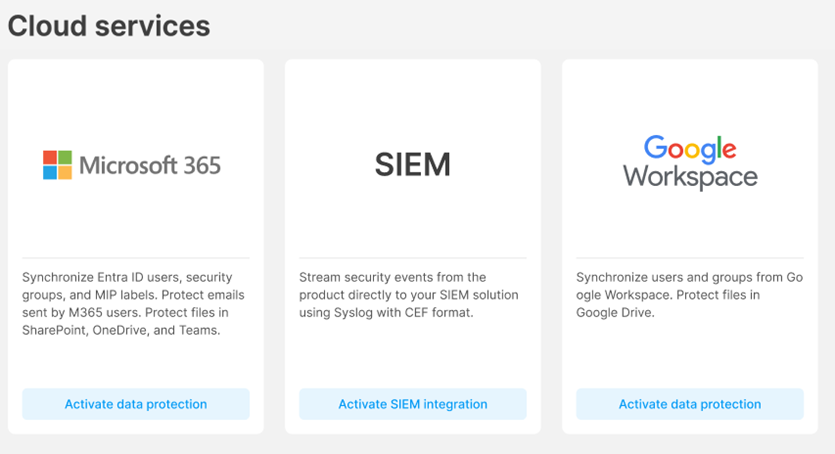
✨Safetica Platform: In Safetica console, go to Integrations, and click the Google Workspace tile.
💻Safetica On-Prem: In Safetica console, go to Cloud services, and click the Google Workspace tile.
1. Select a region
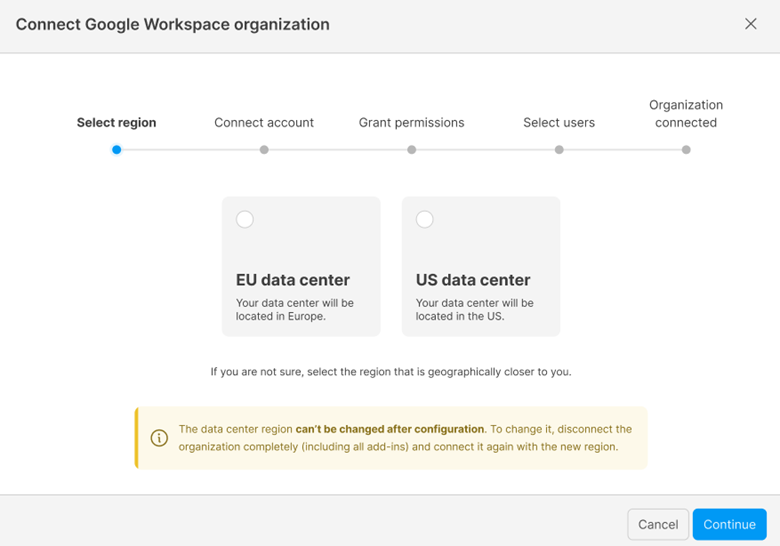
- Cloud-hosted Safetica: The region where your data is processed was pre-selected during customer registration. You cannot change it here.
- Safetica hosted on-premises: Select the region where your data should be processed: Europe or the United States. If unsure, select the region geographically closer to you.
❗ Once selected, the data center region cannot be changed.
To change it later, you must disconnect the Google Workspace organization (including all add-ins) and connect it again.
Data center locations:
|
Region |
Primary |
Safetica Cloud protection backup |
|
Europe |
West Europe |
North Europe |
|
United States |
West US 2 (Washington state) |
Central US (Iowa) |
Learn more about data centers here.
2. Connect the Google Workspace account
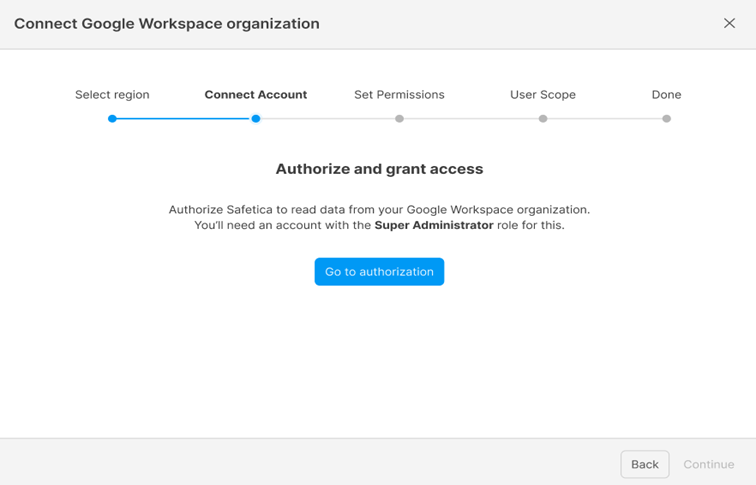
- Click Go to authorization.
- You will be redirected to the Google sign-in page.
- Sign in with a Google account that is a Super Administrator in the Google Admin console for the organization you want to connect.
- Review the requested access and click Allow. Check the boxes for Safetica to be granted the necessary permissions and register the Google Workspace organization.
- Close the browser tab and return to the Safetica console.
- After the Google Workspace authorization status updates to Done, click Continue to proceed.
3. Grant access permissions in the Google Admin console
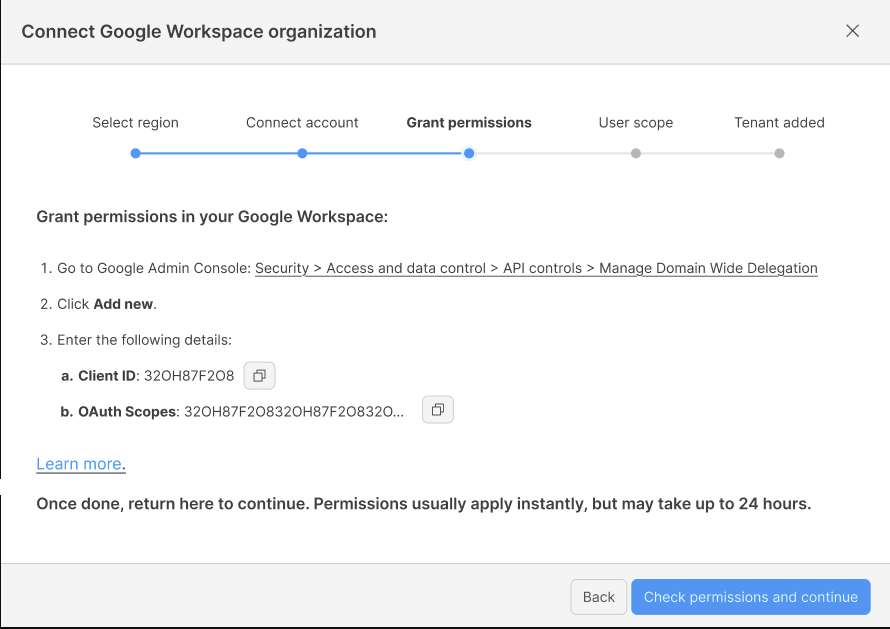
After connecting your account, you must assign Safetica the required permissions in the Google Admin console, so that Safetica can work with your workspace in defined scopes.
- Follow the on-screen instructions in Safetica console.
- Go to Google Admin Console: Security > Access and data control > API controls > Manage Domain Wide Delegation
- Click Add new.
- Safetica will display the values that need to be configured in Client ID and OAuth scopes. Use the copy icon next to each field to copy these values.
- Return to the Safetica console and click Check permissions and continue.
❗Permissions usually apply instantly but may take up to 24 hours.
Once the configuration is complete, Safetica can access the Google Workspace directory and start syncing users.
4. Select users
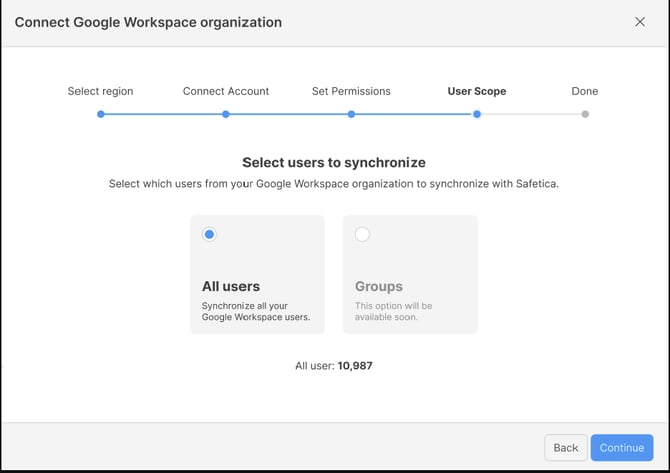
Select how you want to sync users from your Google Workspace organization:
- All users – sync all users from your Google Workspace organization.
You can always see in real time how many new users will be synchronized.
If the number of synced users exceeds available licenses by more than 3x times, you must either reduce their number or remove licenses from some licensed users. Learn how to remove licenses.
5. Google Workspace organization successfully connected
The last step is informative. If everything is successful, you have:
- Connected your Google Workspace organization to Safetica.
- Enabled synchronization of its users into Safetica.
❗ No protection features (such as Google Drive protection) are activated yet.
6. After the organization is connected
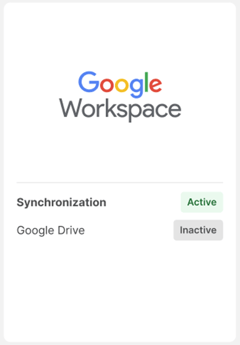
As soon as you finish connecting to your Google Workspace organization, its tile in the Cloud services section will show Synchronization – Active.
You can click the tile to view the organization’s details:
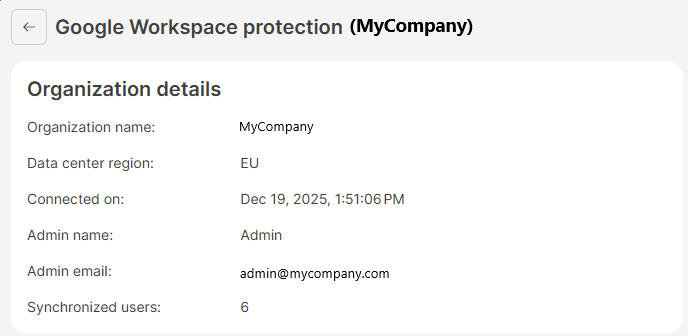
In the organization detail, you can see:
- The organization (domain) name.
- The data center region where your data is processed.
- When the organization was connected.
- Whether synchronization is active.
- Summary info about synchronized users.
✍️Next steps: Activate protection features
Follow the steps in these articles to activate specific protections:
More about synchronized users
✍️ After your Google Workspace organization is connected, the initial synchronization of users may take about 5-10 minutes, depending on the size of your organization.
- Synchronized Google Workspace users appear under the Cloud protection team in the user tree and in the Users section of Safetica console. They are synced every 4 minutes. Learn more about synchronized users and teams here.
- Synchronized users are periodically refreshed (every 4-5 minutes) to reflect changes in Google Workspace (for example, new users, renamed accounts, or removed users).
- You can work with Google Workspace users in Safetica just like with other users – you can include them in policies, reporting, or auditing.
✍️ User duplicates from multiple directories
If a user exists both:
- in a local Active Directory environment, or
- in Entra ID (Microsoft 365), and
- in Google Workspace (using the primary email address),
Safetica attempts to unify these identities under a single user instead of creating duplicates.
❗If you are using local Active Directory or Entra ID and are experiencing issues with user duplicates, please read this article.
How to disconnect Google Workspace organization
❗Disconnecting Google Workspace will break your Microsoft 365 integration. If you have both integrations, you'll need to reconnect your Microsoft 365 tenant after disconnecting Google Workspace.
❗ Before you can disconnect a Google Workspace organization from Safetica, you must first deactivate all protected apps (e.g., Google Drive).
- Go to Cloud services and click your Google Workspace organization.
- Click Disconnect organization.
FAQ
Q: Can I connect multiple Google Workspace organizations?
A: No, for now, you can only connect one Google Workspace organization.
Q: Is the password stored somewhere when synchronizing Google Workspace?
A: No, the password is not stored.
Q: Can I connect my Google Workspace and Microsoft 365 at the same time?
A: Yes, connecting both a Google Workspace organization and a Microsoft 365 tenant is possible and supported.
Q: Will my data and environment be logically or physically separated from other customers?
A: Customer data is logically separated within our Azure environment. Each customer has a dedicated container or table within Azure Storage, ensuring their data is isolated from other tenants at the storage level.
Q: How is customer data separated?
A: Safetica processes and stores data separately for each customer. All operations are performed within the scope of a single customer, and the system is designed to prevent access to data belonging to other customers.
Q: What security and compliance measures are in place to ensure data isolation and protection?
A: Data isolation and protection are reinforced through Azure’s built-in security controls, encryption (both in transit and at rest), and role-based access management. Our operational processes follow best practices for data privacy and least-privilege access. Access to customer data is strictly controlled and audited.