![Logo landing page 232x64 with border.png]](https://support.safetica.com/hs-fs/hubfs/Marketing/Safetica_logo_/Logo%20landing%20page%20232x64%20with%20border.png?width=145&height=40&name=Logo%20landing%20page%20232x64%20with%20border.png)
Introduction: Why control messaging apps individually?
Most companies rely on one approved messaging app for daily work (typically Teams or Slack), while other messengers on company devices are private.
On Safetica Platform and Safetica On-Prem 11.36+, the Instant messaging destination type in data policies can target individual messaging apps. You can, for example, allow file transfers via Teams, log transfers via Slack, and block file transfers via every other messenger.
Safetica recognizes these business messaging apps (both desktop apps and their web versions): Teams, Cisco Jabber, WhatsApp, and Slack.
How it works
- In a data policy, you select which messaging apps the policy applies to:
- All instant messengers at once.
- Individual business messaging apps.
- General (everything else) – the catch-all for all messengers that are not listed individually.
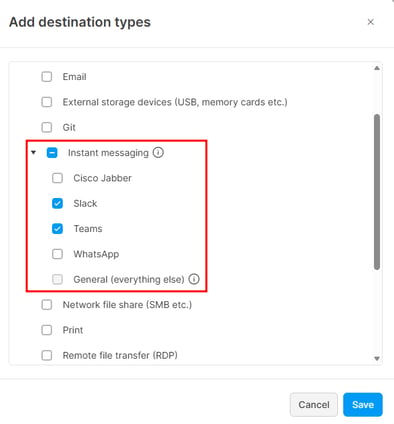
❗ General (everything else) can't be selected on its own. It is added only when you select the whole Instant messaging checkbox.
2. With Advanced control of individual destination types enabled, you can assign each selected app its own policy action.
3. Behavior in app categories:
-
-
Individual business messaging apps: Safetica identifies them directly, so it doesn't matter which app category they belong to.
-
General (everything else): If your policy doesn't cover them, they keep following your app categories.
-
Prerequisites
- You are using Safetica Platform or Safetica On-Prem 11.36 or newer.
- Your devices are using Safetica Client version 11.35 or newer.
How to set different actions for individual messaging apps
- Go to Policies and open the data policy you want to edit, or create a new one.
- Click Add destination type.
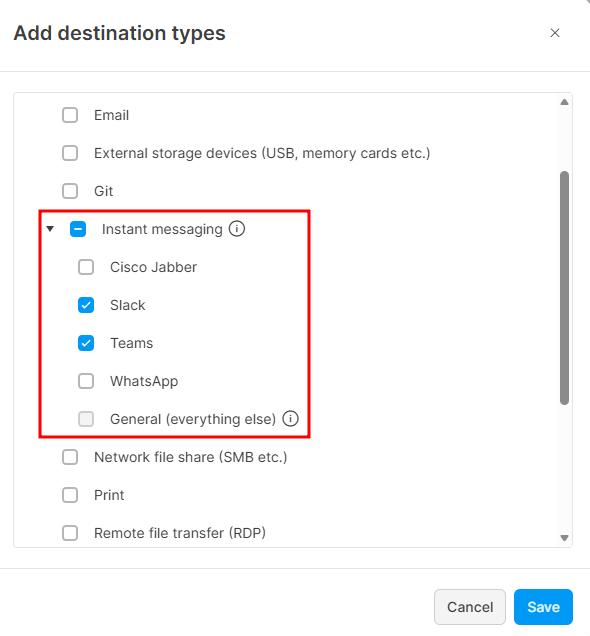
- Under Instant messaging, select the messaging apps you want to control individually.
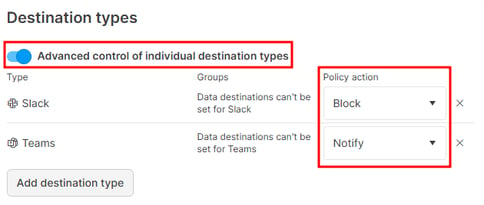
- Enable Advanced control of individual destination types.
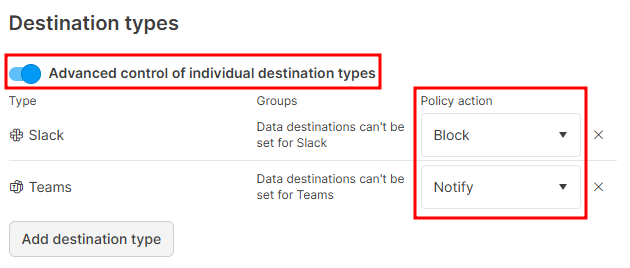
- Select the action for each messenger: Allow, Log, Notify, Block (with override), or Block.
From now on, the policy evaluates each selected messaging app separately instead of applying one action to all instant messengers.
❗ General (everything else) can't be selected on its own.
To apply an action to messengers not individually listed, control them through the whole Instant messaging destination type and assign different actions to the apps you select.
Example: Sensitive files may leave the company only to approved data destinations. You decide to block file transfer via instant messengers in general, but make exceptions for Teams and Slack - you allow file transfers via Teams and log file transfers via Slack.
- In a data policy, click Add destination type.
- Select the whole Instant messaging checkbox (which will include General (everything else)) and click Save.
- Click Add destination type again.
- Select Teams and Slack and click Save.
- Enable advanced control of individual destination types.
- Drag Instant messaging to the bottom of the list.
- Assign Allow action to Teams, Log action to Slack, and Block action to the general Instant messaging.
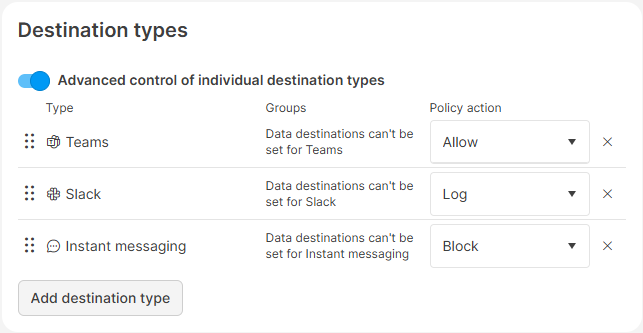
Users can now transfer files via Teams and Slack freely (with Safetica recording every transfer via Slack); while file transfers via WhatsApp or any other messenger are blocked.
What changed: Old category workaround not needed (and not working) after updating to Safetica 11.36+
Before Safetica 11.36, the only way to treat one messenger differently from others was a workaround built on app categories: admins moved an app (typically Teams) out of the Instant messaging category into another app category so that instant-messaging policies would not apply to it.
This workaround is no longer needed – and for the recognized business messaging apps, it no longer works:
- If an app is one of the individually mentioned business messaging apps (Teams, Cisco Jabber, WhatsApp, Slack), data policies evaluate it through the Instant messaging destination settings regardless of which app category it belongs to.
- Apps that aren't mentioned individually keep following app categories as before.
❗ If you moved Teams, Slack, or another messenger into a custom app category to bypass instant messaging policies, review your data policies after updating to Safetica 11.36+. Once your console and Safetica Clients update, data policies evaluate these apps through the Instant messaging destination settings and may block uploads that the workaround used to allow.
FAQ
Q: Can I add my own apps to the list of business messaging apps?
A: No, messengers outside the list are covered by General (everything else).
Q: Does detection break when a messaging app updates itself?
A: No. Regular app updates don't disrupt detection.