![Logo landing page 232x64 with border.png]](https://support.safetica.com/hs-fs/hubfs/Marketing/Safetica_logo_/Logo%20landing%20page%20232x64%20with%20border.png?width=145&height=40&name=Logo%20landing%20page%20232x64%20with%20border.png)
Introduction
The iOS device policy rule lets you manage what happens when an iPhone or iPad connects to a company Windows or macOS computer. You can allow, log, notify, or block the connection using external device policies. In the policy configuration, iPhones and iPads appear as their own device type called iOS device.
✍️USB cable connections are protected on both Windows and macOS. Wi-Fi sync connections are protected on macOS only.
Prerequisites
- 💻 On Safetica On-Prem: Safetica 11.44.13 (Fall Cumulative Release), or 11.46+ (Feature Releases).
🍏macOS limitations
Policies for iOS devices work on macOS, but some behaviors differ from Windows due to how macOS and Finder handle iOS devices:
- Read-only policies are enforced as Block: macOS does not support read-only access to iOS devices. A policy set to Read-only blocks the iOS device completely on macOS. The policy is still labeled Read-only in the console and in records.
- Finder may not reliably indicate that an iOS device has been blocked. Two behaviors are possible:
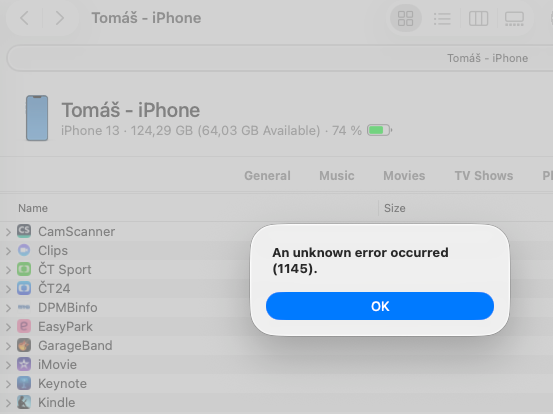
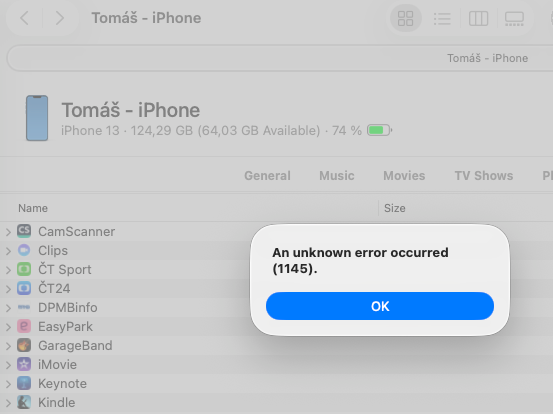
- Finder continues to show the blocked iOS device as connected. Any sync or file transfer to the device fails – usually with an error dialog, sometimes by the device silently disappearing from Finder.
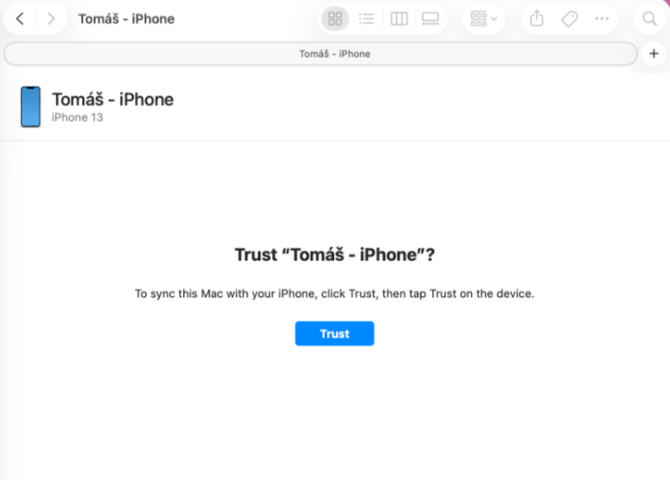
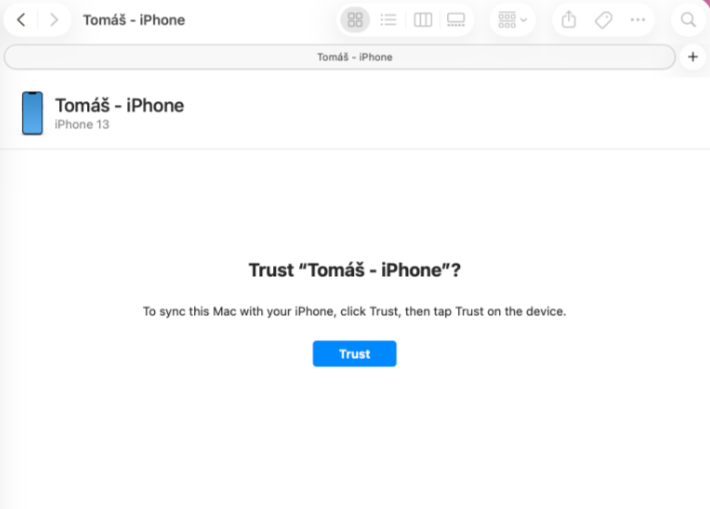
- Finder treats the iOS device as if it were connecting for the first time and prompts the Trust dialog on both the Mac and the iOS device. The device is still blocked, so the connection fails after the user confirms the prompt.
- Finder continues to show the blocked iOS device as connected. Any sync or file transfer to the device fails – usually with an error dialog, sometimes by the device silently disappearing from Finder.
- Policy re-evaluation after user switching: How macOS handles an already-connected iOS device after a user switch or restart depends on the original policy:
- If the device is blocked: The block stays in place for the new user. The new user does not receive a notification. To re-evaluate the policy for the new user, the device must be unplugged and reconnected.
- If the original policy is non-blocking (i.e., Allow, Log, Notify): The policy is re-evaluated correctly for the new user. However, the user may not receive a notification.
How to create an iOS device policy
To create a policy for iOS devices, go to the External device policies section. A single policy can target multiple device types (for example, iOS device and Windows Portable Device (WPD)) and assign an action and optional data destinations to each.
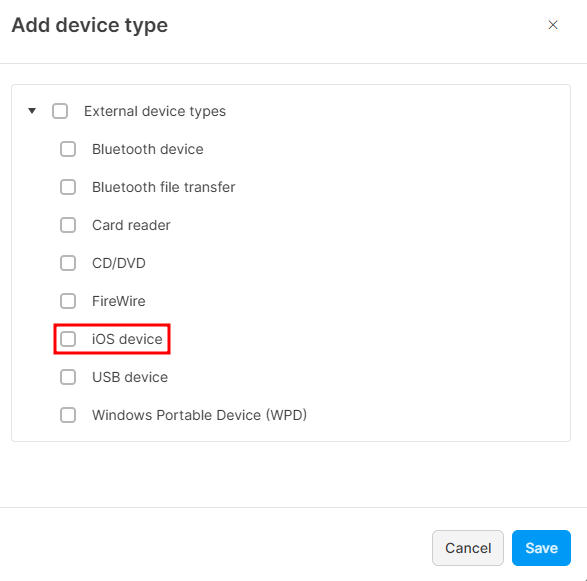
- Go to Policies > External devices tab and click Add policy.
- Enter a name for the policy.
- Choose the policy action: Allow, Log, Notify, Read-only, or Block.
- Optionally, assign data destinations to scope the policy to specific iPhones or iPads.
- Under External device types, click Add device type and select iOS device.
- Select the users or teams the policy should apply to.
- Choose how insights should be triggered. Learn more here.
- Click Save.
❗ Read-only is not supported on macOS for iOS devices. A Read-only iOS device policy is enforced as Block.
The policy now applies to iPhones and iPads connecting via USB on Windows and macOS, and via Wi-Fi sync on macOS.
iOS devices in Data destinations
- On macOS: Connected iOS devices are reported in Data destinations with the description Apple iPhone or Apple iPad, along with the serial number (UDID).
- On Windows: iOS devices are typically reported with the same description (Apple iPhone / Apple iPad), but this is not guaranteed. Windows reports whatever it reads from the device, so the description may differ.
💻Safetica On-Prem: What happens What happens on update to Safetica 11.44.13 or 11.46+ from an older version
❗Win only: To avoid losing policy enforcement during the update, follow these steps:
- Update Safetica Client on all Windows devices to at least version 11.31.22. This version adds support for the new iOS type to Windows devices, so existing policies continue to match after server update.
- Update the server.
- Update Safetica Clients on all Windows devices to the latest version.
Before this update, iPhones and iPads connecting through a USB cable to Windows were handled by the Windows Portable Device (WPD) device rule, and connections to macOS were not controlled at all.
After the update, Safetica treats iOS devices as their own device type in external device policies on both Windows and macOS. The update triggers the following changes automatically:
- Separate device type in external device policies: When you create an external device policy, iOS device is now a selectable device type alongside Windows Portable Device (WPD) and other types.
- Existing iPhones and iPads are reclassified: iPhones and iPads were previously reported as Windows Portable Device (WPD). Now they are changed to the new iOS device type in Data destinations and in external device records.
- Existing WPD policies are duplicated for iOS devices: Every external device policy rule targeting Windows Portable Device (WPD) is duplicated as an equivalent rule for iOS device, with the same policy action and data destinations.
- Apple iPhone and Apple iPad in Data destinations: Connected iOS devices appear in Data destinations. See section iOS devices in Data destinations for details.
The policy duplication preserves your existing protection for iPhones and iPads without manual reconfiguration. After the update, review your external device policies and adjust the new iOS device rules if you want different behavior for iPhones and iPads than for other Windows Portable Devices.
FAQ
Q: Does Safetica still control iPhones/iPads that connect to Windows devices?
A: Yes. iPhones connecting to Windows continue to be controlled. After the update to Safetica 11.44.13 (Fall Cumulative Release) or 11.46+ (Feature releases), they are reported and matched under the new iOS device type rather than under Windows Portable Device (WPD), and the automatic policy duplication keeps your existing protection in place.
Q: Can I have different behavior for iPhones/iPads on Windows than on macOS?
A: No, a single iOS device policy applies to both platforms. The same physical device is matched by its UDID, which is identical on Windows and macOS, so one policy covers both.