![Logo landing page 232x64 with border.png]](https://support.safetica.com/hs-fs/hubfs/Marketing/Safetica_logo_/Logo%20landing%20page%20232x64%20with%20border.png?width=145&height=40&name=Logo%20landing%20page%20232x64%20with%20border.png)
Introduction: Why protect git push?
Source code is often a company's most valuable intellectual property, and git push is the moment it leaves a developer's device. By adding Git repositories to data destinations, you can decide which of them are safe for your code and what happens when someone pushes anywhere else.
In Data destinations, you can describe the Git repositories your organization uses (each repository is identified by its SSH URL, HTTPS URL, or both) and treat them like any other data destination - decide which are safe or untrusted, divide them into destination groups, and granularly control them with data policies.
How it works
- Add a Git repository to Data destinations using its SSH URL, HTTPS URL, or both.
- Safetica covers any Git client that runs the git command line in the background (the terminal, IDE integrations such as JetBrains or VS Code, and GUI apps such as Sourcetree or GitHub Desktop).
- Assign the Git repository into a destination group and decide whether it is safe safe or untrusted.
- Create or edit a data policy that targets the Git destination type and set the policy action.
- Safetica then evaluates each git push from your devices against the policy and allows, logs, notifies about, or blocks it.
- Only git push is controlled. Other operations, such as fetch, pull, or clone, are not evaluated against policies.
- When a push goes to a remote with multiple targets, the most restrictive matching rule applies.
- Review git push activity in the repository detail or in the Data operations section.
✍️ If someone pushes into a new repository, the repo will automatically appear in the Unassigned column of the Data destinations section.
Permissions
Managing data destinations is available to Safetica admins with the Data destinations, data classification, and categorization permission.
How to add a Git data destination
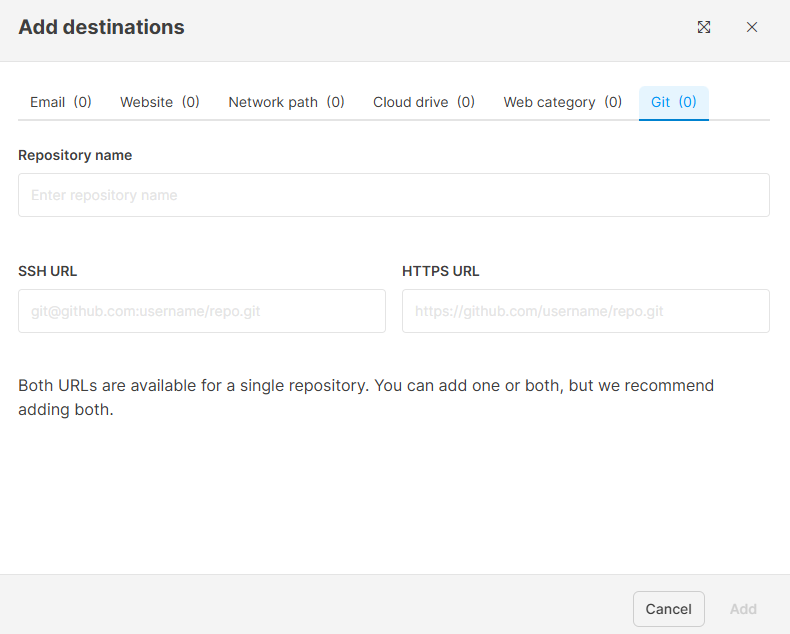
- Go to Data destinations.
- Click the three dots above the respective column or within a destination group and select Add destinations.
- Select the Git tab.
- Enter the Repository name.
- Enter the SSH URL, the HTTPS URL, or both.
✍️Format examples:
HTTPS: https://dev@dev.azure.com/dev/OurCompany/_git/OurRepository/
SSH: git@ssh.dev.azure.com:v3/dev/OurCompany/OurRepository
✍️ Protect entire groups of repositories with one rule: Safetica supports prefix matching for both SSH and HTTPS. If you enter just an organization (e.g., https://github.com/acme-corp or git@github.com:acme-corp), the rule covers all repositories in it.
6. Click Add. Safetica checks both URLs against existing Git destinations and won't create a duplicate. If a URL is already in use, it tells you which destination already uses it.
The repository appears among your data destinations with the destination type Git.
✍️ Because developers often use HTTPS for some remotes and SSH for others, we recommend adding both URLs.
How to view the Git repository detail
- Find the repository in Data destinations. To show only Git destinations, use the Destination type filter and select Git.
- Click the repository to open its detail.
The Git repository detail shows the repository name, its SSH and HTTPS URLs, user activity, and the actions taken by policies.
How to edit or rename a Git data destination
You can change the repository name and the URLs after adding a destination.
- Find the repository in Data destinations. To show only Git destinations, use the Destination type filter and select Git.
- Click the repository to open its detail.
- Click the three dots in the top right corner and select Edit item.
- Edit the Repository name, SSH URL, or HTTPS URL and save the changes.
The updated URLs take effect for policy evaluation. The same duplicate check applies, so a URL already used by another destination is rejected.
How to control git push with a data policy
Once your git repository is in Data destinations, you can set up a data policy that decides what happens when someone pushes to it.
- Go to Policies > Data tab.
- Click Add policy, or click an existing data policy to edit it.
- Under Destination types, click Add destination type and select Git.
- Choose the destination groups the policy applies to, and set the policy action to Allow, Log, Notify, Block, or Block (with override).
- Select the users, teams, or devices the policy should apply to.
- Save the policy.
✍️ When several rules match the same push, the most restrictive action wins, regardless of rule order. Policy is evaluated per remote, so a push to an allowed remote succeeds even when another configured remote would be blocked.
✍️Learn more about data policies here.
Example: Your team hosts its product code at https://company-dev@dev.azure.com/company-dev/Company/_git/DevOps. You add the repository as a Git data destination, place it in your safe destinations, and set your data policy to block pushes to untrusted destinations. A developer can push to the company repository as usual, but pushing the same project to a personal GitHub repository is blocked.
How to review git push activity
- Go to Data operations.
- In Add filter select Destination type > Git or Operation > Git push, to see every push evaluated by your policies.
- Click a specific record to see its detail, including the Git repository name.
✍️You can also filter the Data destinations view by the Destination type filter to list only your git repositories.
Example: Which repositories were blocked by Safetica?
To find out for which repositories git push was blocked:
-
Go to Data operations.
-
Click Add filter and select Operation > Git push.
-
Click Add filter and select Policy action > Block.
In the table, you can see the address of the Git repository, the path to the local synced directory, who initiated the git push, and many more details.
FAQ
Q: Which git operations does Safetica control?
A: Only git push. Other operations such as clone, fetch, and pull are never blocked or logged.
Q: Which Git clients does Safetica cover?
A: Any client that uses the git command line in the background, including IDE integrations (VS Code, JetBrains) and desktop apps (Tower, Sourcetree, GitHub Desktop, GitKraken). Clients that use the libgit2 library directly are not covered.
Q: Why should I add both the SSH and HTTPS URLs for a repository?
A: A destination matches only the URLs you enter. Because developers often use HTTPS for some remotes and SSH for others, adding both ensures your policy applies no matter which protocol is used.
Q: If a repository has several push targets, which rule applies?
A: Policy is evaluated per remote, and the most restrictive matching rule wins, regardless of rule order. A push to an allowed remote succeeds even when another configured remote would be blocked.