![Logo landing page 232x64 with border.png]](https://support.safetica.com/hs-fs/hubfs/Marketing/Safetica_logo_/Logo%20landing%20page%20232x64%20with%20border.png?width=145&height=40&name=Logo%20landing%20page%20232x64%20with%20border.png)
You must deactivate Outlook protection in the following order:
-
Step 1: Delete the Outlook add-in from Microsoft Entra admin center
-
Step 2: Remove the Outlook add-in from Microsoft 365 admin center
Step 1: Delete the Outlook add-in from Microsoft Entra admin center
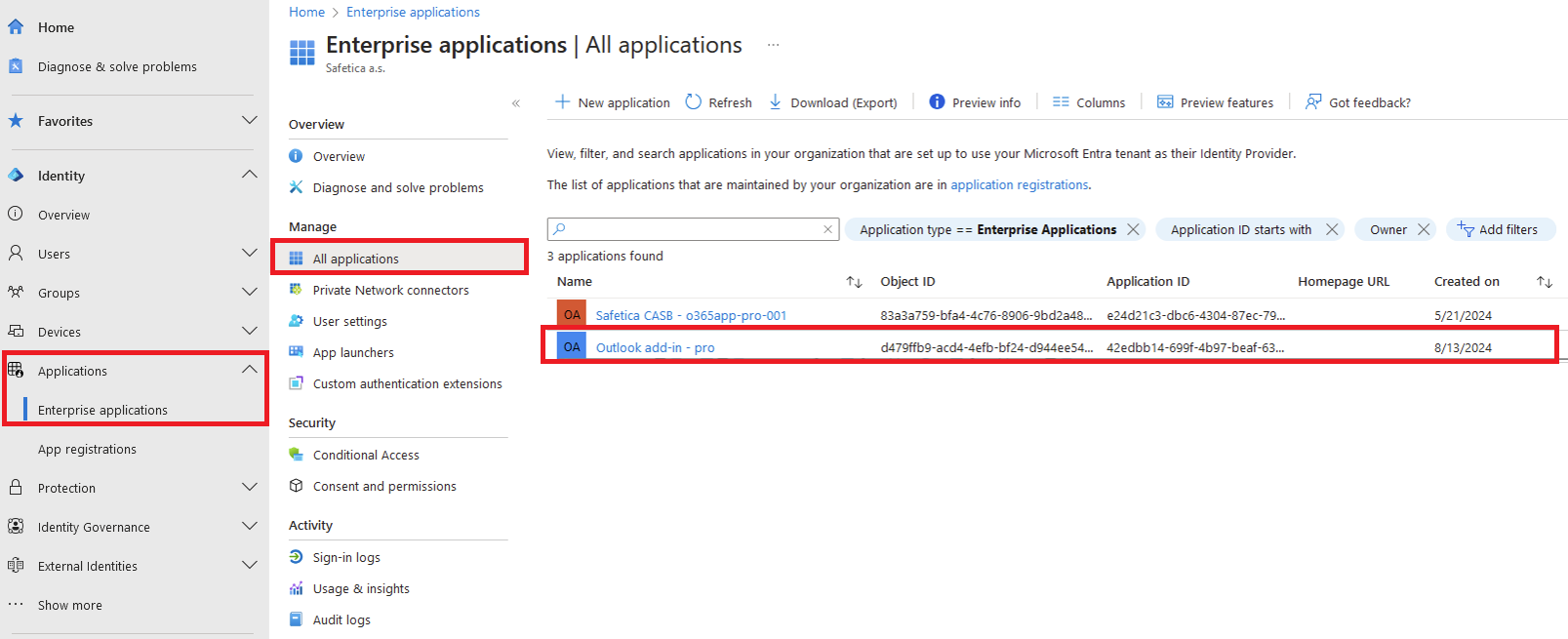
- Go to Microsoft Entra admin center.
- In the left navigation panel, click Applications > Enterprise applications.
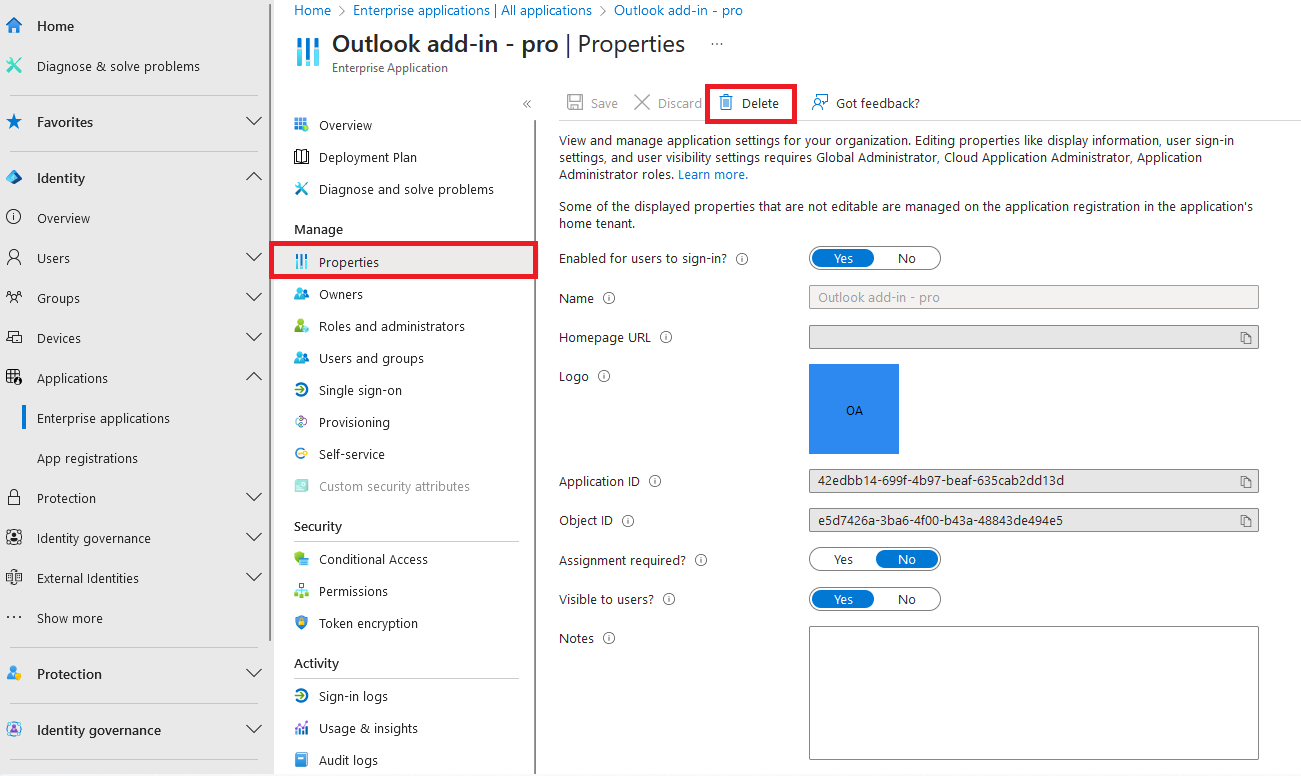
- Find and open the app named Outlook add-in - pro.
❗There are two Safetica apps listed. Make sure you select the Outlook add-in - pro app, not the other one.
Step 2: Remove the Outlook add-in from Microsoft 365 admin center
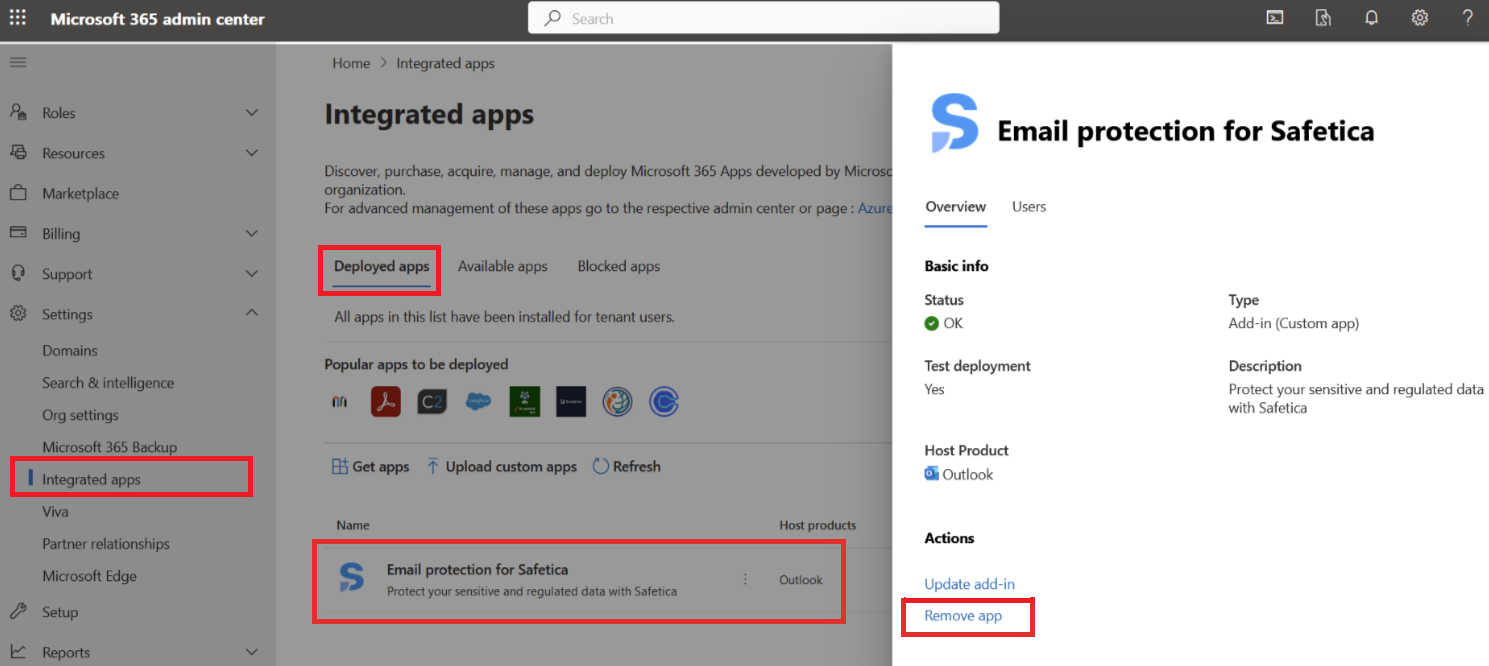
- Go to Microsoft 365 admin center.
- In the left navigation panel, click Settings > Integrated apps.
- On the Deployed Apps tab, find and click the add-in named Email protection for Safetica.
- Click Remove app.
Step 3: Deactivate Outlook protection in Safetica console
- Go to Safetica console.
- Go to Cloud services and select your M365 tenant.
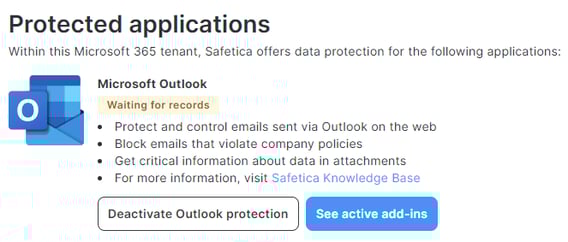
- Click Deactivate Outlook protection.