![Logo landing page 232x64 with border.png]](https://support.safetica.com/hs-fs/hubfs/Marketing/Safetica_logo_/Logo%20landing%20page%20232x64%20with%20border.png?width=145&height=40&name=Logo%20landing%20page%20232x64%20with%20border.png)
Product differences:
-
In Safetica On-Prem, deactivations earlier set in Endpoint deactivation in Safetica Maintenance Console are now converted to device settings.
Why disable individual Safetica services?
When Safetica Client causes a problem on a device (a slow app, a software conflict), a device setting lets you disable just the specific service behind it. The rest of Safetica Client keeps running.
A device with a service disabled on purpose doesn't have to look like a problem. Each setting defines whether its devices appear as Protected, Degraded, or Unprotected, and the device detail shows which setting disabled which service.
How it works
- Settings apply by priority, top to bottom. For each service, the first setting that includes the device and contains the service wins.
- Any service not defined in a setting is inherited from the settings below it. The predefined Default settings always stays at the bottom and covers the whole company.
Prerequisites and permissions
- Devices must run Safetica Client 11.47.14 or newer. Older versions ignore the services in device settings, except Browser extensions (11.43+).
- Creating and editing settings requires the Device management permission. Admins with only Device view see the settings and the Services table in the device detail, but can't change them.
How to disable a service on selected devices
Use this when one service causes problems on specific devices and the rest of the protection should keep running.
- Go to Devices > Settings (top right) > Settings and click Add setting.
- Enter a Name and a Description (will be shown next to the setting in the device detail - explain why the service is disabled).
- Under Services, click Add service, choose the services, and click Select. What each does and in which group you'll find it: Services you can disable.
- Set each added service to Disabled.
- Under Protection, choose how the devices appear in Devices: Protected, Degraded, or Unprotected.
- Under Apply to, select the devices or teams.
- Click Save.
- Drag the new setting from the top of the list to its correct position.
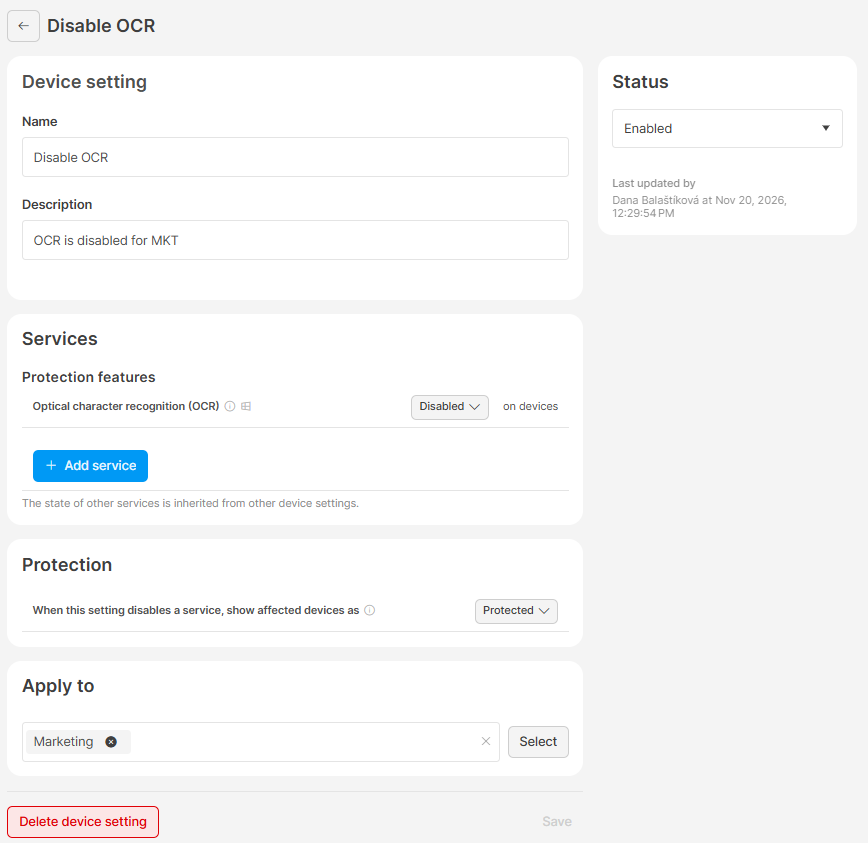
After the devices synchronize, the disabled services stop and everything else keeps running (Disk driver and External device driver change only after a restart).
In Devices, Protection details shows Partially deactivated by device setting with the Protection status from your setting, and the device detail's Services table lists the services with Set to: Disabled.
Example: OCR slows down the Design team's devices. A setting Disable OCR for Design with Optical character recognition (OCR) set to Disabled, Protection kept at Protected, applied to the Design team, stops the checking of text in images. Everything else runs, and the devices stay Protected.
You can also start from the devices table with the Activate / Deactivate via setting action. Learn more here
How to deactivate Safetica Client on selected devices
Use this to turn off the whole Safetica Client, for example during troubleshooting.
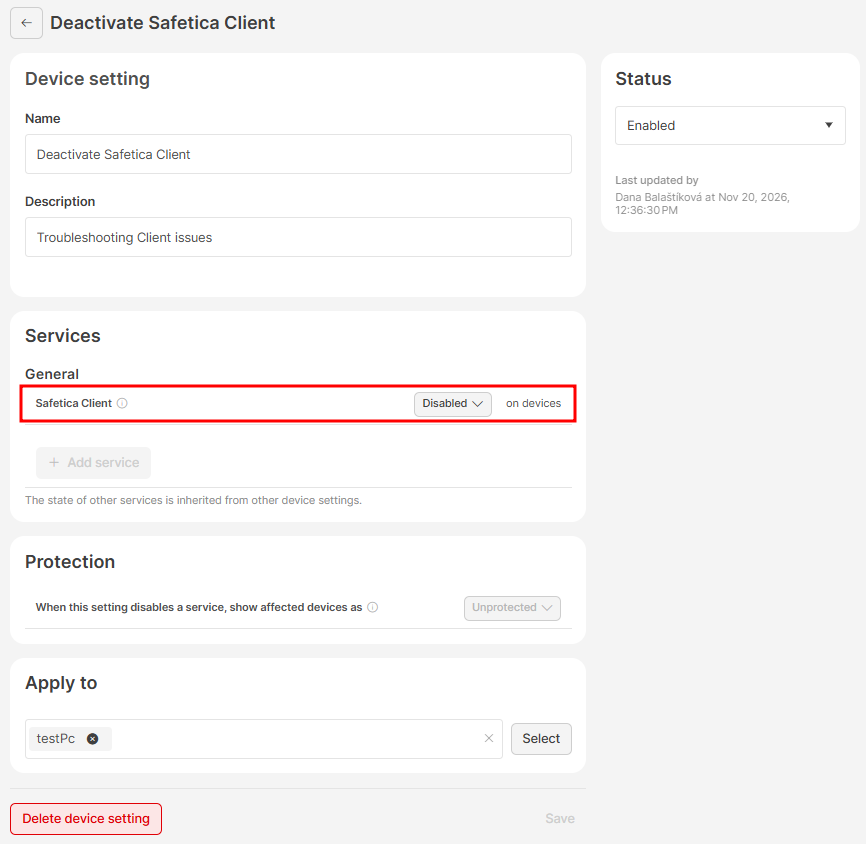
Follow the same steps as above, with two differences:
- Add Safetica Client and set it to Disabled.
- Skip Protection: devices with Safetica Client deactivated always appear as Unprotected.
After the devices synchronize, Safetica Client stops on them.
Protection details shows Deactivated by device setting, and Protection shows Unprotected.
If a setting that deactivates Safetica Client already exists, you can add devices to it right from the Devices section: Action > Activate / Deactivate via setting > Add to setting.
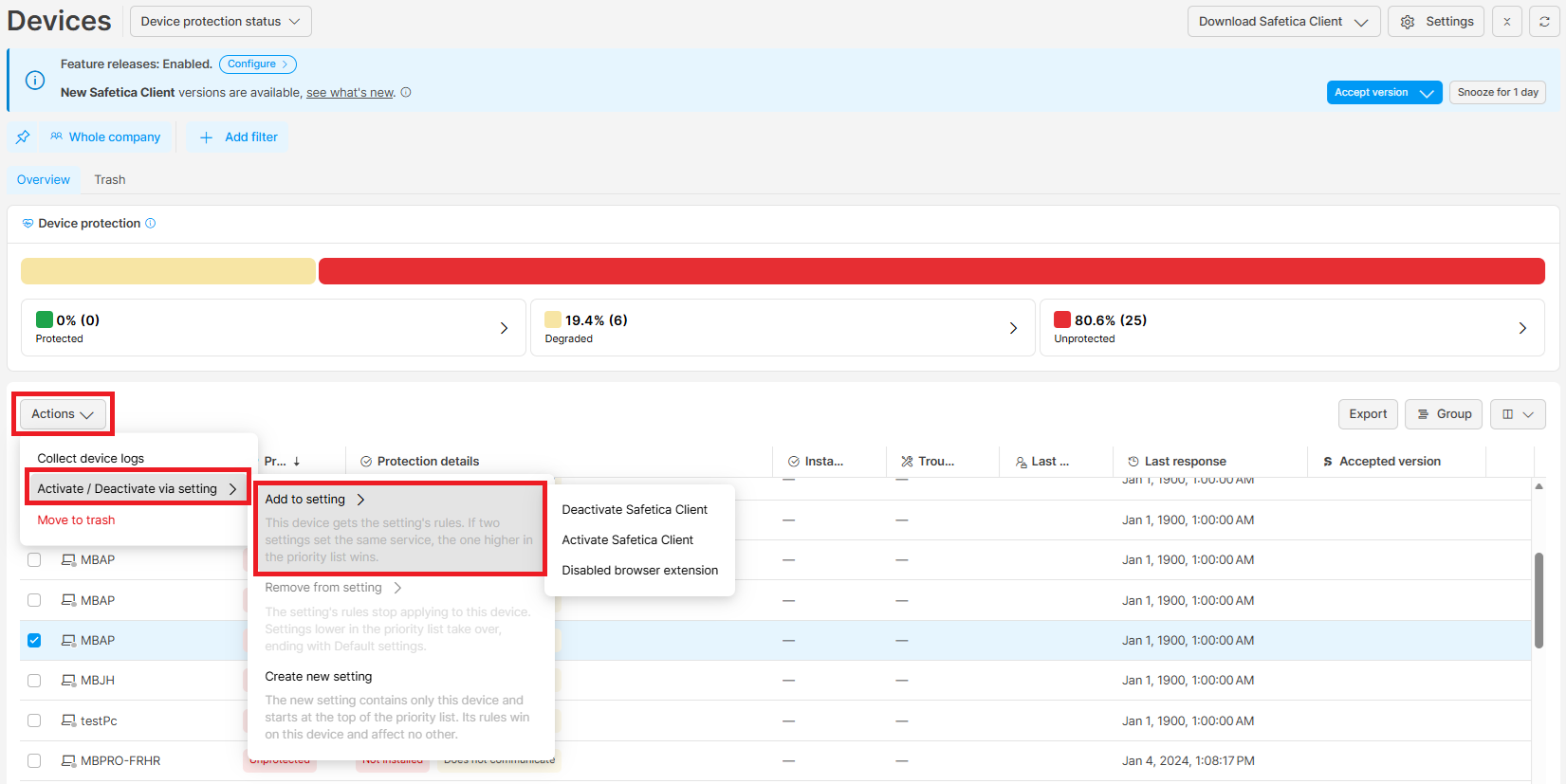
Deactivating Safetica Client leaves the devices unprotected. Other services in the same setting are locked and don't apply while Safetica Client is Disabled (except Event log service on Windows). Their values are remembered and will apply again once you set Safetica Client back to Enabled.
How to enable a service or Safetica Client again
Open your setting and do one of the following:
- Set the service to Enabled. The devices then run it, unless an applicable setting deactivates Safetica Client or, for Document content analysis and OCR, disables Content analysis.
- Click Remove service next to it (shown only when the setting contains more than one service).
- Set the setting's Status to Disabled - it stops applying to its devices.
- Delete the setting.
How to add devices to a device setting or remove them from it
Use the Activate / Deactivate via setting action when a suitable setting already exists, or to create one just for the selected devices.
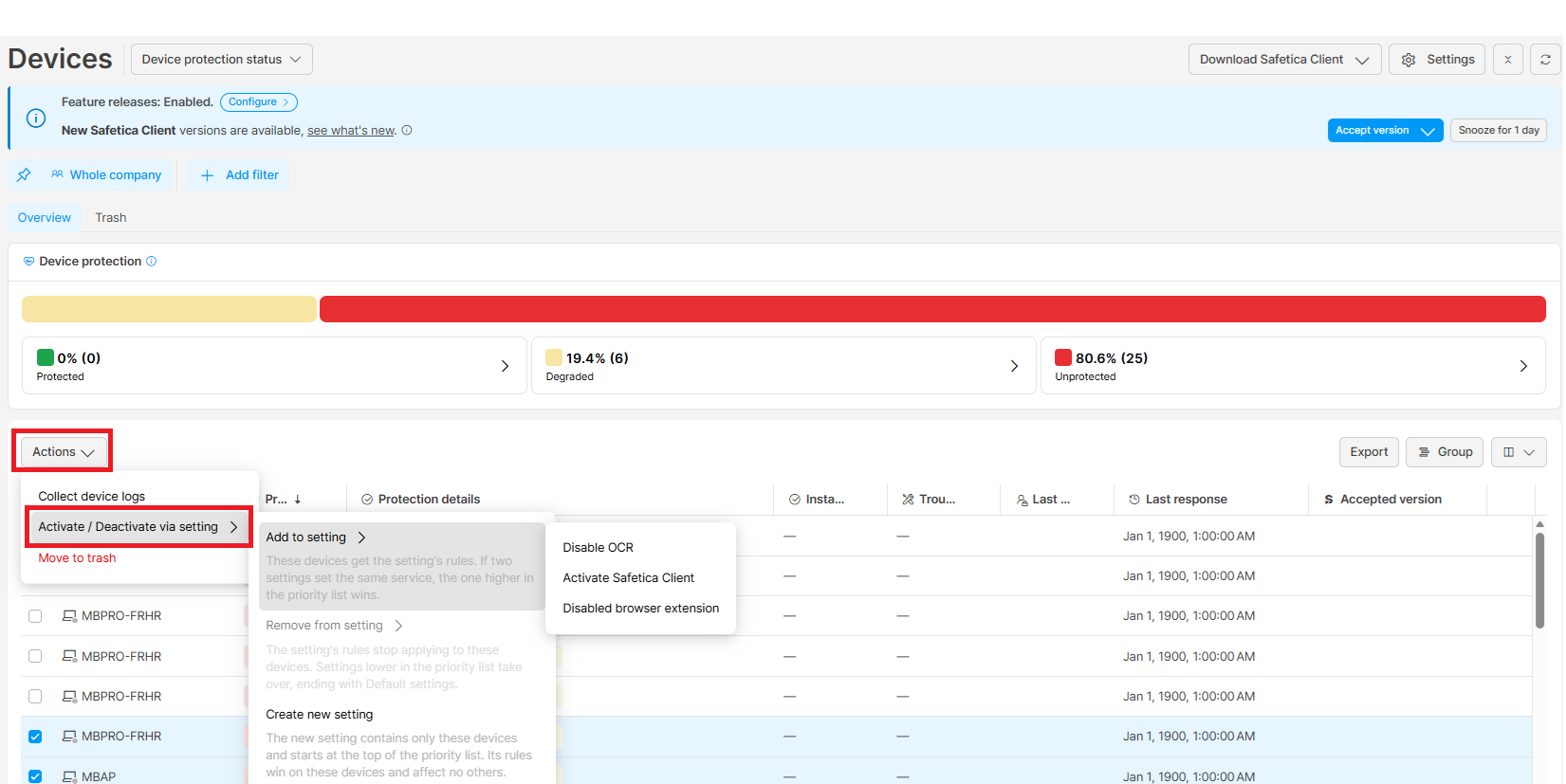
- In Devices, select the devices and click Actions > Activate / Deactivate via setting.
- Select an option:
- Add to setting: the setting starts to apply to the devices.
- Remove from setting: the setting stops applying; lower-priority settings take over, ending with Default settings.
- Create new setting: a new setting opens with only the selected devices under Apply to. Se it as above.
- For add and remove, review the Setting details and click Add or Remove.
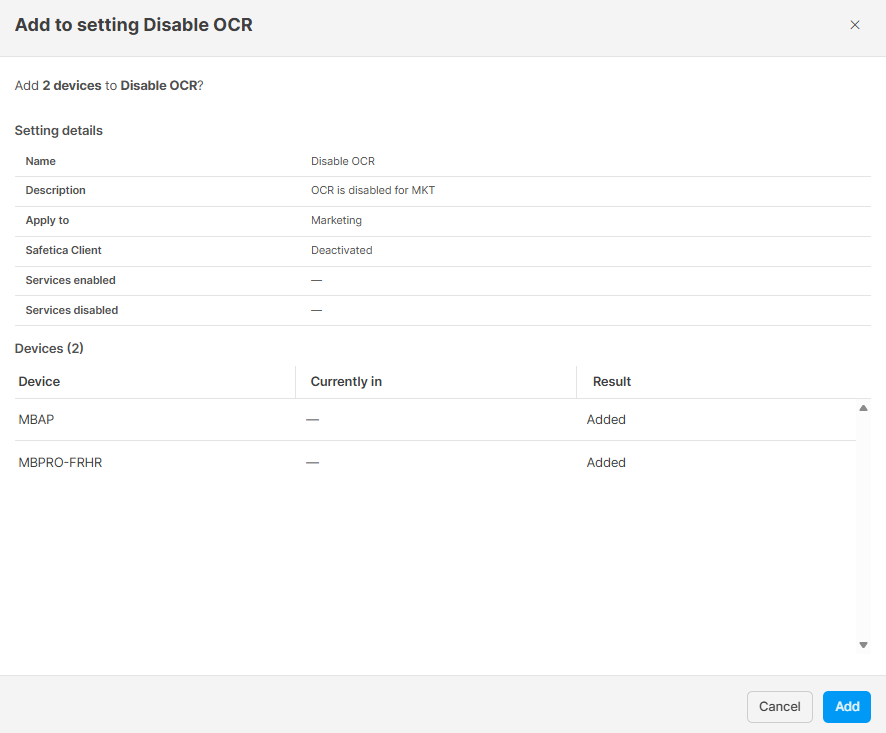
The devices apply the change when they synchronize.
The Activate / Deactivate via setting action is also in the device detail, above the Services table.
Remove from setting works only for devices added individually. A device covered through its team stays covered (exclude it under Apply to in the setting). The last target can't be removed (delete the setting or change its targets instead).
How to check which services are disabled on a device
Go to Devices, click the device to open its detail, and scroll to Services.
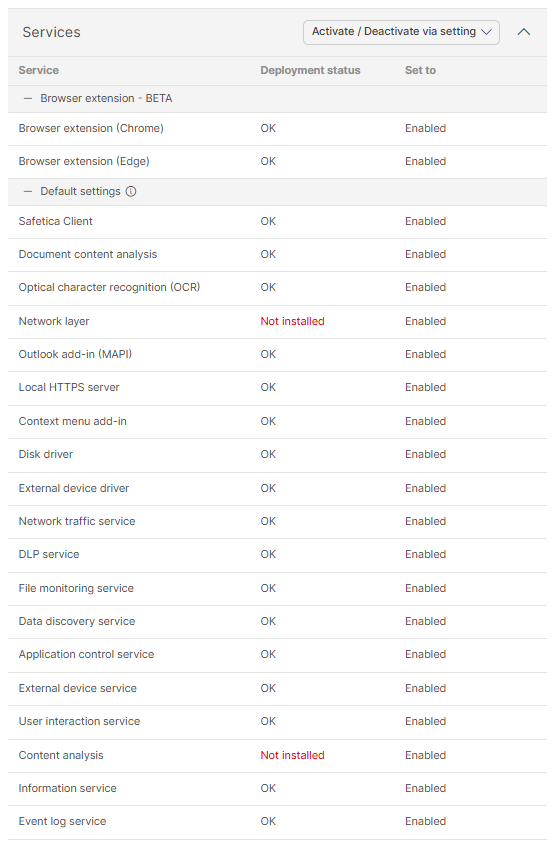
The table groups the services by the setting that controls them. Each row shows the Service, the Deployment status the device reports, and Set to (what the setting asks for: Enabled, Disabled, or Removed (only for External device driver)). Click Change > Edit setting for this service to open the controlling setting.
| Deployment status | Meaning |
|---|---|
| OK | The service runs on the device. |
| Installed | Installed is a status only shown for browser extension: the extension is installed but has not connected to Safetica Client yet, while OK means it is running and connected. |
| Not installed | The service doesn't run; expected for Disabled or Removed. |
| Pending restart | Will take effect after the device restarts. |
| Failed | The device couldn't reach the requested state. |
| Unknown | Not reported by the device yet. |
Device states for disabled services
The Protection details column in Devices shows:
| Protection details | Protection | Meaning |
|---|---|---|
| Deactivated by device setting | Unprotected | A setting deactivates Safetica Client. |
| Partially deactivated by device setting | The status from the setting (Protected by default) | A setting disables one or more services; the rest runs. |
| Partially deactivated unexpectedly | Degraded | A service set to Enabled doesn't run, and no setting disabled it. |
Learn more about device states here.
Services you can disable
macOS devices ignore services marked Windows only and apply the rest of the setting - you don't need separate settings per OS.
| Service | Group | Runs on | When disabled |
|---|---|---|---|
| Safetica Client | General | Windows, macOS | Devices are unprotected; no other service in the setting applies (except Event log service on Windows). |
| Document content analysis | Protection features | Windows | Stored documents aren't analyzed for sensitive content. |
| Optical character recognition (OCR) | Protection features | Windows | Text in images isn't checked for sensitive content. |
| Browser extensions | Integrations | Windows, macOS | The extension is removed from Google Chrome and Microsoft Edge. |
| Network layer | Integrations | Windows | Network traffic isn't audited or blocked. |
| Outlook add-in (MAPI) | Integrations | Windows | Emails from Microsoft Outlook aren't audited. |
| Local HTTPS server | Integrations | Windows, macOS | Emails sent from the new Outlook aren't protected, because the Safetica add-in for the new Outlook can't connect to Safetica Client. |
| Context menu add-in | Integrations | Windows | No file classification from the File Explorer context menu; the Safetica shell extension app is removed. |
| Disk driver | Drivers | Windows | File operations on device disks aren't audited or blocked. Needs a restart. |
| External device driver | Drivers | Windows | External devices aren't controlled. Needs a restart. Removed also uninstalls the driver. |
| Network traffic service | Services | Windows | Network traffic isn't audited. |
| DLP service | Services | Windows, macOS | Data policies don't block or record data transfers. |
| File monitoring service | Services | Windows | Safetica's internal self-protection is turned off and Safetica's own folders aren't protected. Data policies can't recognize cloud drives, external devices, or network locations as destinations. |
| Data discovery service | Services | Windows, macOS | Data discovery doesn't analyze device files for sensitive data. |
| Application control service | Services | Windows | Application policies don't apply. |
| External device service | Services | Windows, macOS | External device policies don't apply. |
| User interaction service | Services | Windows, macOS | No Safetica notifications; users can't classify files (they can’t apply user-apllied tags). |
| Content analysis | Services | Windows, macOS | Files aren't analyzed for sensitive content; content-based data policies don't apply. |
| Information service | Services | Windows, macOS | No device information or telemetry is sent to Safetica. |
| Event log service | Advanced | Windows | No debug logs, which Safetica Support needs to investigate issues. |
Disabling the local HTTPS server stops email protection in the new Outlook - its Safetica add-in connects to Safetica Client through this server.
How earlier deactivations are converted to device settings
The update that adds services to device settings (update to Safetica 11.47.13+) converts your earlier deactivations once, so the same services stay off on the same devices:
- 💻 Safetica On-Prem: deactivations from Safetica Maintenance Console > Maintenance > Endpoint deactivation.
- Both deployments: devices deactivated with the earlier Deactivate action in Devices.
Conversion rules:
- Each service + state combination gets one setting for the devices and teams that had it, named after what it does (for example, Deactivate Network layer, Activate Network layer, or Remove External device driver). A whole-company deactivation gets its own setting, named with (all devices) at the end if the same deactivation also existed for specific devices or teams.
- Converted settings sit above your existing ones. Within them, enabling settings sit above disabling ones (a service explicitly activated inside a deactivated team keeps running), and whole-company settings go last.
- Devices report their Protection status based on what the setting deactivates. Deactivating the entire Safetica Client always shows as Unprotected.
- Safetica Maintenance Console options with no matching service in device settings aren't converted.
FAQ
Q: A service still runs even though my device setting disables it. Why?
A: The reasons can be as follows:
-
The device runs Safetica Client 11.47.13 or older (older versions ignore the services).
-
The device has NOT synchronized since your change (drivers also need a restart).
-
A higher-priority setting includes the device and sets the service to Enabled.
-
Your setting's Status is Disabled.
-
The service is Windows only on a macOS device.
Q: What happens when a setting with a Windows-only service applies to a Mac?
A: The Mac ignores the Windows only services and applies the rest. No separate settings needed per OS.