![Logo landing page 232x64 with border.png]](https://support.safetica.com/hs-fs/hubfs/Marketing/Safetica_logo_/Logo%20landing%20page%20232x64%20with%20border.png?width=145&height=40&name=Logo%20landing%20page%20232x64%20with%20border.png)
Introduction: Why control file uploads to AI assistants?
People increasingly use AI assistants such as ChatGPT, Claude, and Microsoft Copilot in their daily work. Every file they upload, every text they paste, and every prompt they type into a chat leaves your organization, and sensitive company data can end up in an external AI service unnoticed. The AI assistants destination type in data policies gives you control over these transfers. You can allow them, log them, notify users, or block them completely, either for the three AI assistants at once or for each individually.
What Safetica controls
With the AI assistants destination type, Safetica controls what users insert into an AI assistant, for example by attaching, pasting, dragging, or typing into the chat. The protection covers these apps and their web versions:
- Claude Desktop
- ChatGPT
- Microsoft Copilot
✍️Microsoft 365 Copilot and Claude Cowork are also covered, even though they don't appear as separate items in the destination type list. The Microsoft Copilot destination type controls Microsoft 365 Copilot, and the Claude Desktop destination type controls Claude Cowork.
With the AI applications destination type, you can restrict:
- 🪟 Windows devices:
- File uploads
-
Prompts typed directly into the AI assistant's website in Google Chrome or Microsoft Edge (on Windows, the extension might also work for other chromium-based browsers)
- Text pasted or dragged into an AI assistant
- 🍏 macOS devices:
- File uploads
-
Prompts typed directly into the AI assistant's website in Google Chrome or Microsoft Edge
Prerequisites
- Protection of prompts (text typed directly AI assistant's website) requires:
- The Safetica browser extension (listed in the browser as Safetica Web Protection). Safetica Client installs it automatically and it is enabled by default in Safetica version 11.43+.
- Google Chrome or Microsoft Edge browsers (on Windows, the extension might also work for other chromium-based browsers).
- At least one data classification in the data policy.
Which policies apply to AI prompts? Safetica evaluates prompts only against policies that protect a specific data classification. General policies - those without a data classification - don’t apply to prompts.
In Microsoft Edge, the Microsoft Copilot website (copilot.microsoft.com) redirects users to copilot.com (personal accounts) or to Microsoft 365 Copilot at copilot.cloud.microsoft (work accounts). Prompts sent on both of these sites are checked.
How to control what users send to AI assistants
Add the AI assistants destination type to a data policy and choose what happens when a user sends data to them (learn more about data policies here).
-
Go to Policies > Data tab.
-
Click Add policy or click an existing data policy.
-
Select the data classification the policy should protect, or keep All data. To protect prompts, you must select a data classification.
-
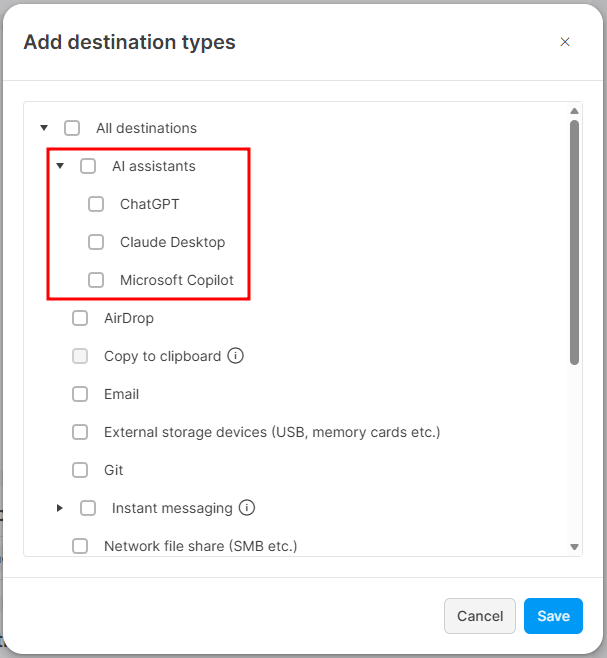
Click Add destination type and select the AI assistants you want the policy to apply to. You can choose from Claude Desktop, ChatGPT, or Microsoft Copilot.
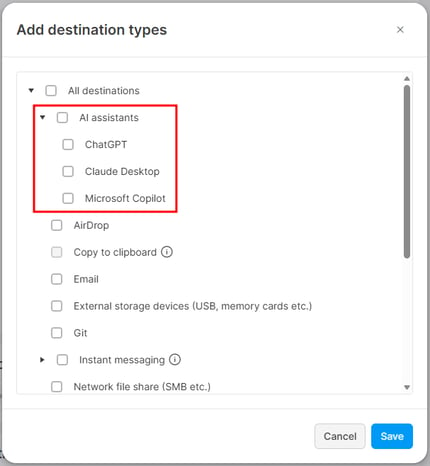
-
Select the policy action: Allow, Log, Notify, Block (with override), or Block. For prompts, Block (with override) works as Block.
-
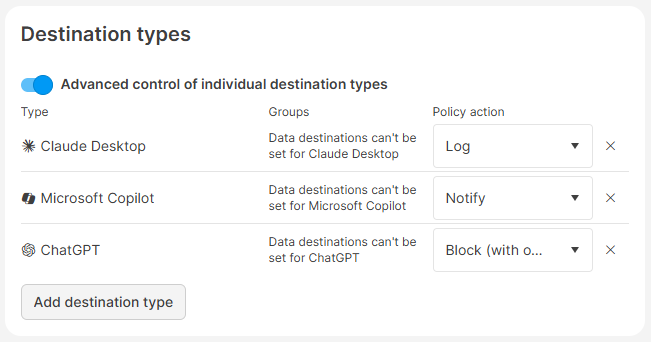
To set a different action for individual AI assistants, enable Advanced control of individual destination types and choose an action for each assistant.
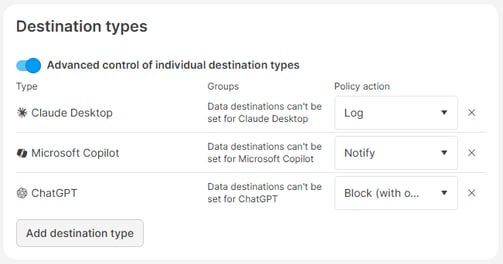
-
To keep a copy of the files and prompts that violated the policy, enable Enable Shadow copy. Learn more here.
-
Click Save.
Safetica applies the selected policy action whenever a user uploads a file, types a prompt, or on Windows, whenever they copy or drop text to a covered AI assistant.
Example: Block bank account numbers in prompts.
Create a data classification that detects bank account numbers and a data policy that protects it with the AI assistants destination type set to Block. When a user types a prompt containing a bank account number into ChatGPT or Claude, Safetica blocks the prompt before it is sent and shows the user a notification.
How to review what users sent to AI assistants
Every transfer that matches a policy creates a record, so you can audit what users send to AI assistants.
In Data operations, click Add filter and select:
- Destination type > AI assistant to filter files uploaded, texts copied, and prompts typed to AI assistants.
- Operation > Sent to AI assistant to filter files uploaded to AI assistants.
- 🪟 Windows devices: Operation > Pasted into data transfer app to filter texts pasted or dragged to AI assistants.
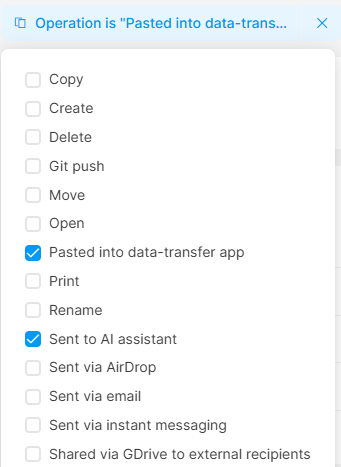
Each record shows who sent which file or text to which AI assistant and what action Safetica took. If the policy has Enable Shadow copy turned on, you can also request a shadow copy with the full text of a prompt that violated the policy. Learn more here. You can also export the records, for example for an audit.
Only prompts with sensitive data are controlled and recorded. Safetica controls and records a prompt only when its text matches a data classification in your policy.
Safetica records a matching prompt when the user sends it. With the Notify, Block (with override), or Block actions, Safetica also creates a record if the user deletes the sensitive text or closes the tab without sending. A record therefore shows that sensitive text appeared in a prompt - not necessarily that it reached the AI assistant.
How Safetica protects prompts
- While the user writes text into the chat, the browser extension passes the text to Safetica Client, which analyzes it for content that matches the data classifications in your data policies.
- If the text matches a data classification and the policy action is Notify, Block (with override), or Block, the extension shows an info banner directly in the chat.
- When the user sends the prompt, Safetica applies the policy action of the matching data policy:
- Allow and Log: The prompt is sent. If the prompt contains sensitive data, Safetica logs the operation with both actions, without informing the user.
- Notify: The prompt is sent, and the user sees a notification that the prompt contained sensitive data.
- Block and Block (with override): Safetica stops the prompt from being sent and shows the user a notification. The prompt never reaches the AI assistant. Block (with override) is evaluated as Block - overriding is not available for prompts.
FAQ
Q: Does Safetica control what users type into AI assistants?
A: Yes, Safetica checks the prompts users type into the websites of ChatGPT, Claude, and Microsoft Copilot in Google Chrome and Microsoft Edge. Text typed directly into the desktop apps is not checked.
Q: Why aren't prompts blocked even though my policy blocks AI assistants?
A: Prompts are checked only against data classifications, so a policy that protects All data does not apply to them. Select a data classification in the policy and make sure the user works in Google Chrome or Microsoft Edge with the Safetica browser extension enabled.
Q: Does blocking block the AI assistant itself?
A: No. Users can keep working with the AI assistant. The policy only controls the files, pasted texts, and prompts that users try to send to it.
Q: Can I control uploads to other AI tools, such as Gemini?
A: The AI assistants destination type covers the apps listed in this article. To control file uploads to other AI websites, use the Upload to web destination type. Prompt protection is available only for the AI assistants listed in this article.