![Logo landing page 232x64 with border.png]](https://support.safetica.com/hs-fs/hubfs/Marketing/Safetica_logo_/Logo%20landing%20page%20232x64%20with%20border.png?width=145&height=40&name=Logo%20landing%20page%20232x64%20with%20border.png)
Product plans: Standard | Premium | Enterprise | On-Prem (see: Limits by plan)
Product differences:
- In-cloud content analysis is not available in Safetica On-prem and Safetica Platform Standard.
- Coming in Q3: The In-cloud content analysis package can be purchased as an add-on for all plans.
Introduction
✍️ To protect file sharing, you must first activate Google Drive protection. Learn more about it here.
Safetica protects file sharing in Google Workspace like this:
|
BYOD / Company-managed devices |
What it does |
Applies to |
Protection provided |
|
|
Google Drive protection only |
BYOD devices (without Safetica Client) |
Audit sharing on Google Drive. Classify shared files by: - Sensitive content - Existing 3rd-party classification - Filename - Filetype Recognize safe or untrusted destinations. |
Google Drive |
Log |
|
Safetica Client only |
Company-managed devices |
Audit and protect synced folders and file upload. No sharing protection. Full local data classification for synced folders and file upload. |
Google Drive |
Log · Notify · Block with override · Block |
|
Google Drive protection + Safetica Client |
Company-managed devices |
Audit sharing on Google Drive. Classify shared files by: - Sensitive content - Existing 3rd-party classification - Filename - Filetype Audit and protect synced folders and file upload. Full local data classification for synced folders and file upload. |
Google Drive |
Log (for Google Drive sharing) Log · Notify · Block with override · Block (for synced folders and file upload) |
✍️ File uploads to Google Drive can only be blocked by devices with installed Safetica Client. Uploads from devices without Safetica Client are only audited.
Limitations of Google Drive protection
- Google Labels are not supported as third-party classification.
- Blocking (canceling) or overriding file sharing is not currently available for Google Drive. All sharing operations are audited (logged) only. Policy actions Block, Block with override, and Notify do not apply to Google Drive sharing at this time.
How Google Drive file sharing protection works
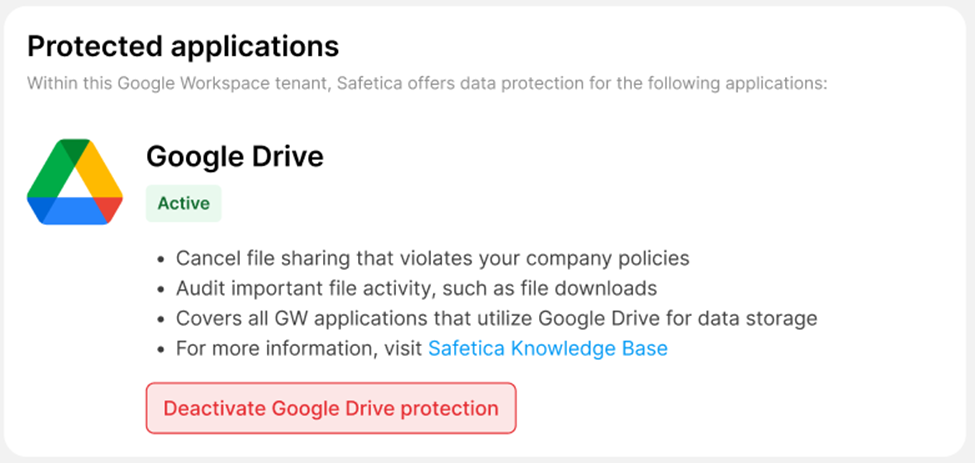
Safetica enables you to audit the sharing of files within Google Drive. When a user shares a file, the operation is recorded in Safetica console and the shared file is classified using the supported classification methods listed in the table above.
Logging policies
- If a user shares a file that violates a logging policy, the sharing will be logged.
- The sharing will not be canceled, and no notification will be shown to the user.
What the admin sees in records
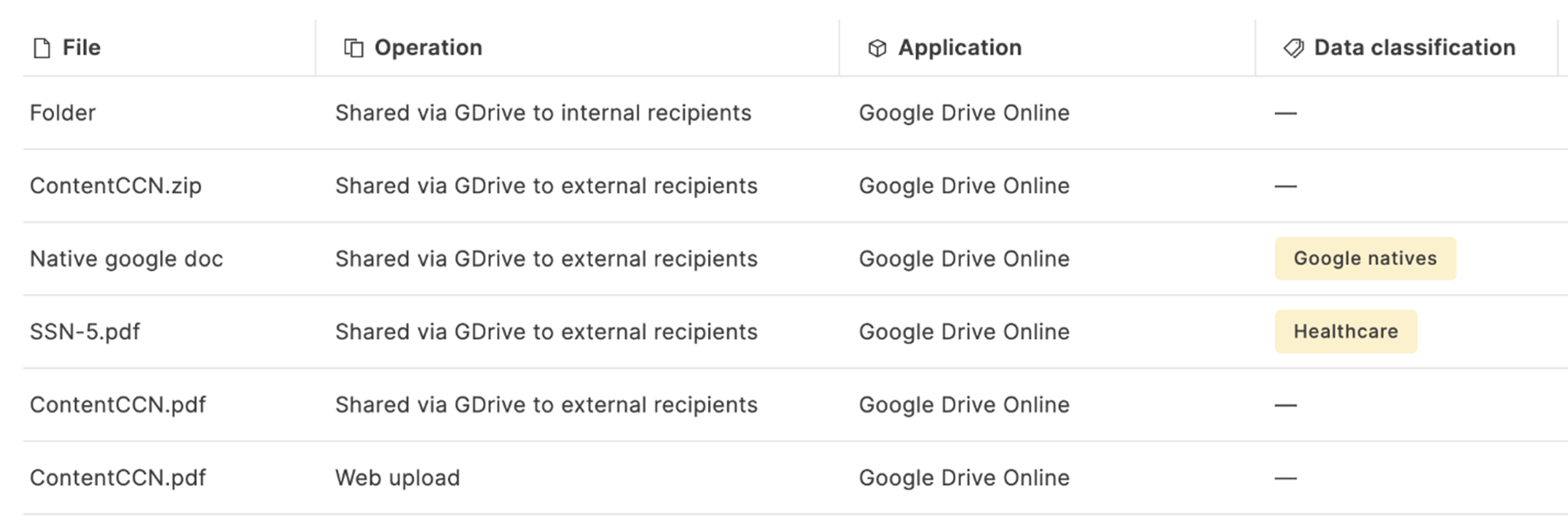
Admins can view Google Drive file sharing operations by using the Operation > Shared via GDrive to external recipients and Operation > Shared via GDrive to internal recipients filters in the Data operations section of Safetica console.
When viewing a file record detail in the Data operations section:
- In the Classification tab, the admin can see the classification applied to the shared file.
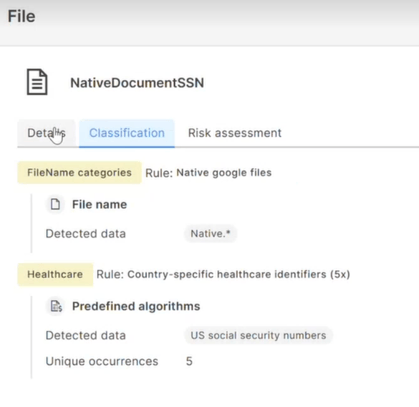
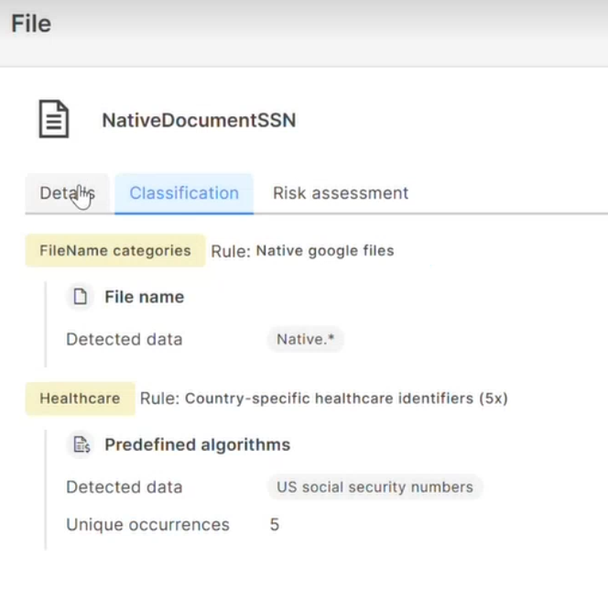
- In the Details tab, there is a link to the shared file so the admin can open it directly for investigation.
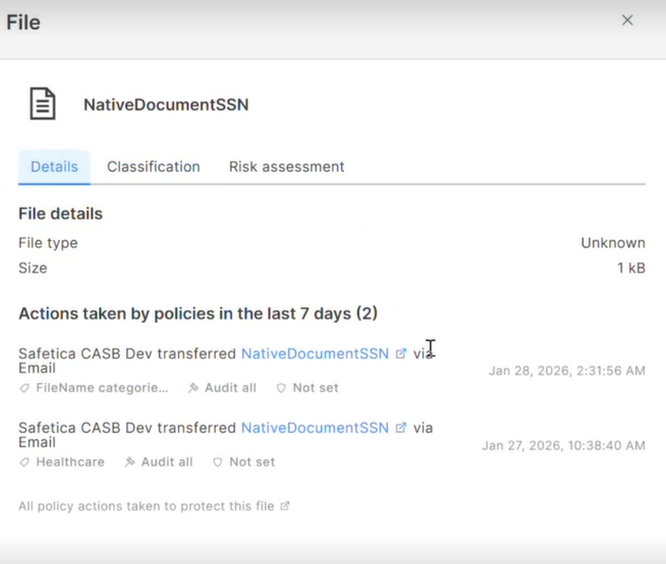
What the user sees when sharing externally
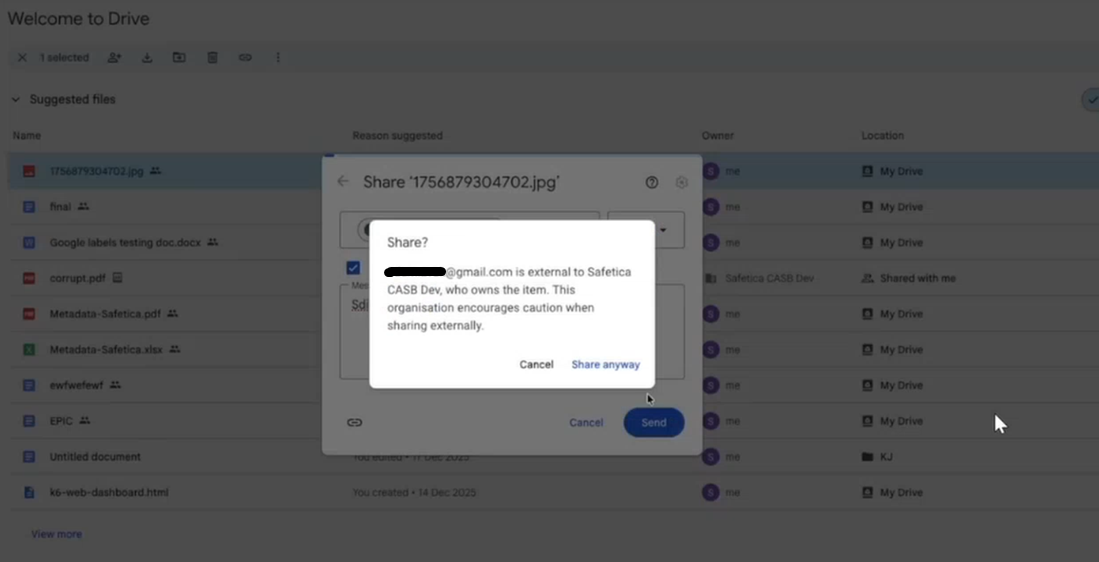
When a user shares a file from Google Drive to a non-company email address, Google Drive displays a message indicating that the file is being shared externally. If the user confirms by clicking Share anyway, the sharing operation proceeds and is then evaluated by Safetica.