![Logo landing page 232x64 with border.png]](https://support.safetica.com/hs-fs/hubfs/Marketing/Safetica_logo_/Logo%20landing%20page%20232x64%20with%20border.png?width=145&height=40&name=Logo%20landing%20page%20232x64%20with%20border.png)
Applies to: Safetica Platform
Product plans: Premium | Enterprise (see: Limits by plan)
Introduction: Why run a guided prompt instead of asking a question?
Some questions are too big for one sentence. To answer "How exposed is our company to AI tools?", Safetica AI has to look at data operations, data destinations, users, and policies - in a fixed order, with the same definitions every time. Only then can this month's answer be compared with last month's.
A guided prompt is that kind of analysis, prepared in advance. Safetica AI reads a fixed set of records and settings, produces a report with the same structure on every run, and suggests changes to make in Safetica console. You navigate the report by opening its sections.
Guided prompts run on Safetica AI, so they follow its rules: they read only data you can see in Safetica console, and they never change a setting. Learn how to ask Safetica AI a question here.
Safetica offers the following guided prompts:
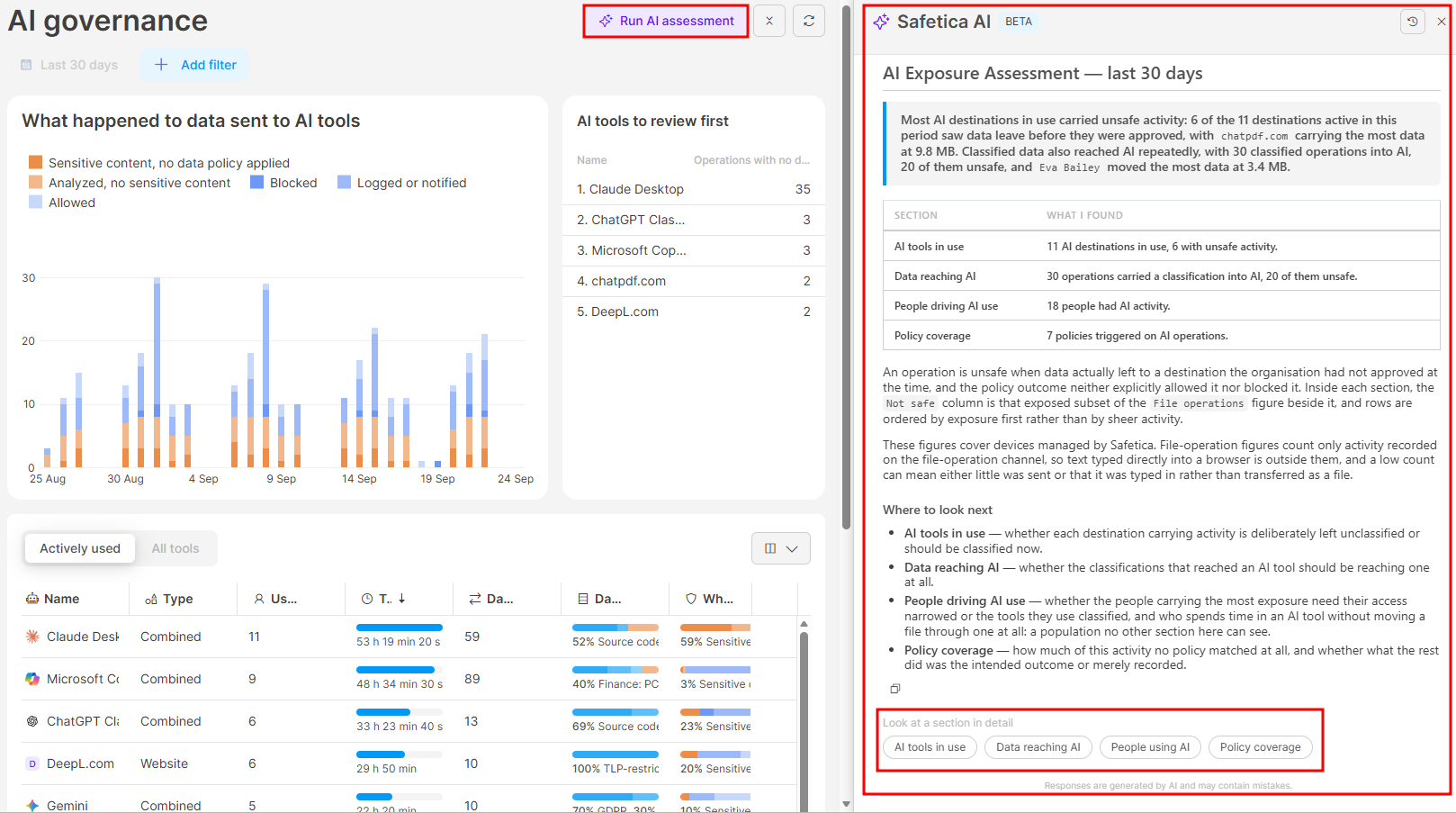
- AI exposure assessment: Go to AI governance and click Run AI assessment. Learn more here.
How guided prompts differ from asking a question
| Asking a question | Guided prompt | |
|---|---|---|
| How you start | Type in the Safetica AI panel. | Click a button in the console section that owns the topic, for example Run AI assessment in AI governance. |
| What Safetica AI reads | Whatever your question needs. | A fixed set of records and settings, the same on every run. |
| Period | You choose it in the question. | Fixed by the guided prompt (the AI exposure assessment covers the last 30 days). |
| Scope | You can narrow it to a team, a user, or a destination. | All the users you can see in the console. |
| Result | An answer shaped to the question. | A report with the same sections and definitions on every run, ending with suggested changes. |
| Follow-up | Type another question in the same conversation. | Open the report's sections one at a time. You cannot type while a report is open. |
| History | Saved as a conversation. | Saved as a report in the same history. |
Use a question when you want one specific fact or a look at one person, tool, or policy.
Use a guided prompt when you need the whole picture on a topic, for an audit, a monthly check, or a management summary.
Permissions
- Guided prompts are available to Safetica admins with the User data permission.
- A report covers only the users and Safetica console sections the signed-in admin can see.
- Admins restricted to selected teams get a report based on those teams only.
- If a part of a report needs a section the admin has no access to, the report says so and leaves that part out.
Guided prompt: Run AI assessment
The AI exposure assessment in AI governance answers four questions about the last 30 days:
- Which AI tools are in use
- What data reaches them
- Who drives that use
- Whether your policies cover it.
Run it before an audit, once a month, or whenever leadership asks how exposed the company is.
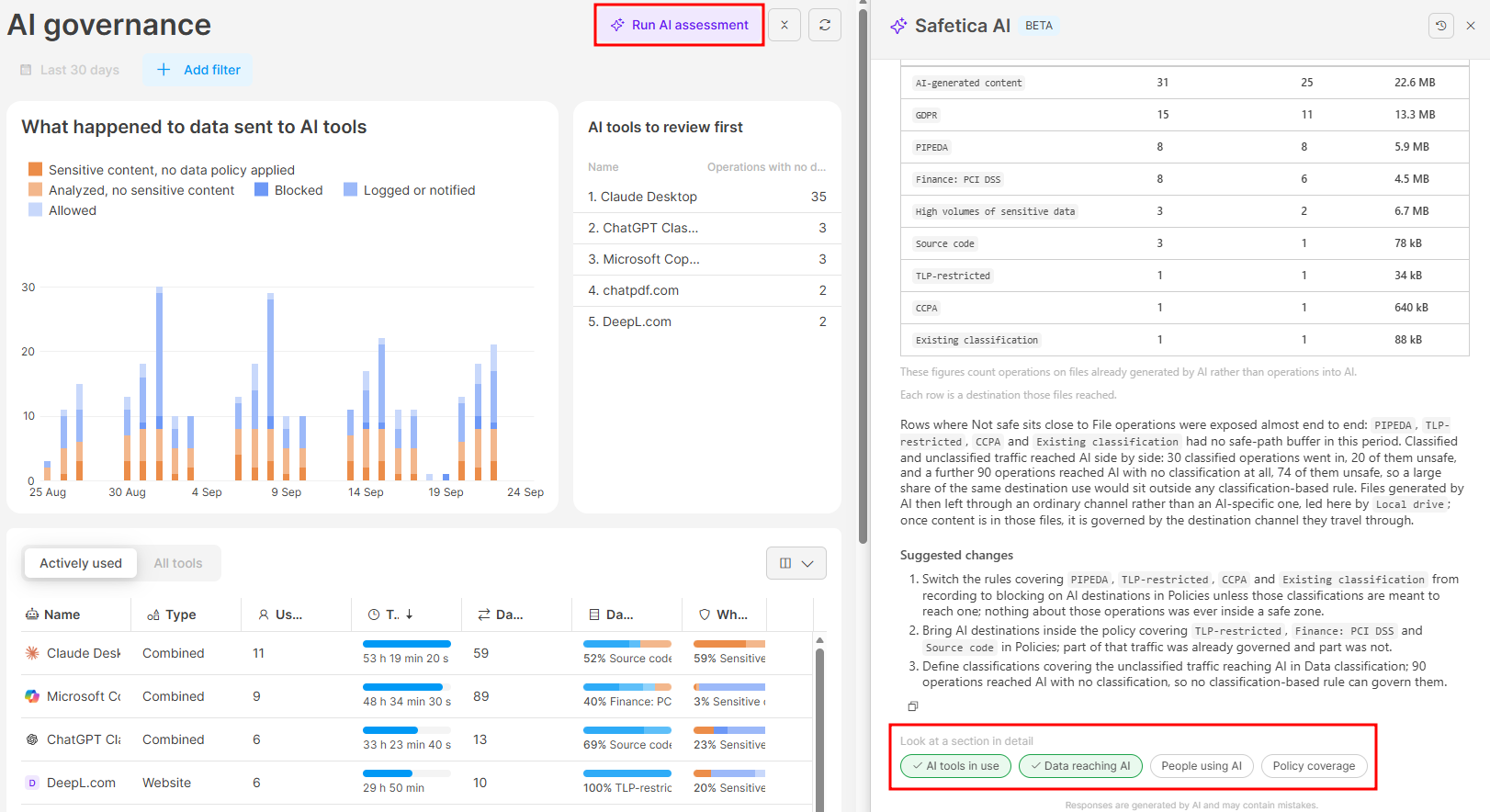
- Go to AI governance.
- Click Run AI assessment.
- Review the overview that opens in the Safetica AI panel.
- Click a section under Look at a section in detail to open its full report.
- Suggested changes: When the assessment finds something to act on, the section ends with suggested specific changes to make in Safetica console. A section with nothing to act on ends without this block.
- Repeat step 4 for the other sections. A section you have already opened shows a check mark; open it again to refresh it with current data.
The four sections are:
- AI tools in use: Shows which AI websites and apps people send files to, and how much time they spend in them.
- Key numbers: How many AI destinations are in use, and how many of them saw unsafe activity.
- Use it to decide which destinations to assign as Safe or Untrusted.
- Data reaching AI: Shows what classified data goes into AI tools, what comes back out (for example, in files downloaded from an AI website), and where AI-generated files travel next (Safetica recognizes when a file's content was written by an AI assistant).
- Key numbers: How many operations moved classified data into AI, and how many were unsafe.
- Use it to decide whether data wit those classifications should be reaching AI tools at all.
- People using AI Shows who sends files to AI tools and who spends the most time in them, including people who use AI without ever transferring a file.
- Key number: How many people have any AI activity.
- Use it to decide whether someone's access needs narrowing, or whether the tools they use should be assigned as Safe or Untrusted in Data destinations.
- Policy coverage: Shows what happened to AI operations (blocked, overridden, logged, notified, allowed, or not matched by any policy) and which policies applied.
- Key number: How many policies triggered on AI operations.
- Use it to see how much activity no policy applied to, and whether the policies that did trigger worked as you intended.
Safetica AI changes nothing. Keep the panel open, make the changes yourself in Safetica console, and run the assessment again later to see the effect.
How to return to a saved report
Every run of a guided prompt is saved in your Safetica AI conversations. Each admin sees only their own.
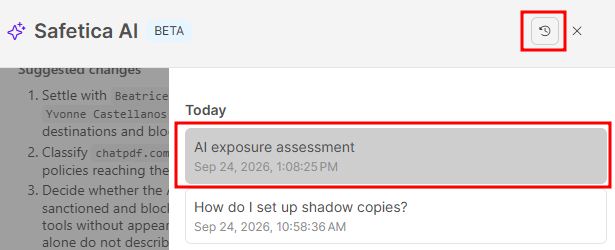
- Click Ask Safetica AI in the sidebar to open the panel, which starts a new conversation.
- Click the clock icon (Toggle chats) in the panel header.
- Click the report you want. Reports are listed with your conversations, grouped by Today, Yesterday, Last 7 days, and Older.
The report opens with its overview and the sections you have already opened. You can open the remaining sections, or open a section again to refresh it with current data.
Security and privacy
Guided prompts run on Safetica AI and follow the same security and privacy model:
- Read-only: Guided prompts read records and configuration through the same permission-controlled services the Safetica console uses. It cannot create, change, or delete a policy, classification, destination, account, or any other setting.
- What is never read: Guided prompts do not read the contents of your files.
- Where your data goes: The records and configuration read for the report are sent to Azure OpenAI under Safetica's enterprise agreement to generate the report text. Customer data stays within that secured environment and is not used to train AI models.
- Where reports are stored: In your Safetica environment, per admin. Another admin cannot open your reports.
Reports are generated by AI and may contain mistakes. Safetica AI checks every figure against the records it read, but verify a figure that drives a decision in the corresponding console section before you act on it.
FAQ
Q: Can I ask a follow-up question inside a report?
A: No. While a report is open, you navigate it through its section buttons only, and New chat is unavailable. To ask a free question, close the panel, then click Ask Safetica AI in the sidebar to open a new conversation. The report stays available in the history.
Q: Can I narrow the AI exposure assessment to one team or change its period?
A: No. The assessment always covers the last 30 days and all the users you can see in the console. To look at one team or another period, ask Safetica AI a question instead, for example "Which AI tools did the Marketing team send files to in the last 90 days?"
Q: Does running the assessment again replace the previous report?
A: No. Each run creates a new report in the history, and earlier reports stay there. Run the assessment monthly and compare the reports to see whether your changes reduced the exposure.