![Logo landing page 232x64 with border.png]](https://support.safetica.com/hs-fs/hubfs/Marketing/Safetica_logo_/Logo%20landing%20page%20232x64%20with%20border.png?width=145&height=40&name=Logo%20landing%20page%20232x64%20with%20border.png)
Applies to: Safetica Platform
Product plans: Premium | Enterprise (see: Limits by plan)
Coming in Q3: The In-cloud content analysis package can be purchased as an add-on for all plans.
Introduction
Safetica normally analyzes files and emails for sensitive content only on devices where the Safetica Client is installed (e.g., emails sent from a work computer). If a user sends the same data from an unmanaged device (like a personal laptop), that content goes unanalyzed.
In-cloud content analysis closes this gap. It analyzes files that are shared from cloud services (Microsoft 365) or are sent via Exchange or Outlook for sensitive content such as keywords and regex patterns, regardless of the device used.
✍️When sensitive content is detected, Safetica enforces the policies you've already defined. For example, it can automatically unshare a file that was shared outside your organization.
Supported cloud services
| Service | What is analyzed | What triggers analysis | Protection available |
| Microsoft 365 email | The email body and each attachment (counted separately). An email with a body and 6 attachments uses 7 analyses. | Sending an email. | Email policies. Learn more here.
|
| SharePoint Online | Shared files or folders |
Sharing a file or folder. Editing a previously shared file, uploading, or downloading does not trigger a new analysis. |
M365 file sharing policies. Learn more here. Automatic unsharing of files that violate a blocking policy is available. |
| Coming in Q2: Google Drive | Shared files or folders |
Sharing a file. Editing a previously shared file, uploading, or downloading does not trigger a new analysis. |
GDrive file sharing policies. Learn more here. Automatic unsharing of files that violate a blocking policy is available. |
❗When sharing a folder, we analyze up to 10 files from that folder. Each file counts as a separate analysis. This means, sharing a folder will account for a maximum of 10 analyses.
How it works
- When an analysis is triggered, the file is downloaded to Safetica's Azure environment into a container that is dedicated to your M365 tenant.
- Safetica performs content analysis on that file.
- After the analysis completes, the file is immediately deleted. Safetica does not retain a copy of the file.
What the admin sees
To learn where to see whether the content analysis finished successfully, read this knowledge base article.
Plan limits
Each licensed user on your contract receives a monthly analysis allowance:
- Safetica Platform Premium: 200 analyses
- Safetica Platform Enterprise: 600 analyses
Your total monthly analyses pool = number of licensed users × per-user allowance.
✍️These analyses are not allocated per individual user – usage is flexible, meaning some users may consume more scans while others use fewer.
Example: A Premium plan with 100 users can perform 20,000 analyses per month.
Limitations
- File-size limit: In-cloud content analysis is not performed for files larger than the maximum allowed size (100MB). Safetica still performs a partial analysis (security context). For email attachments, this limit is rarely relevant because most mail services enforce a 20 MB attachment limit.
- Daily per-user limit: To prevent one user from consuming the entire company analyses pool, each user may use up to 20 % of their monthly allowance per day. For a Premium user (200/month), the daily cap is 40 analyses per day. The 41st analysis becomes a partial analysis (security context). The daily counter resets at midnight.
- No OCR: In-cloud analysis works with text-based content only. Images or image-only PDFs are not analyzed for content.
- No analysis on content change: If a shared file is edited after the initial analysis, a new analysis is not triggered.
Where to check your remaining analyses
You can view your usage in the Safetica console under Subscription and license management.
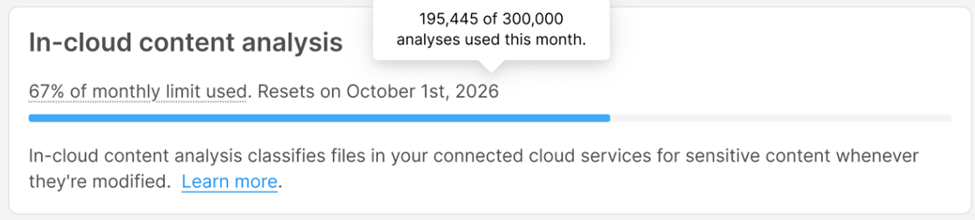
The progress bar shows:
- Usage percentage: How much of your monthly pool has been used.
- Used analyses: The exact number of analyses used out of your total.
- Reset day: The counter resets on the 1st day of each calendar month.
The analyses counter updates every 5 minutes.
Optional add-on: In-cloud content analysis package
The In-cloud content analysis package is coming up in Q3. Information mentioned here might be subject to change.
The in-cloud content analysis package is an annual paid add-on that provides 200 additional analyses per user per month.
- For Premium and Enterprise users: Increases your monthly analyses limit beyond what's included in your plan.
- For Standard and On-Prem users (coming soon): Provides access to in-cloud content analysis capabilities that are not included in the base plan.
You can purchase multiple packages (e.g., 2 packages = 400 extra analyses per user per month). The package's validity is aligned with your base Safetica license - if your license expires in 6 months, the package also expires after 6 months.
How to purchase the package
- Customers: Contact your Safetica partner and request the package.
- Partner: Submit an order through the Safetica Partner Portal.
- Once approved, the additional analyses appear in your subscription. Activation does not depend on invoice settlement.
- If you purchase additional analyses mid-month (e.g., on March 15), you receive the full allotment for that month.
FAQ
Q: What happens when I exceed my monthly limit?
A: Files beyond the limit will not be analyzed for sensitive content. Safetica still performs a partial analysis (security context) and records the operation as Not analyzed: Plan or operation limit.
Q: Can I choose which file types to analyze?
A: No. Currently, In-cloud content analysis analyzes all files regardless of what file types you select in your Content analysis settings.
Q: How is a single "analysis" counted?
A: One analysis = one file or one email body, regardless of the file size (up to the maximum allowed size (100MB)). An email with a body and three attachments counts as four analyses.
When analyzing a folder, each file in the folder counts as a separate analysis. For folders with 10 or more files, we analyze and count 10 files; for folders with fewer files, we analyze and count all of them.
Q: What if I buy the In-cloud content analysis package mid-month?
A: You receive the full monthly allotment, regardless of when the purchase is activated.