![Logo landing page 232x64 with border.png]](https://support.safetica.com/hs-fs/hubfs/Marketing/Safetica_logo_/Logo%20landing%20page%20232x64%20with%20border.png?width=145&height=40&name=Logo%20landing%20page%20232x64%20with%20border.png)
Applies to: Safetica On-Prem
In Safetica Platform, records are stored in Azure and do not require archiving.
✍️Learn how to schedule regular automatic archiving here.
✍️Learn how to manually create a one-time archive here.
How to attach an archive
❗For Safetica ONE archives: When attaching an archive from a different location than the one used in Safetica ONE (e.g., if you copied the archive to a new location), begin by manually attaching it in SQL Server Management Studio. Afterward, follow the steps below to complete the attachment in Safetica console.
-
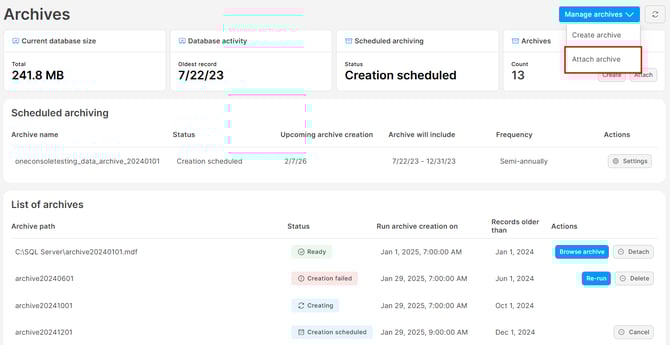
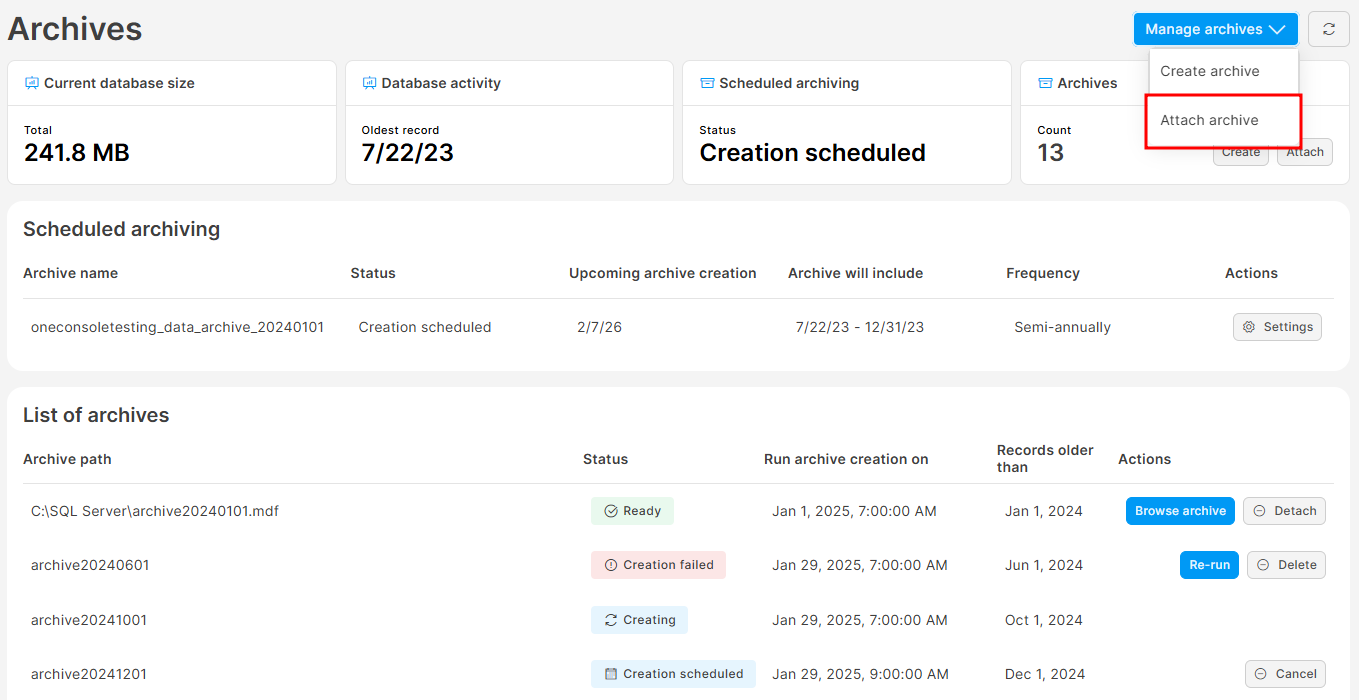
Go to Settings > Archives in Safetica console.
-
In the Manage archives dropdown, select Attach archive.
-
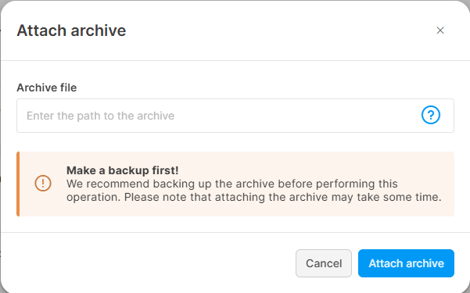
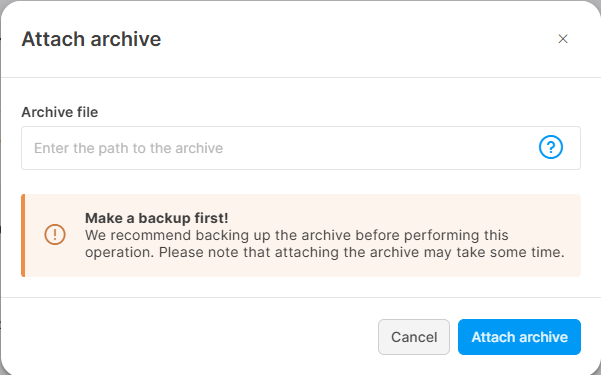
Fill in the path to the archive, which must be accessible by MS SQL server.
❗For Safetica ONE archives: Safetica ONE archives will be automatically updated to the current Safetica version. During the update, a backup of the database will be automatically created (If you are using Safetica older than 11.30, you must back up the database manually).
4. Click Attach archive.
5. The archive will appear in the list of archives and will start Initializing.
❗For new Safetica archives: If you have attached an archive created in new Safetica, it might need to be updated to the newest Safetica server version. Learn how to update an archive here.
6. Once all updates are complete, the status changes to Ready, and the archive becomes available for browsing.
How to browse an attached archive
You can browse attached archives with the Ready status:
- Go to Settings > Archives in Safetica console.
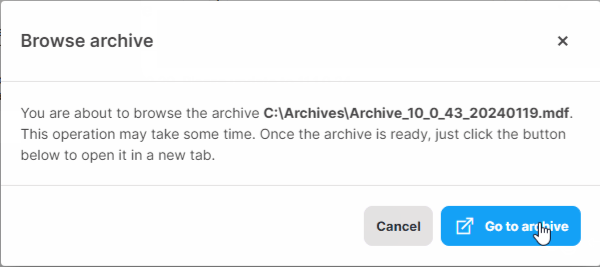
- In the List of archives, click Browse archive next to the archive you want to browse.
- Click Go to archive.
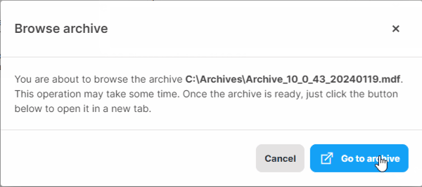
- A new browser tab with a new URL will open. There, you can browse the archived data separately from live data.
- While browsing the archive, the interface will indicate that you are viewing archived data.
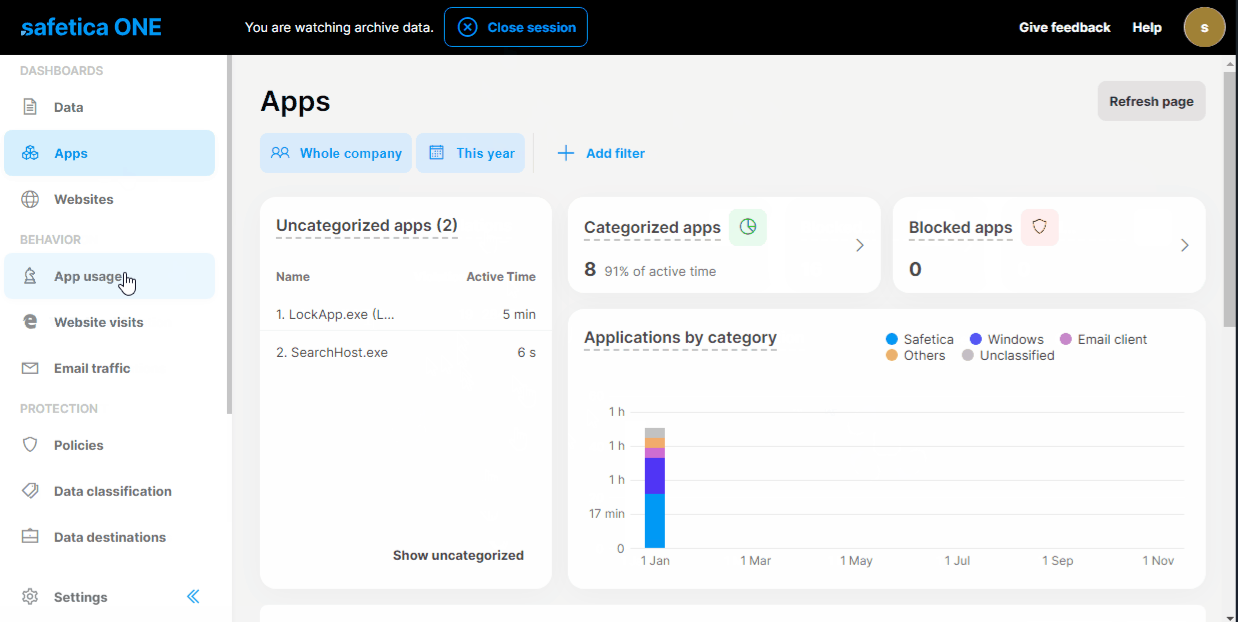
✍️Multiple admins can browse the same archive at the same time. They can view records in the Dashboards and Behavior sections but cannot access or change settings.
How to update an outdated archive
After updating your Safetica server to a newer version, all Ready archives will become Outdated. Follow these steps to update them to an up-to-date version:
- Go to Settings > Archives in Safetica console.
- In the List of archives, click Update next to the outdated archive.
- During the update, a backup of the database will be automatically created (If you are using Safetica older than 11.30, you must back up the database manually).
- Click Update archive.
- Wait for the archive to finish updating. Its status will change to Ready once finished, and the archive will again be available for browsing.
How to detach an archive
To disconnect an archive from Safetica and remove it from the list of archives:
- Go to Settings > Archives in Safetica console.
- In the List of archives, click Detach next to the archive you want to detach.
- Confirm that you really want to detach the archive.
- The archive will be removed from the list of archives.
✍️Detaching an archive only removes it from the list of archives. The archive file remains stored in its original location. You can choose to keep it or manually delete it.
Archive statuses
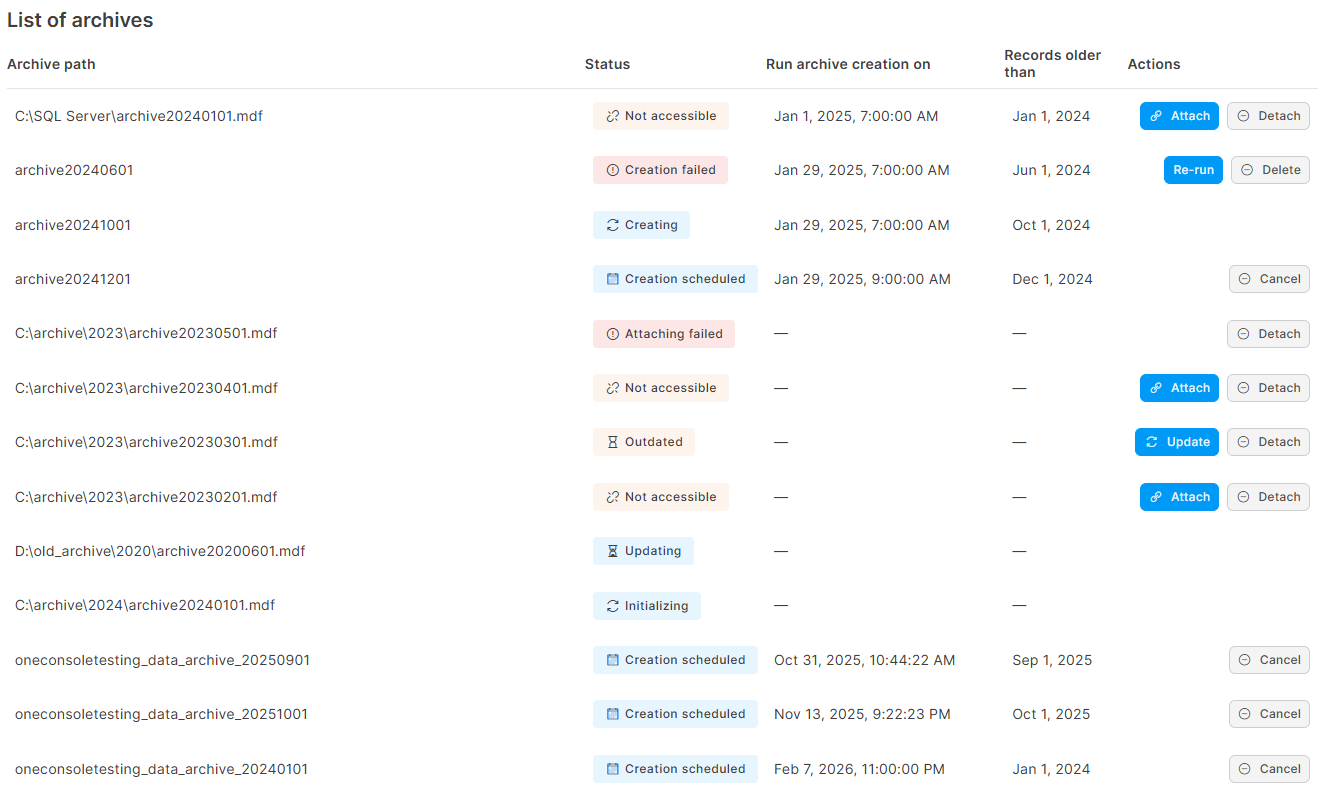
Below are the possible archive statuses in Safetica:
- Creation scheduled: Archive creation is scheduled for a specific date and time.
- Creating: Archive creation is in progress.
- Creation failed: Archive could not be created. You can manually re-run archive creation by clicking the Re-run button.
- Attaching failed: An error occurred during initialization or update.
- Initializing: Archive is being attached or updated to version 10.4., typically after the admin clicks Attach.
- Updating: Archive is being updated to the latest version, typically after the admin clicks Update or right after Initializing.
- Ready: Archive is ready to be browsed by the admin, buttons Browse archive and Detach are enabled.
- Not accessible: Archive was Ready, but is currently not available for browsing. It is probably not attached or not accessible by MS SQL.
- Outdated: All Ready archives become Outdated after a Safetica server update. Follow these steps to update them to an up-to-date version.
- Preparing: The database backup operation is being set up.
- Backing up: A full backup of the archive database is being created. This happens automatically before any archive update.
- Backup completed: The database backup was created successfully. Safetica can now proceed with the archive update. If the update fails at any point after this, the restore mechanism can use this backup to revert to the pre-update state.
- Backup failed: The database backup operation failed. Archive update will not proceed since there's no safety net to restore from.
- Deleting: Archive update (or restoration after a failed update) completed successfully, and Safetica is now cleaning up the temporary backup file.
- Deletion failed: The cleanup of the temporary backup file failed. This isn't critical to data integrity (the archive update itself succeeded), but it means an orphaned backup file is consuming disk space and may need manual cleanup.