![Logo landing page 232x64 with border.png]](https://support.safetica.com/hs-fs/hubfs/Marketing/Safetica_logo_/Logo%20landing%20page%20232x64%20with%20border.png?width=145&height=40&name=Logo%20landing%20page%20232x64%20with%20border.png)
Product differences:
-
The Origin tags tab is not available in Safetica Platform Standard. Add origin tags directly in a data classifications. Learn more here
Introduction: Why identify files created by AI assistants?
Users increasingly let AI assistants such as ChatGPT Classic, Claude, and Microsoft Copilot draft their documents, reports, and spreadsheets. Once saved on a device, such a file looks no different from one a person created: you cannot tell which files came out of an AI tool, apply different rules to them, or trace how sensitive content got into them.
Origin tags close this gap. They mark files by how they were created - when a user downloads or saves a file from a supported AI assistant (Claude Desktop, ChatGPT Classic, and Microsoft Copilot), Safetica writes the assistant's origin tag into the file.
You then work with origin tags like with any other tag - use them in data classifications, enforce policies on them, or filter by them.
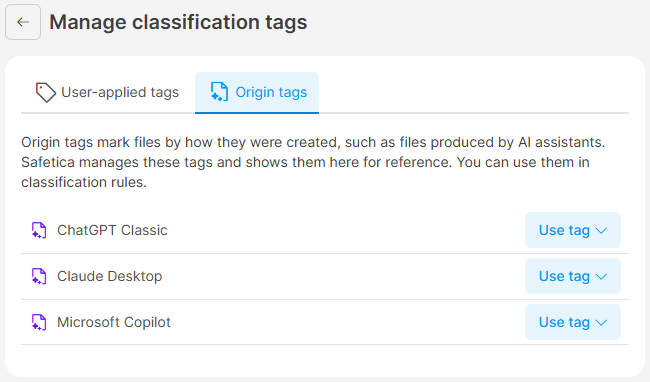
You find origin tags in Data classification > Settings > Manage classification tags > Origin tags. The tab lists one origin tag per supported AI assistant. Safetica creates and manages origin tags - you cannot create, rename, or delete them.
How it works
- Tagging is on by default and needs no setting.
- Safetica Client writes origin tags into:
- Files a user downloads from the AI assistant's website in a browser.
- Files a user saves, exports, or downloads from the AI assistant's desktop app, including files the app saves straight to a folder such as Downloads without showing a save dialog.
- Safetica writes the tag at the moment the file is saved, so the record of the download or save already shows it.
- The operation appears in Data operations with the origin tag, and the record detail shows Created by: AI. Learn more here
- You add the origin tag to a data classification, so Safetica classifies every file that carries it. Learn more here
- You link the data classification to a policy that controls what users can do with those files. Learn more here
- The Files created by AI: policy protection chart on the Dashboard shows how many of these operations your policies protected. Learn more here
Safetica stores the origin tag in the file's security context (Safetica's own classification record attached to the file). For .docx, .xlsx, .pptx, .xlsm, and .pdf files, Safetica writes the tag into the file metadata as well. Files in other formats carry it in the security context only.
Prerequisites
- Users must use a supported AI assistant: Claude Desktop, ChatGPT Classic, or Microsoft Copilot. They are the same as for the AI assistants destination type in data policies. Learn more here
- Your devices must run Safetica Client 11.44.8 or newer.
Permissions
- Adding origin tags to data classifications requires the Data destinations, data classification, and categorization permission.
- Viewing tagged files in Data operations and the Dashboard requires the User data permission.
How to classify files created by AI assistants
To protect AI-created files with policies, add one or more origin tags to a data classification. Safetica then classifies every file that carries the selected tag, regardless of its content. You can add origin tags to data classifications in two ways:
Option 1: From the Origin tags tab
-
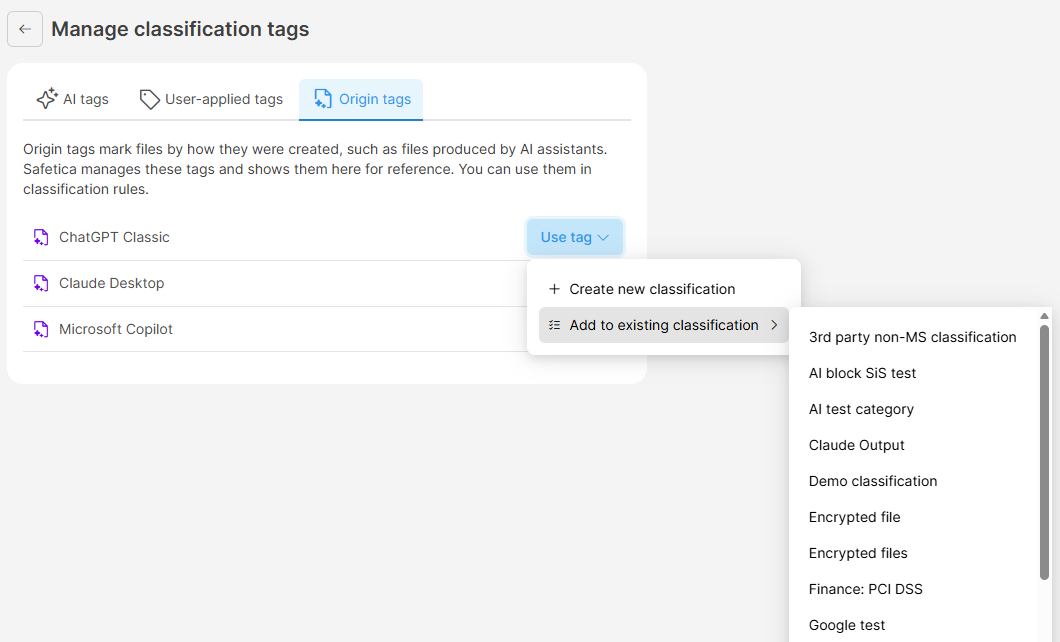
Go to Data classification > Settings > Manage classification tags > Origin tags.
-
Click Use tag next to the origin tag you want to use.
-
Select Create new classification, or select Add to existing classification and choose one. Safetica opens a new classification rule with the origin tag selected.
-
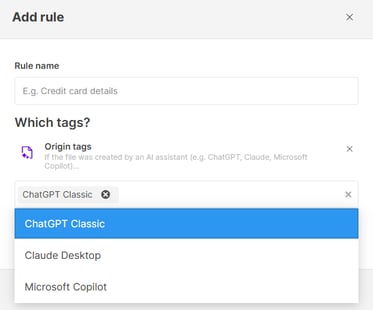
Select more origin tags in the rule if you want to cover other AI assistants.
-
Name the rule and click Save.
-
Save the data classification.
-
Link the data classification to a data policy to control what users can do with these files. Learn more here
Option 2: From the data classification
You can also add origin tags directly in a data classification:
- Go to Data classification and click Create new (or an existing data classification).
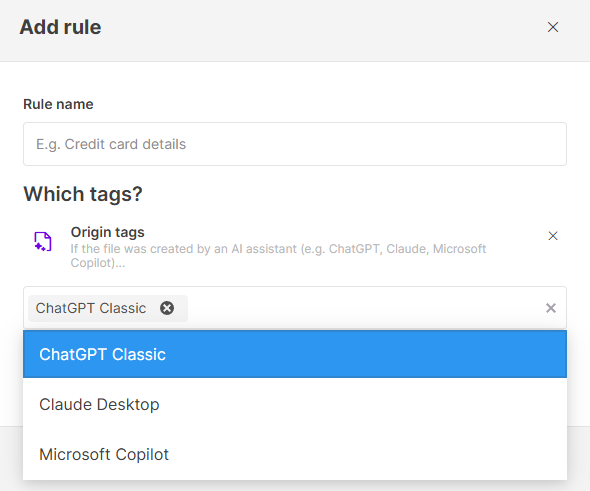
- Click Create new rule and, under If the file has tags..., select Origin tags.
- Select one or more tags.
- Click Save.
Example: Create a data classification named Created by AI with all three origin tags and link it to a data policy that applies the Notify action to email. When a user emails a report drafted by ChatGPT Classic, Safetica notifies them, and the record in Data operations shows the ChatGPT Classic tag.
How to find files created by AI assistants in Data operations
Every operation with a tagged file is recorded with its origin tag, so you can see what users did with AI-created files.
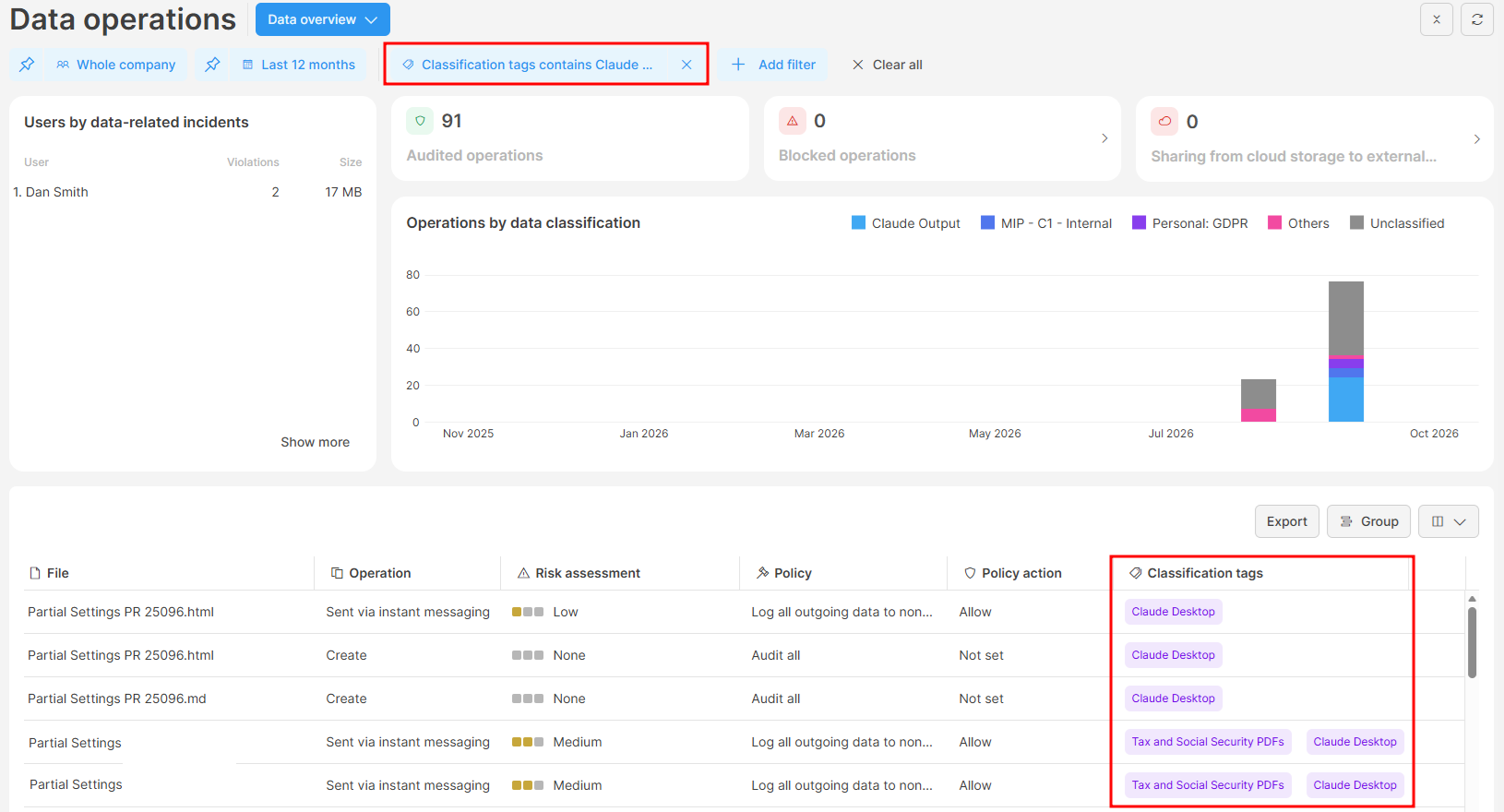
- Go to Data operations.
- Click Add filter and select Classification tags.
- Select the origin tags you want to see.
In the records:
- The Classification tags column shows the origin tag alongside the file's other tags, for example AI tags (which Safetica AI assigns to files with similar content) and user-applied tags. Hover over a tag to see its type.
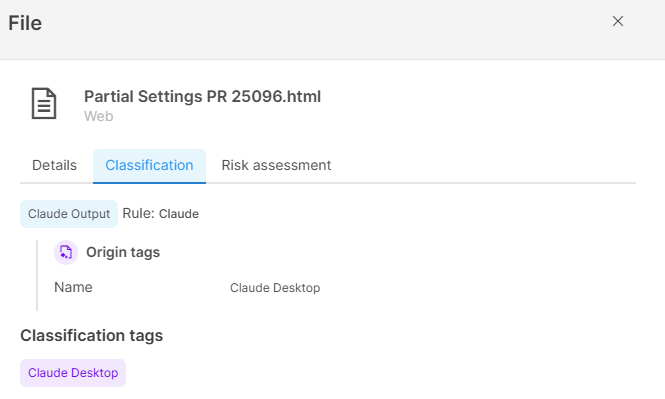
- Click a record to open its detail. In the detail:
- The Details tab shows Created by: AI for every file with an origin tag.
- The Classification tab lists Origin tags with the matched tag's name when a data classification matched the file through its origin tag.
How to check whether files created by AI assistants are protected

- Go to Dashboard.
- Find the Files created by AI: policy protection chart in the AI exposure section.
The chart splits the operations with AI-created files into two groups:
- Protected by policies: operations that a policy blocked, including blocks the user could override.
- Not protected by policies: operations that a policy only allowed, logged, or notified about, or that no policy covered. Safetica splits this group further by the data classifications detected in the files (Other groups the less frequent classifications, and Unclassified covers files that matched none).
Click Show more to open Data operations filtered by all origin tags and review the individual records.
FAQ
Q: Can I create, rename, or delete origin tags?
A: No. Safetica manages origin tags for you, one for each supported AI assistant. You can review them on the Origin tags tab and use them in data classifications, but not change them.
Q: Which files does Safetica not tag?
A: Safetica tags only files that come out of a supported AI assistant as its output. It does not tag:
- Internal files that the AI assistant writes for its own use, such as configuration, cache, and temporary files.
- Files produced by command-line AI agents such as Claude Code.
- Files from AI tools that are not supported AI assistants
Q: Does Safetica tag files that users upload to AI assistants?
A: No. Origin tags mark files that come out of an AI assistant. Files that users upload or paste into one are recorded as Sent to AI assistant with the destination type AI assistant, and you control them with the AI assistants destination type in data policies. Learn more here