![Logo landing page 232x64 with border.png]](https://support.safetica.com/hs-fs/hubfs/Marketing/Safetica_logo_/Logo%20landing%20page%20232x64%20with%20border.png?width=145&height=40&name=Logo%20landing%20page%20232x64%20with%20border.png)
Although uncommon, you may encounter one of the following issues:
Issue with Chrome v142 and Edge v143
Chromium-based browsers (like Chrome and Edge) recently introduced a security feature called Local network access restrictions. This feature can block the Outlook add-in from communicating with Safetica Client on your devices. To keep the add-in working correctly, you must allow Outlook on the web to access your local network based on the steps mention here.
Outlook add-in is unavailable
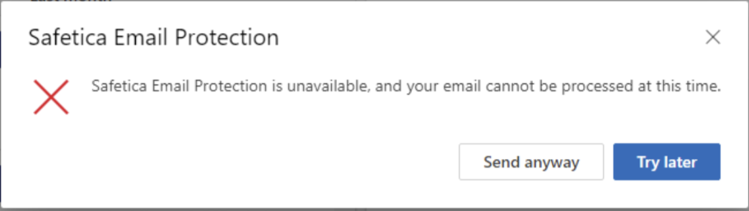 Appears relatively rarely and is probably connected to:
- using the add-in for the first time in a browser
- using the add-in for the first time after a browser update
Solution: Click Send anyway.
The email will only be recorded if you have Exchange protection activated.
For emails that should be blocked there is no Send anyway button
Outlook add-in finished processing
May rarely appear when processing takes longer than 5 seconds. Usually connected to sending larger attachments or temporary issue in the network.
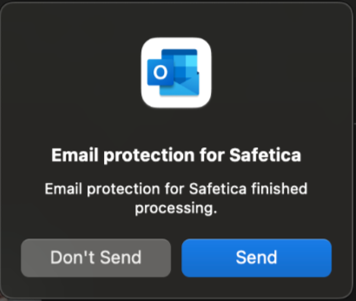 Solution: Click Send.
The email may not be recorded.
For emails that should be blocked, there is no Send button.
Outlook add-in processes the message longer than expected
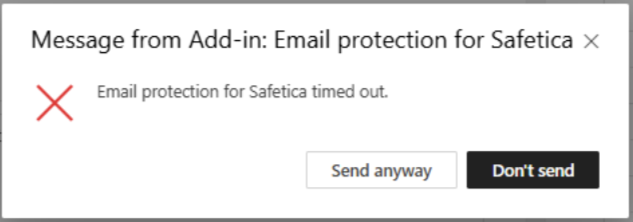
Rarely, the add-in may stop responding when sending an email. You will see the notification: “Email protection for Safetica is processing message” which may remain displayed for up to 5 minutes before it times out automatically. 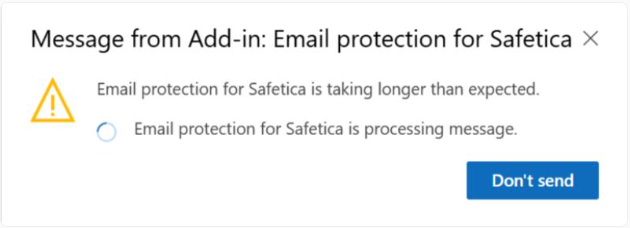
Solution:
- Click the Don’t send button and try sending the email again.
- Check your internet connection, as poor connectivity may contribute to this issue.
- If the above does not help, wait for the processing to time out (up to 5 minutes), after which you will be able to send the email by clicking Send anyway.