![Logo landing page 232x64 with border.png]](https://support.safetica.com/hs-fs/hubfs/Marketing/Safetica_logo_/Logo%20landing%20page%20232x64%20with%20border.png?width=145&height=40&name=Logo%20landing%20page%20232x64%20with%20border.png)
Permissions for Safetica admin accounts fall into two groups: Team permissions and General permissions.
Team permissions
✍️Team permissions apply only to the teams selected via the Select button (the default is Whole company). The user tree is filtered so the account can only see users and records belonging to those team members. See the example at the bottom of this article.
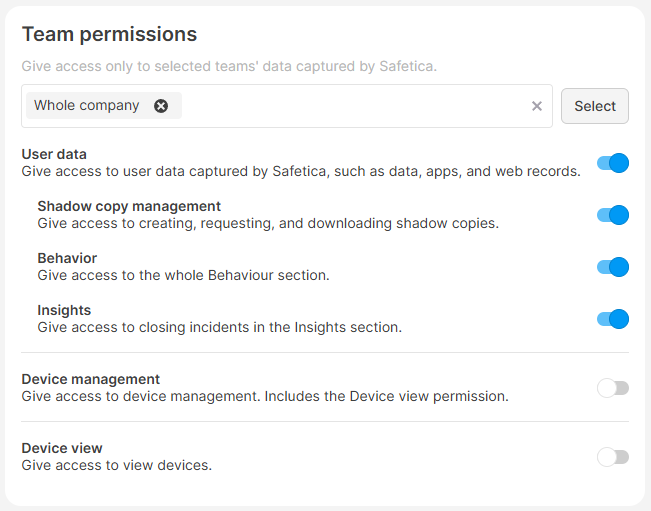
- User data: View records in the Dashboards section of the Safetica console.
- Shadow copy management: Create new shadow copies and request and download existing ones. Learn more about shadow copies here.
- Behavior: View user records in the Behavior section.
- Insights: Close incidents in the Insights section.
- Device management: View and manage devices in the Devices section. Includes the Device view permission.
- Device view: View devices in the Devices section but cannot manage them (i.e., cannot download installer, move devices to trash, update Safetica Client on devices, etc.).
General permissions
✍️General permissions are global. They are not tied to any specific team and always apply to the Whole company.
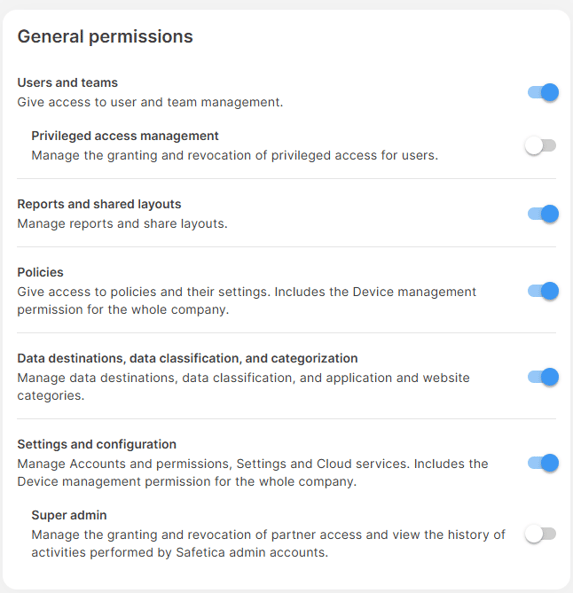
- Users and teams: View and edit users and teams in the Users section.
- Privileged access management: Grant and revoke Privileged access for individual users. Learn more here.
- Reports and shared layouts: Create, share, and delete shared layouts. Create, modify, and delete reports.
- Policies: View and edit policies. Includes the Device management permission for the whole company.
- Data destinations, data classification, and categorization: View and edit data classifications, app and website categorization, and data destinations.
- Settings and configuration: View and edit Accounts and permissions, Settings, and Cloud services. Includes the Device management permission for the whole company. This permission is also required to access Safetica Maintenance Console.
- ✨Safetica Platform: Super admin: Grant and revoke partner access to Safetica console and view admin activity history in the Admin trail section.
- 💻Safetica On-prem: Admin trail: View admin activity history in the Admin trail section.
Examples
Example 1: User data permission
An admin creates a new account with User data permission scoped to the Design team.
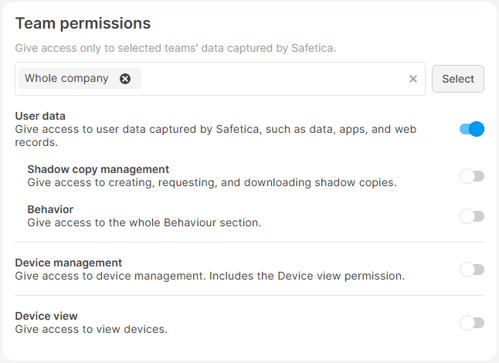
Such an account will only see users and records from the Design team in the Dashboards and Behavior sections. All other teams appear grayed out with a LIMITED ACCESS label in the user tree.
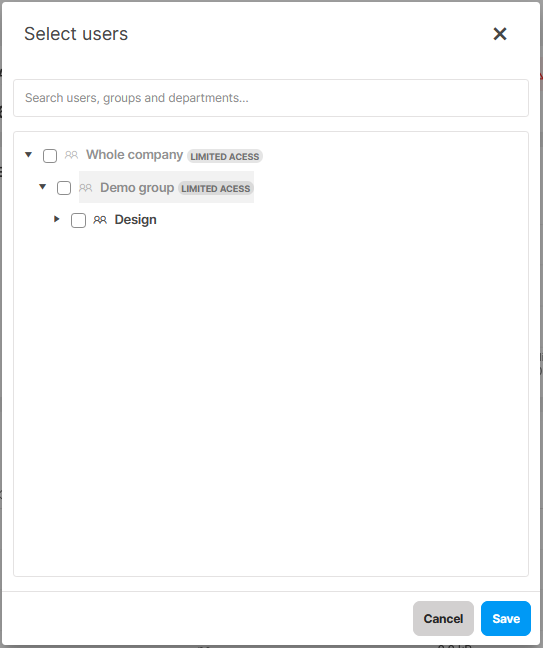
If the account selects a grayed-out team, they will still only see records from the Design team.
Example 2: Device view permission
An admin creates a new account with Device view permissions scoped to the Design team.
Such an account can only access the Devises section, where it sees only Design team devices and users.
It cannot see users or records in any other section, and it cannot manage devices (i.e., download installer, uninstall or update Safetica Client, move devices to trash, etc).