![Logo landing page 232x64 with border.png]](https://support.safetica.com/hs-fs/hubfs/Marketing/Safetica_logo_/Logo%20landing%20page%20232x64%20with%20border.png?width=145&height=40&name=Logo%20landing%20page%20232x64%20with%20border.png)
Introduction: Why limit which file types are analyzed
In Safetica you have granular control of what specific file types (such as .docx and .xlsx) are analyzed for sensitive content. This way:
- You unburden your environment, because all other files are not analyzed.
- The results are more accurate, since they only come from the files types specified.
Safetica identifies files by their actual content, not just their extension. If a user renames a .docx file to .stl, Safetica still recognizes it as a Word document applies the matching rule.
Where to configure file types for content analysis
-
Go to Data classification.
-
Click Settings > Content analysis settings.
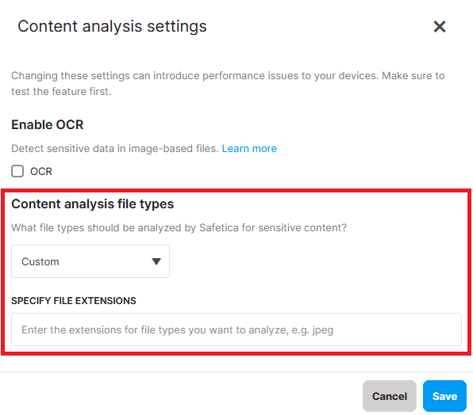
Content analysis file types
Use the Content analysis file types drop-down to choose which file types to analzye. You have 3 options:
- All: Safetica launches content analysis for all files for which it is technically possible. Using this option may impact device performance.
- Recommended: Safetica will analyze the content of selected, best-practice file types: txt, .xml, .html, .htm, .rtf, .zip, .csv, .pdf, .doc, .docx, .docm, .xls, .xlsx, .xlsm, .ppt, .pptx, .pptm, .pps, .ppsx, .ppsm, .msg, .eml, .one, .odt, .ods, .odp, .md, .epub, .rar, .7z, .gz
- Custom: Specify your own file type categories or individual extensions that will be analyzed for sensitive content. All other types are skipped.
✍️ If OCR is enabled, it runs only on the file types selected here (e.g., if you enter .jpeg, OCR will only run on .jpeg files).
File type detection
Safetica identifies files by their actual content, not their extension. This means a matching rule still applies even when a user:
- Renames the file (e.g., .docx → .stl)
- Packs the file inside an archive (e.g., ZIP)
✍️ By default, Safetica evaluates file type rules against the detected file type for the Recommended set. Detection is reliable for these extensions and requires no configuration.
Content analysis always works based on a file's real type, not its extension. So even if a file is renamed, Safetica still analyzes it, as long as its real type falls under the chosen extension set and file type detection recognizes it. If detection cannot recognize the real type, the file is not analyzed.
How to extend detection to all extensions
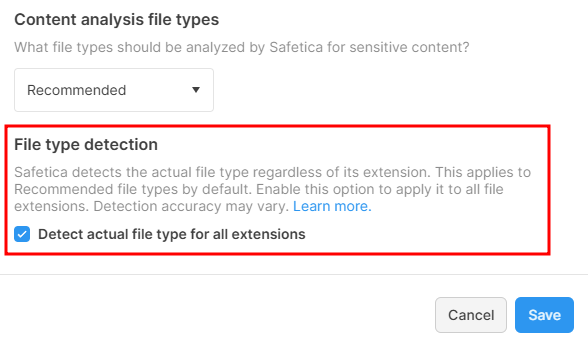
To cover formats outside the Recommended set (e.g., to construction files such as .stl or .cad), go to Data classification > Settings > Content analysis settings > File type detection and check Detect actual file type for all extensions.
❗ Detection accuracy may be lower for less common formats. Test your file type rules on representative files before rolling out.
Example: A data classification has a file type rule for CAD files and a policy blocks uploads matching that classification. A user renames a .cad file to .png, packs it into a .zip archive, and tries to upload it to a personal cloud drive. With Detect actual file type for all extensions enabled, Safetica identifies the file as CAD and the policy blocks the upload.
More granular file type control
You can control file types even more granularly via data classifications. You can both limit and extend the custom set of file types.
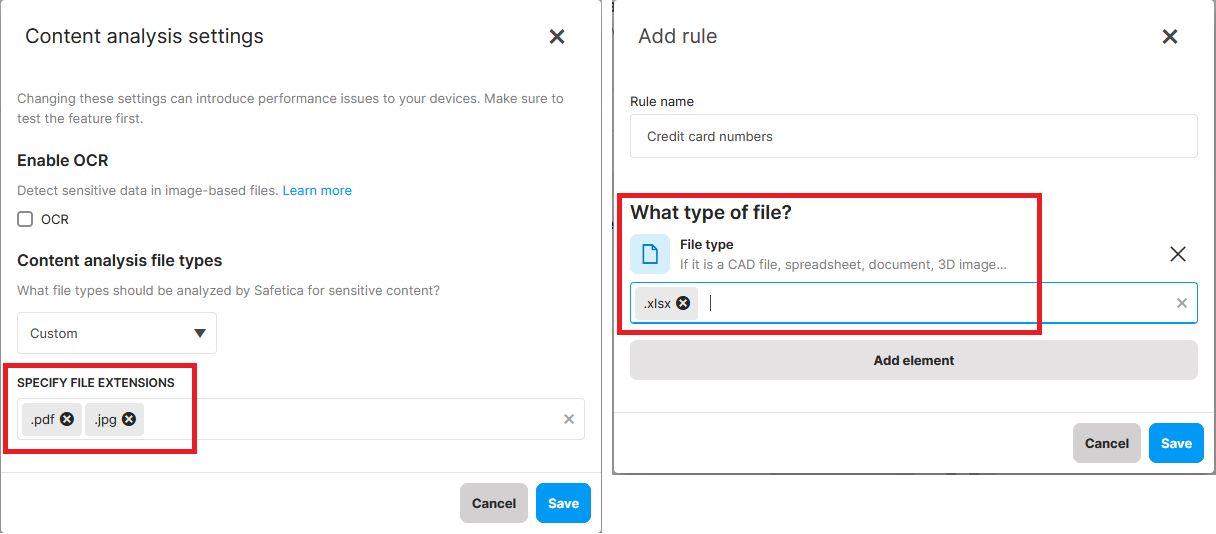
Example: You have entered .pdf. and .jpg as custom file types for which to perform content analysis. If you create a data classification that searches files for “credit card numbers” and add a rule that specifies .xlsx files as the file type that should be searched, then all three file types (.pdf, .jpeg, and .xlsx) will be searched for sensitive content.
Where to see the results of content analysis
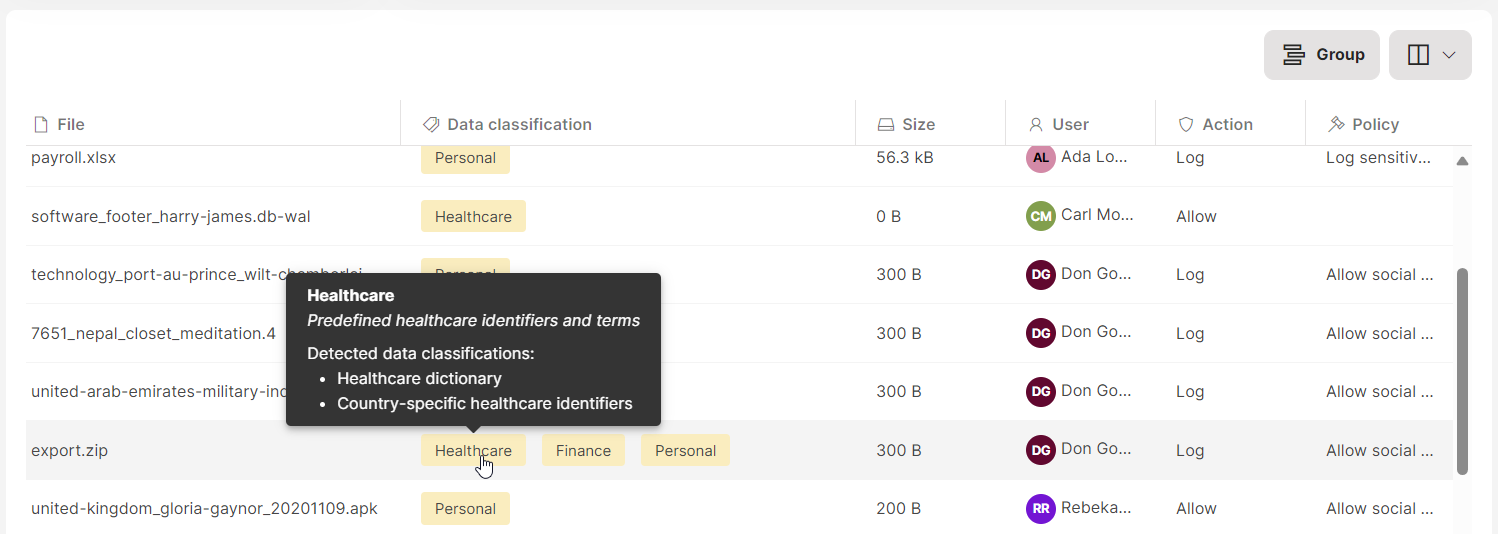
Results from content analysis appear in the Data operations > Data classification column. Hover over a classification label to see the rules that were matched, or click the classification label to display all classification details.
FAQ
Q: Does file type detection work for files inside archives?
A: Yes. Safetica identifies file types based on content even when the file is packed inside an archive such as ZIP.
Q: Does OCR apply to all files or only the selected file types?
A: OCR runs only on the file types selected for content analysis. For example, if you enter .jpeg as a custom file type, OCR runs only on .jpeg files.
Q: Can I extend the set of analyzed file types for a single data classification without changing the global setting?
A: Yes. When you create a data classification, you can add a file type rule that targets extensions not included in the global Content analysis file types setting. Safetica then analyzes both the globally selected types and the types specified in the classification rule.
Q: Why is Detect actual file type for all extensions disabled by default?
A: Detection is reliable for the Recommended set, but accuracy may vary for less common formats. Enable it only when you need to cover formats outside the Recommended set, and test on real samples first.
Read next:
Data classification in Safetica
Data classification: How to create a new data classification