![Logo landing page 232x64 with border.png]](https://support.safetica.com/hs-fs/hubfs/Marketing/Safetica_logo_/Logo%20landing%20page%20232x64%20with%20border.png?width=145&height=40&name=Logo%20landing%20page%20232x64%20with%20border.png)
Applies to: Safetica Platform
Looking for the Safetica On-Prem version? See: Safetica On-Prem: Installation guide
Introduction
With Safetica Platform, there is no server to install or maintain. Your Safetica Partner sets up the cloud environment for you and gives you access.
Getting started takes just three steps:
- Sign in to the Safetica console.
- Explore the product using built-in demo data.
- Install Safetica Client on the devices you want to protect.
How to get access
-
For customers: Your Safetica Partner will create your cloud environment and provide you with the console URL and initial access.
-
For Safetica Partners: You can register new customer and create their environments through the Partner Portal.
How to sign in for the first time
Once your Safetica Partner has set up your environment:
- Open the console URL provided by your Safetica Partner in any modern web browser (Internet Explorer is not supported).
- Sign in with your credentials.
- The first user to sign in must accept the Safetica Terms of Service.
✍️ After signing in, you will see demo data in the console. This is built-in sample data that lets you explore Safetica right away.
Explore Safetica with demo data
Your console comes pre-loaded with demo data, so you can explore Safetica’s features immediately - no Safetica Client installation needed.
This lets you test the console interface, view sample records, and familiarize yourself with Safetica without affecting your environment.
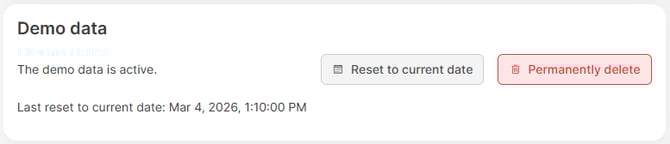
How to remove demo data
When you’re ready to work with real data from your devices, clear the demo data out:
-
Go to Settings > General > Demo data.
-
Click Permanently delete.
✍️ To receive data from your devices, you must install Safetica Client.
How to install Safetica Client to your devices
To receive real data from your devices, you need to install Safetica Client on each device you want to protect. The client runs in the background and:
- Collects records about data movement and user activity.
- Enforces your policies.
Learn how to install Safetica Client here.