![Logo landing page 232x64 with border.png]](https://support.safetica.com/hs-fs/hubfs/Marketing/Safetica_logo_/Logo%20landing%20page%20232x64%20with%20border.png?width=145&height=40&name=Logo%20landing%20page%20232x64%20with%20border.png)
Applies to: Safetica Platform
Product plans: Premium | Enterprise (see: Limits by plan)
Introduction: What are AI tags
AI tags help you discover sensitive files automatically with the help of AI, so you don’t have to create every classification rule manually.
Here’s what happens behind the scenes: Safetica AI analyzes files across your devices and tags files with similar content. It then organizes these AI tags into AI tag groups by the type of data they describe (for example, Finance and legal), so you work with a short list of groups instead of hundreds of tags.
You then review the groups and tags and decide which ones to add to your data classifications. Once a tag is linked to a classification (and that classification is linked to a policy), the matching files are protected.
✍️Why does this matter?
Most organizations don’t have complete visibility into what sensitive data they have or where it's stored. AI tags close that gap by identifying file groups you may not have known about – even for cases where creating classification rules manually would be difficult or impractical.
Key benefits
- Automated data discovery: Safetica finds groups of similar files without any manual setup. You do not need to know in advance what sensitive data exists in your environment.
- Broader protection coverage: AI tags reveal files outside your existing classifications, closing protection gaps and ensuring more sensitive data is protected by policies.
- Faster setup: Review AI tag groups and add whole groups or individual tags to classifications in a few clicks instead of building every rule from scratch.
- Up-to-date coverage: Refresh AI tags to get new tags based on your latest data, while the tags you already use are kept.
- Protection assessment: Built-in metrics (Protection gap and Already protected) show where each AI tag adds the most value.
Prerequisites
- Have Safetica Client 11.40.2 or newer installed on your devices. Data collection will not run on devices with older Safetica Clients.
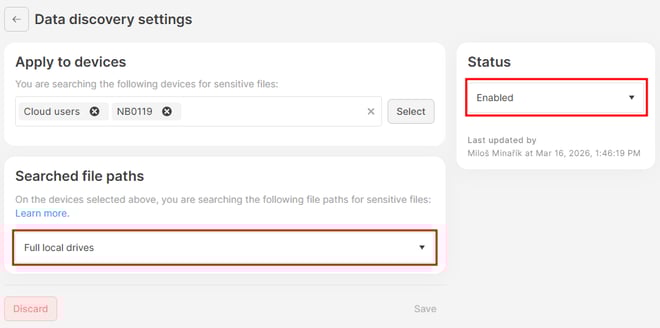
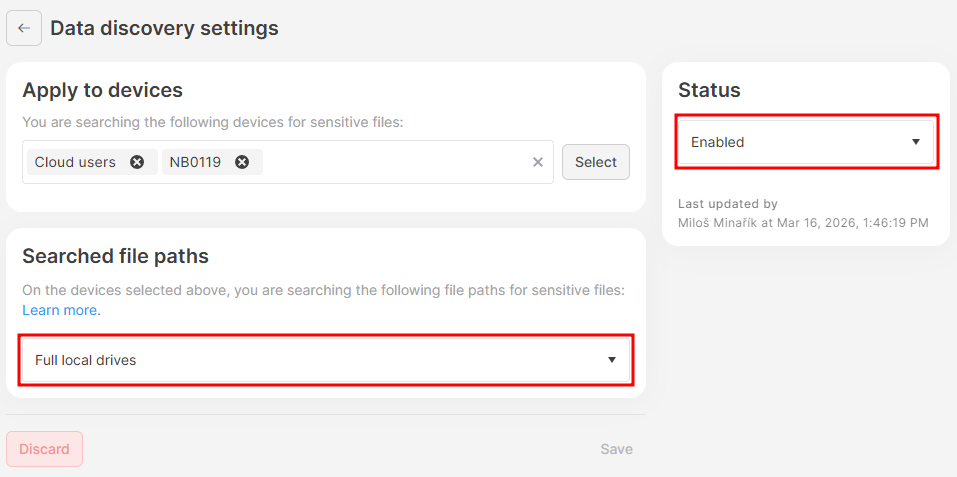
- Enable Data discovery: Go to Data classification > Settings > Data discovery settings and set the Status to Enabled.
-
For best results, set Searched file paths to Full local drives. Learn more about Data discovery here.
-
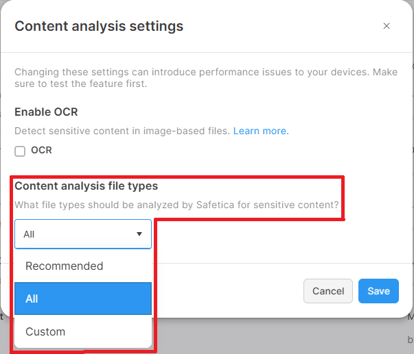
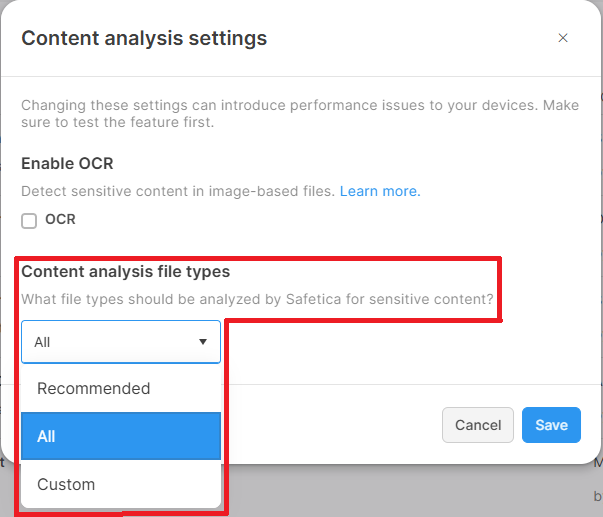
- Review Content analysis settings: Go to Data classification > Settings > Content analysis settings > Content analysis file types. Only the file types selected here will be analyzed (Recommended, All, and Custom).
Files on devices are analyzed automatically. To also include cloud files from SharePoint or Google Drive in the analysis, connect them in Integrations. Cloud files are analyzed during file operations (e.g., when users share them). Files that are only stored in the cloud are currently not analyzed.
How are AI tags created
AI tag creation happens in four phases:
Phase 1: Data collection
After you enable AI tags, Safetica begins collecting files from devices across your organization. Tag generation starts once:
- 100,000 files are analyzed across the entire organization OR after 7 days of collecting, whichever comes first.
❗Only files with these extensions count toward the 100,000 requirement: .xlsx, .xls, .pptx, .docx, .doc, .ppt, .odt, .xlsm, .pdf, .mail, .csv, .md
❗Content analysis setting matters. If your Content analysis is set to Custom file types, only the selected types that overlap with the supported list above are collected. For example:
- If you selected only .json, .css, and .html, none of these are supported - the 100,000 requirement will never be reached.
- If you selected .xls and .xlsx, only these two types are collected and used to generate AI tags.
These requirements ensure the AI has enough variety to produce meaningful tags. The more files and devices are involved, the more precise the resulting AI tags will be.
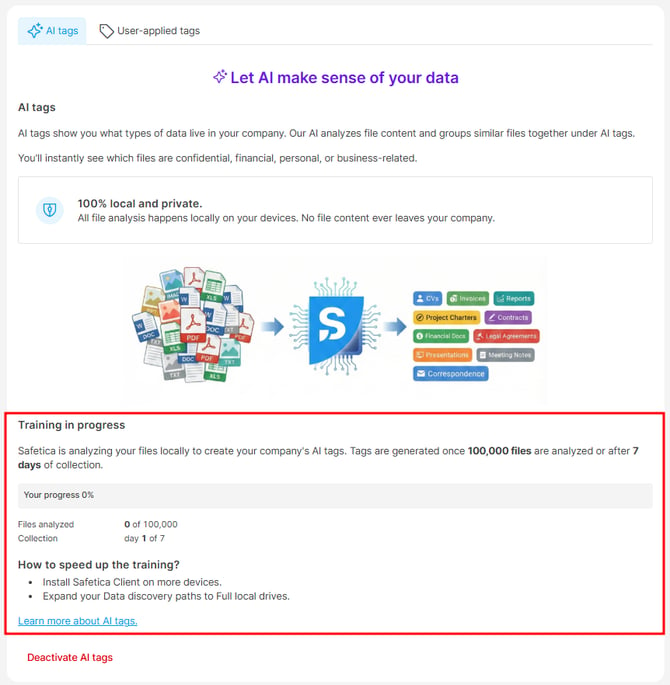
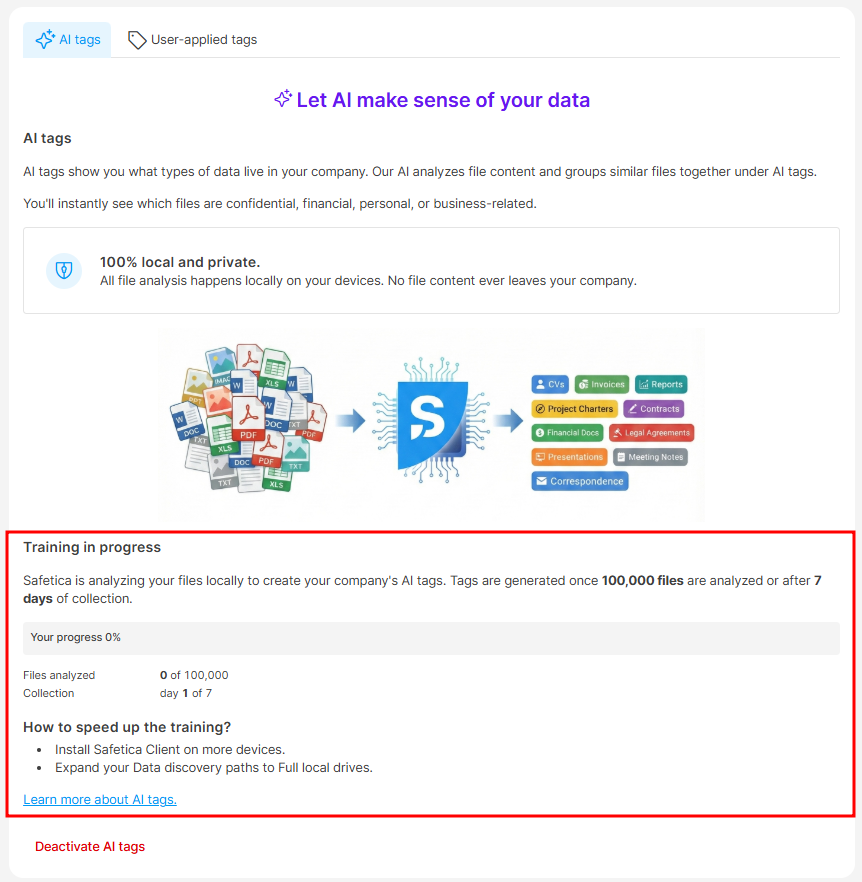
While collection is in progress, you’ll see a Training in progress progress panel on the AI tags tab in Data classifications > Settings > Manage classification tags, plus notifications in the Dashboard and Data classification sections. The panel shows:
- Your progress: The percentage of the 100,000 files collected so far.
- Files analyzed: How many files have been analyzed out of 100,000.
- Collection: Which day of the 7-day collection window you are on.
- How to speed up the training?: Tips to reach the requirements sooner: install Safetica Client on more devices and expand your Data discovery paths to Full local drives.
✍️Need to start AI tag generation earlier?
If you have fewer than 100,000 files (for example, during a Proof of Value (PoV) with a limited number of devices), you can click the Create AI tags button to trigger tag generation early. The box appears once more than 1,000 files have been collected. 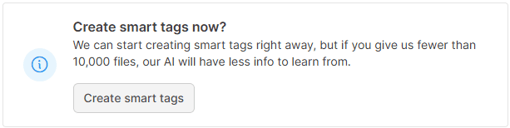
Just keep in mind that tags based on fewer files may be less accurate. You can refresh AI tags later once Safetica Client 11.40.2 or newer is installed on more devices.
Phase 2: AI tag generation
Once sufficient files are collected (or you start tag generation manually), Safetica generates an AI tag for each meaningful group of similar files and organizes the tags into a short list of AI tag groups. This usually completes within one day. Safetica prioritizes quality over quantity. If there isn’t enough meaningful data, you’ll get fewer tags.
When AI tags are ready, you’ll see a notification in the Dashboard and the Data classification sections. 

Phase 3: AI tag review
Generated AI tags appear in Data classification > Settings > Manage classification tags > AI tags, organized into AI tag groups. Each group and each tag has an AI-generated name and description. Tags are initially not linked to any data classification, which means no policies protect matching files yet. 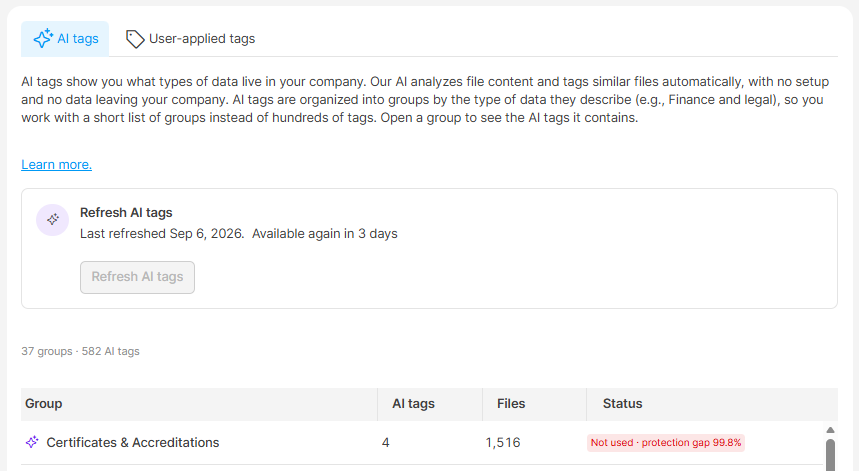
AI tag groups
The AI tags tab lists the groups, with the number of groups and AI tags shown above the list. For each group you see:
- Group: The AI-generated group name (for example, Finance and legal).
- AI tags: How many AI tags the group contains.
- Files: How many training files the tags in the group were created from.
- Status: Whether the group’s tags are used in data classifications:
- Not used · protection gap X%: None of the tags is used yet. The percentage shows how many of the group’s training files aren’t protected by any policy.
- Partially used · X/Y AI tags: Some of the tags are used in data classifications.
- Used in classification: All tags in the group are used.
Groups with unused tags and the largest protection gap are listed first, so the groups where AI tags add the most value are at the top.
AI tag group detail
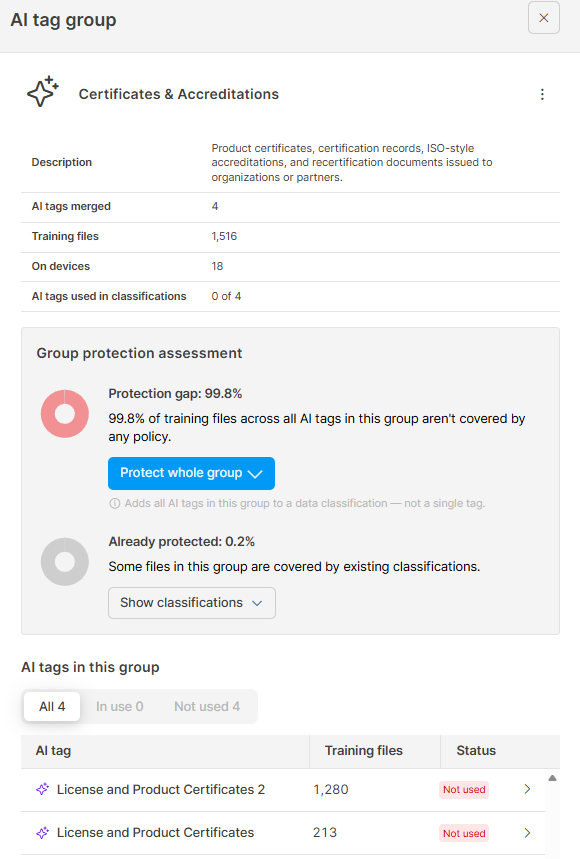
Click any group to see:
- Description: AI-generated from the content of the merged tags.
- AI tags merged: How many AI tags the group contains.
- Training files: The number of files used to create the tags in the group.
- On devices: From how many devices the files were collected.
- AI tags used in classifications: How many of the group’s tags are already used in data classifications (for example, 2 of 8).
- Group protection assessment:
- The Protection gap (percentage of training files across all tags in the group that aren’t covered by any policy) and Already protected (percentage already covered by existing classifications).
- Click Protect whole group to add all AI tags in the group to a data classification at once. Note that this adds only the tags currently in the group - if the group is later expanded with new tags after a refresh, you need to add them to the classification manually.
-
- Click Show classifications to see which classifications already apply.
- AI tags in this group: The list of tags with their Training files and Status (Used or Not used). Use the All, In use, and Not used tabs to filter the list. Click a tag to open its detail.
AI tag detail
Click any AI tag in a group to see:
- Name and description: AI-generated from file content and names.
- Used in data classifications: How many data classifications already include this tag.
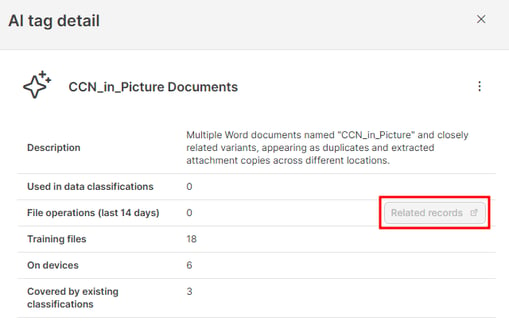
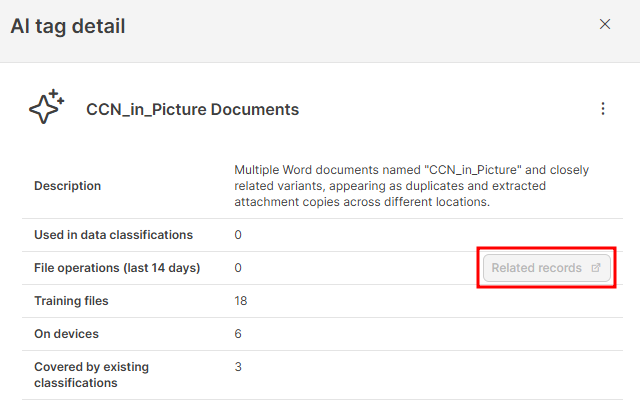
- File operations (last 14 days): How many recent operations involved files with this AI tag. Click Related records to go to the Data operations section to see the operations.
- Training files: The number of files used to create the tag.
- On devices: From how many devices were files collected.
- Covered by existing classifications: How many existing data classifications already cover some of the training files.
- Sample training files: A sample of up to 50 files (names and paths) based on which the tag was created.
Protection assessment
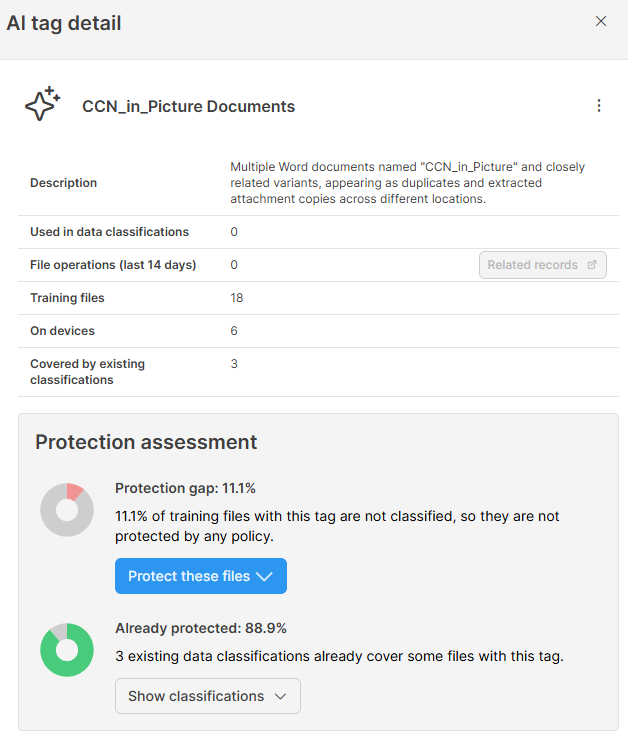
When an AI tag is not yet used in any classification, you will also see a Protection assessment with two metrics:
- Protection gap: The percentage of training files not covered by any existing classification. These files would remain unprotected if the AI tag is not used.
- Already protected: The percentage of training files already covered by one or more classifications. You can expand this section to see which classifications apply.
Example: An AI tag named CVs may be applied to some files already protected by an existing classification called HR: Resumes. If only some tagged files are currently classified, adding the CVs tag to that classification increases its coverage and ensures more files are protected.
✍️The Protection assessment disappears once the tag is added to a classification and reappears if the tag is later removed from all classifications.
Phase 4: Refresh AI tags
Your data evolves over time: new document types, projects, and patterns appear. Refresh AI tags to make Safetica re-analyze your files and generate an up-to-date set of tags based on your latest data.
The refresh keeps what you already use and replaces the rest:
- Tags used in data classifications are kept and may be enhanced with newly collected data.
- Unused tags are removed and replaced with new ones based on your current data. Similar tags may reappear, either the same or improved, depending on the variety of your data.
- Deleted tags won’t come back. If there are tags you don’t want, delete them before refreshing. This way, you also tell Safetica which tags aren’t useful for you.
To refresh AI tags:
- Go to Data classification > Settings > Manage classification tags > AI tags.
- In the Refresh AI tags panel above the list of AI tag groups, click Refresh AI tags. The panel also shows when your tags were last refreshed.
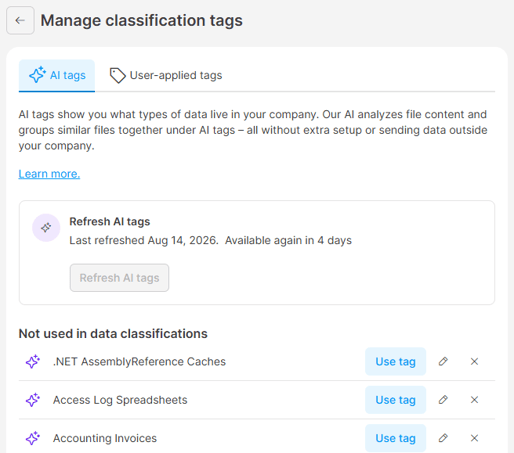
- Review the information in the confirmation dialog and click Refresh AI tags.
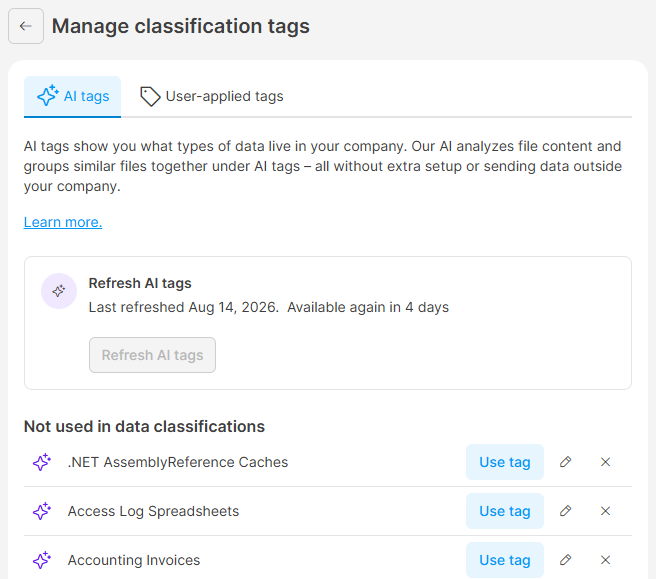
The refresh runs in the background and can take up to 5 days because Safetica first collects fresh data from devices across your organization. You can keep working in the console in the meantime. When the new tags are ready, you’ll see a notification in the Dashboard, and the new tags appear in Data classification > Settings > Manage classification tags > AI tags.
✍️How often can you refresh AI tags?
After a refresh completes, the Refresh AI tags button is unavailable and the panel shows a countdown until you can refresh again. When a refresh becomes available again, Safetica also reminds you with a recommendation in the Dashboard.
Currently, both Safetica Premium and Enterprise product plans can refresh AI tags every 7 days. For the Premium product plan, the 7-day cycle is an early access offer for a limited time. Once it ends, the refresh cycle for Premium will be every 30 days.
How to work with AI tags
How to add AI tags to data classifications
To protect files that match an AI tag, add the tag to a data classification. There are three ways to do this:
Option A: Protect a whole AI tag group
- Go to Data classification > Settings > Manage classification tags > AI tags and click the group.
- In Group protection assessment, click Protect whole group.
- Select Add to existing classification or Create new classification.
All AI tags in the group are added to the data classification, not just a single tag.
Option B: From the AI tag detail
- Go to Data classification > Settings > Manage classification tags > AI tags, click the group, and then click the tag.
- Click Protect these files.
- Select Add to existing classification or Create new classification.
Option C: From the data classification rule editor
- Go to Data classification and open or create a classification.
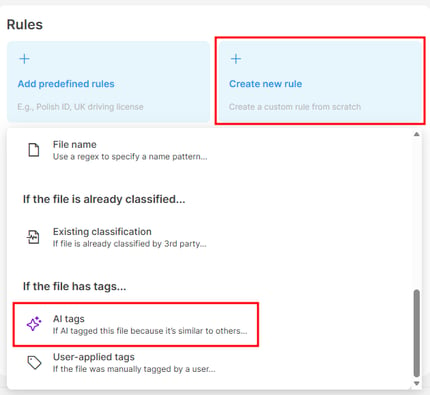
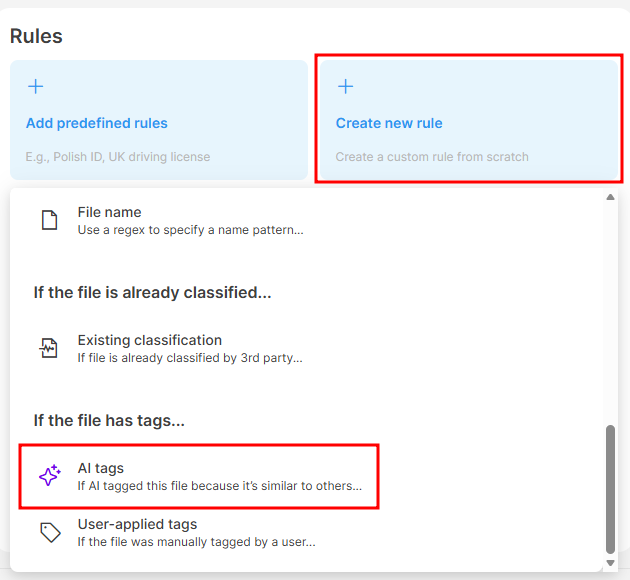
- Click Create new rule.
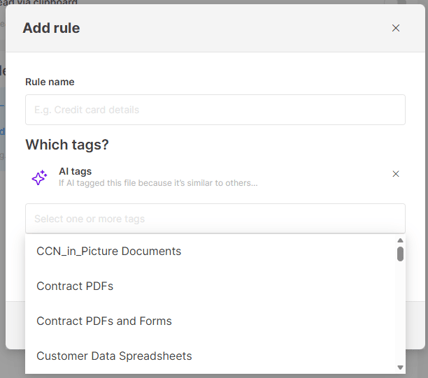
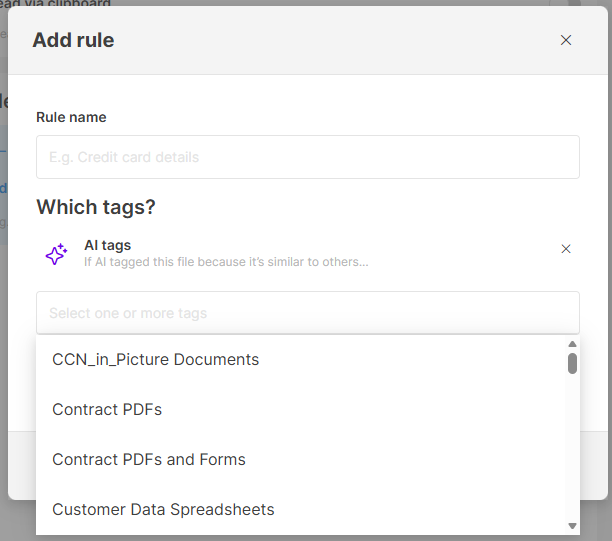
- Select the AI tags element.
- Choose one or more AI tags from the list.
Combining AI tags
You can combine AI tags or whole AI tag groups with other rule types (keywords, regular expressions, and more) in a single data classification. For example, an “Invoices” classification built from the “Invoices” AI tag group plus a keyword rule.
❗AI tags alone do not protect files. After adding an AI tag to a data classification, you must also link that classification to a policy for protection to take effect.
How to rename AI tags and AI tag groups
To rename an AI tag group or change its description:
- Go to Data classification > Settings > Manage classification tags > AI tags and click the group.
- Click the three dots in the group detail and select Edit.
- Enter the new Group name or Group description and click Save.
To rename a single AI tag or change its description:
- Go to Data classification > Settings > Manage classification tags > AI tags, click the group, and then click the tag.
- Click the three dots in the tag detail and select Edit.
- Enter the new name or description and click Save.
How to delete AI tags
If an AI tag isn’t useful, you can delete it:
- Go to Data classification >Settings > Manage classification tags > AI tags, click the group that contains the tag, and then click the tag.
- Click the three dots in the tag detail and select Remove.
- If the tag is used in any classification, Safetica will show you which classifications and policies are affected so you can review the impact before confirming.
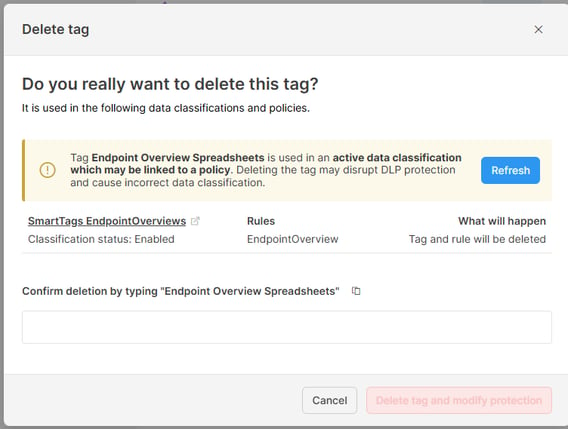
- Choose automatic deletion (Safetica updates everything for you) or manual deletion (you remove the tag from classifications yourself first and then click Refresh to re-check dependencies).
- Provide feedback on why the tag wasn’t useful. This helps Safetica improve future tag generation.
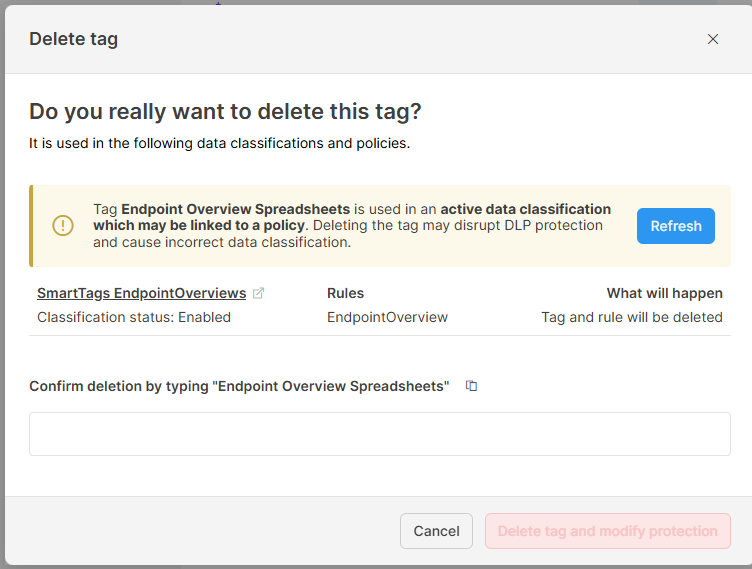
Deleted tags won’t be created again when you refresh AI tags.
❗For now, AI tags groups can’t be deleted. If you don’t want a group’s tags, delete the individual AI tags instead.
How to view operations with tagged files
Once AI tags are created, any file that matches a tag is automatically tagged with it. You can view operations with tagged files in three ways:
- From the individual AI tag’s detail, click Related records to see the Data operations section filtered based on that tag.
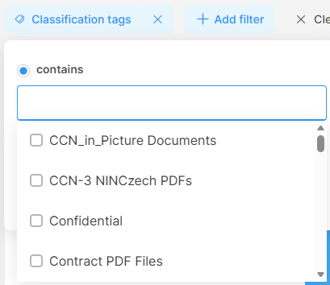
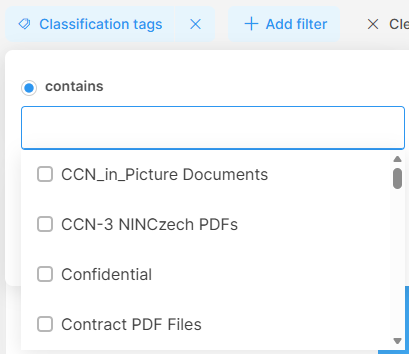
- In the Data operations section, use the Classification tags filter to display operations tagged with a specific AI tag.
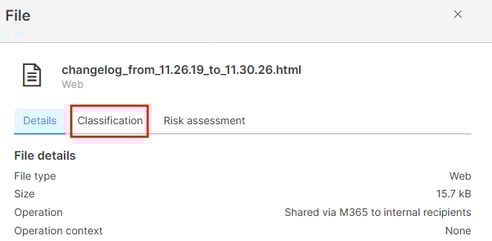
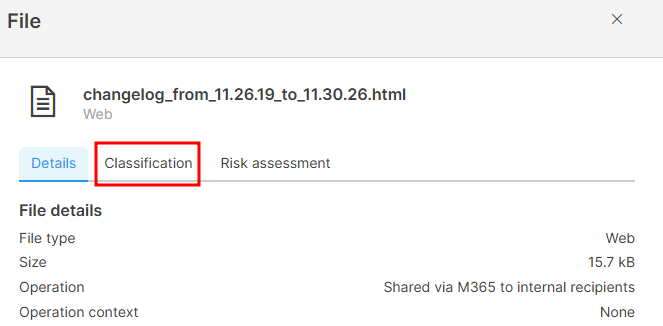
- In an individual file’s detail, check the Classification tab to see AI tags assigned to that specific file.
How to deactivate AI tags
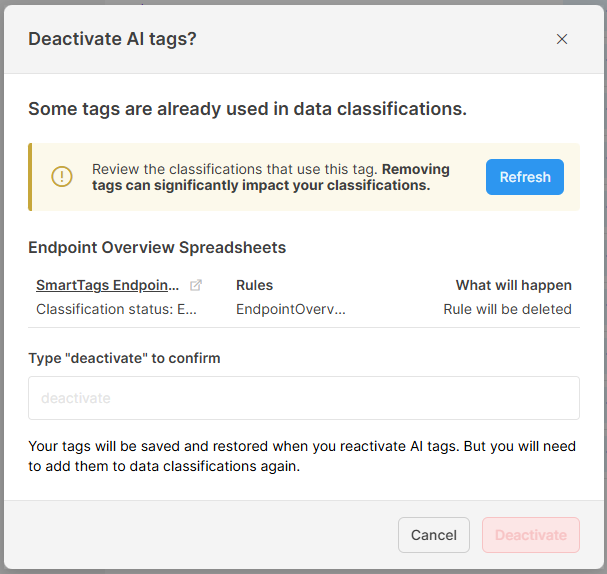
You can deactivate AI tags at any time by clicking the Deactivate AI tags button in Data classification >Settings > Manage classification tags > AI tags.
In the Deactivate AI tags? dialog, click Deactivate. If any AI tags are used in data classifications, the dialog lists the affected classifications and rules, and you must type deactivate to confirm
| Current state | Behavior on Deactivate |
| Data collection is in progress, or AI tags exist but aren’t used in any classification | Collection stops and unused tags are discarded. No additional action is needed. |
| AI tags are used in classifications |
Safetica automatically removes the tags from all classifications and rules. If you re-enable AI tags later, your tags will be restored. But you will need to add them to data classifications again. |
Security and privacy
AI tags are designed with security and privacy at their core:
- Where analysis runs: Files stored on a device are analyzed directly on that device. Files in connected cloud services are analyzed in Safetica's cloud: a temporary copy is retrieved, analyzed, and deleted immediately afterward (just like cloud files during content analysis).
- No content retention: Safetica never permanently stores actual file contents. Analysis produces abstract mathematical representations (feature vectors) that capture content patterns, and only these vectors, along with file names and paths, are used to generate AI tags.
- AI-generated names via Azure OpenAI: AI tag names and descriptions are generated under an enterprise agreement using Azure OpenAI. This ensures that customer data is not exposed outside the secured environment and is not used to train AI models.
- Consistent standards: The entire process follows the same security and privacy standards used throughout cloud-hosted Safetica.
FAQ
Q: Which files are analyzed during AI tag creation?
A: All files with extensions defined in your Content analysis settings (Recommended, All, or Custom). Files with sufficiently similar content are grouped together, and each group becomes an AI tag. The resulting tags are then organized into AI tag groups.
Q: AI tag creation didn’t start even though 100,000 files were collected. Why?
A: The system also requires files from several different devices to ensure sufficient diversity. If that requirement isn’t met, tag generation waits for files from more devices. You can click Create AI tags to start sooner.
Q: Can AI tags disappear after they are created?
A: Yes. AI tags that aren’t used in any data classification are removed and replaced when you refresh AI tags. To keep an AI tag, add it to a data classification.
Q: Why should I give feedback when deleting an AI tag?
A: Your feedback helps Safetica’s AI model improve, so future tag generations are more relevant to your environment.