![Logo landing page 232x64 with border.png]](https://support.safetica.com/hs-fs/hubfs/Marketing/Safetica_logo_/Logo%20landing%20page%20232x64%20with%20border.png?width=145&height=40&name=Logo%20landing%20page%20232x64%20with%20border.png)
Applies to: Safetica On-Prem
Introduction
Single sign-on (SSO) allows Safetica console admins to sign in using their existing identity provider (e.g., Google or Microsoft) instead of a separate Safetica-specific password. If multi-factor authentication (MFA) is already configured in that provider, it applies automatically – no extra setup in Safetica is needed.
Benefits
- One set of credentials: Admins sign in with their existing organizational identity (e.g., a Google account). No need to remember or manage a separate Safetica password.
- Multi-factor authentication support: Any multi-factor authentication configured in the identity provider is enforced automatically during Safetica sign-in.
- Simplified admin account creation: New admins are invited by email and authenticate entirely through the provider.
- Full audit trail: SSO sessions are recorded in the Admin trail just like password-based sessions.
Supported identity providers
Any identity provider that supports the OIDC (OpenID Connect) protocol.
Permissions
To set up and manage SSO, you must have an admin account with the Settings and configuration permission.
How to set up SSO
Step 1: Register Safetica in your identity provider
In your identity provider's admin console:
- Create a new app registration.
- Set the redirect URL to point to your Safetica server. The authorized redirect URLs in the app registration must include an address like this: https://your-safetica-server/safetica/auth/signin-oidc
- Note down the Client ID and Client secret – you'll need them in the next step.
✍️Some identity providers: The redirect URL must use a fully qualified domain name (e.g., computer.safetica.com/Safetica).
Step 2: Add the identity provider in Safetica

- Go to Settings > Accounts and permissions.
- In the Authentication section, click the Not set link next to Single sign-on (SSO).
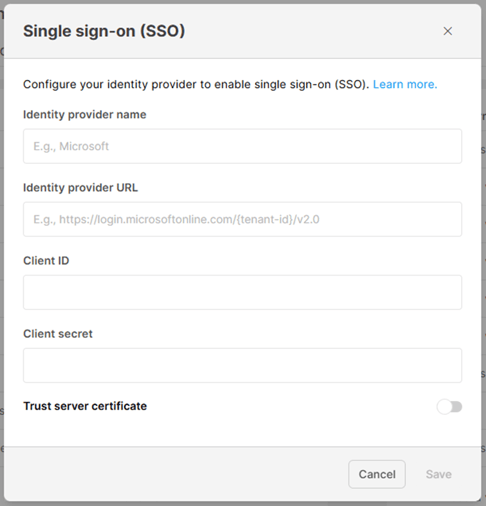
- Enter the Identity provider name. This text appears on the sign-in button (e.g., "Sign in with Google").
- Enter the Identity provider URL, Client ID, and Client secret (from Step 1).
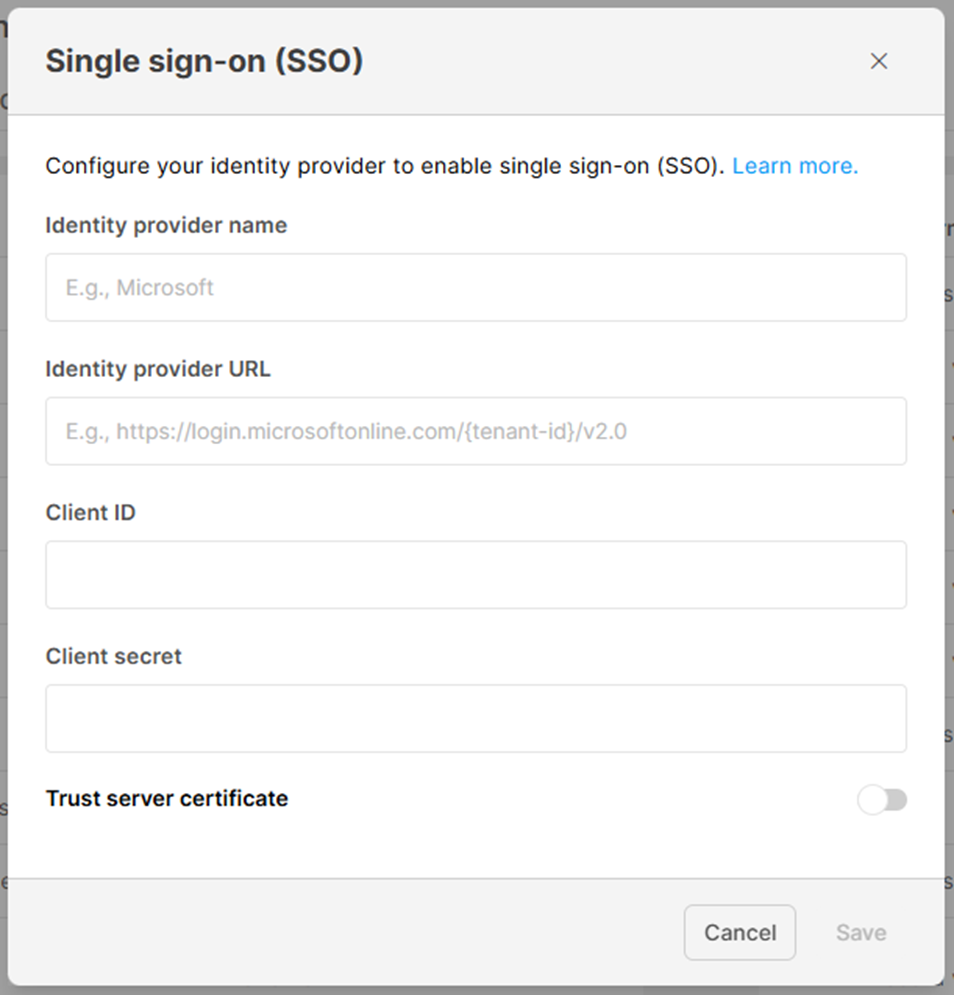
✍️Verify the identity provider URL:
Append /.well-known/openid-configuration to the identity provider URL (e.g., https://login.microsoftonline.com/{tenant-id}/v2.0/.well-known/openid-configuration) and open it in a browser. You should see the OpenID configuration document (a JSON document with the provider's OIDC endpoints and other metadata).
Note: Safetica does not verify the Client ID and Client secret at setup time. If they are incorrect, admins will see an error when they try to sign in.
5. If your identity provider uses a self-signed certificate, enable the Trust self-signed certificate toggle.
6. Click Save.
The identity provider now appears in the Authentication section, and a Sign in with [Provider] button appears on the sign-in page.
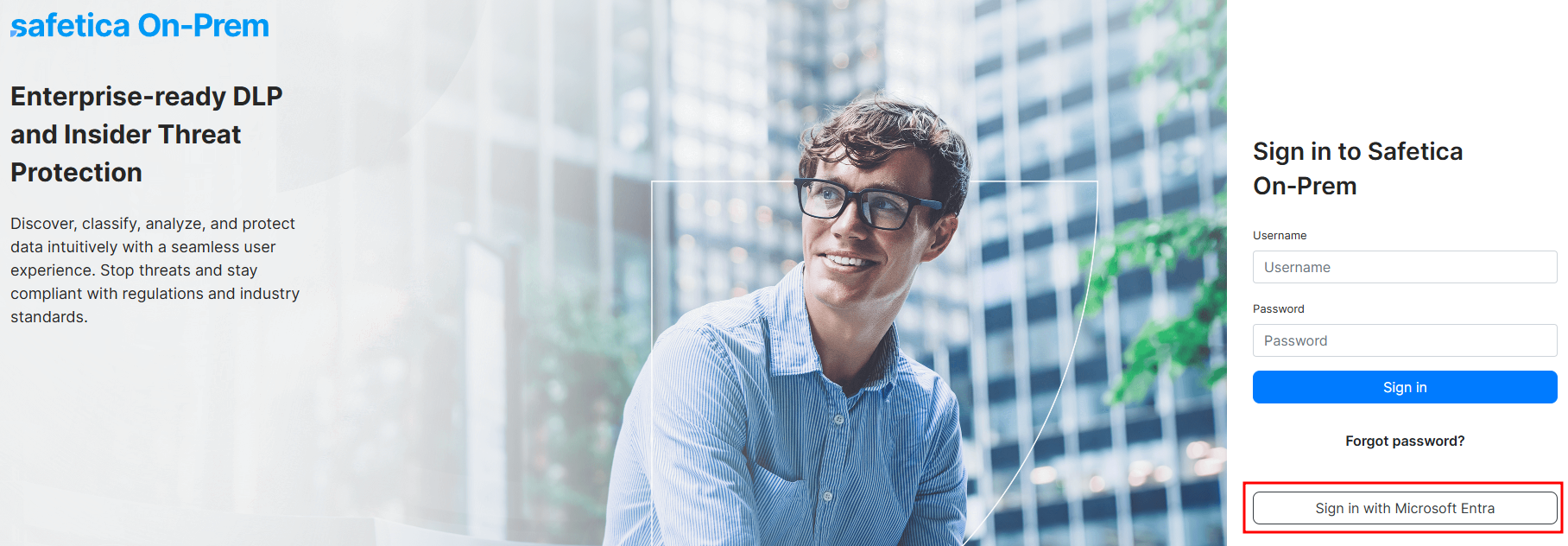
Step 3: Invite admins to sign in with SSO
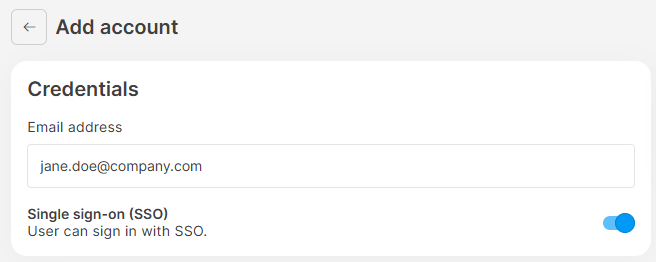
Only admin accounts that have been explicitly enabled for SSO in the Safetica console can use it.
- Go to Accounts and permissions.
- Click Add account (or an existing account).
- Enable the Single sign-on (SSO) toggle.
- Enter the admin's email address registered with the identity provider.
- You do not need to set the password. The full name will be pulled from the identity provider on first sign-in.
- Assign the appropriate permissions for the account.
- Click Save.
An email invitation is sent to the admin automatically. They can then sign in by clicking the link in the email.
How to sign in with SSO
- Open the Safetica console sign-in page.
- Click the Sign in with button.
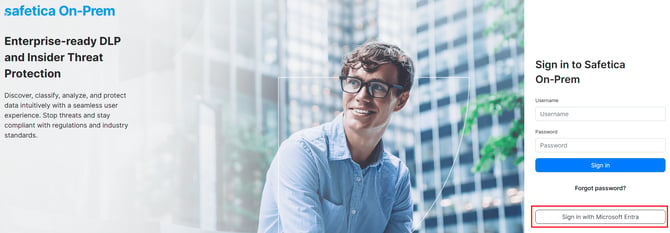
- If you are not already signed in to the identity provider, enter your provider credentials on their authentication page.
- Complete the MFA challenge if prompted.
- You are redirected back to the Safetica console and signed in under your provider identity.
✍️All actions in the console are audited in the Admin trail under your SSO identity
How to switch one admin from SSO to password
If you need to move a single admin from SSO to password authentication:
- Go to Accounts and permissions and select the admin account.
- Disable the Single sign-on (SSO) toggle.
- Set a password and full name for the account.
The admin can now sign in with their email and the password instead of SSO.
How to disconnect the identity provider (disable SSO entirely)
❗Disconnecting the identity provider deletes all SSO settings. All admins who signed in via SSO will be locked out. Before disconnecting, disable SSO for each admin individually and set passwords for them. (If admins had passwords before SSO was enabled, those passwords will work again.)
- Go to Accounts and permissions > Authentication.
- Click the identity provider.
- Click Disconnect identity provider and confirm.
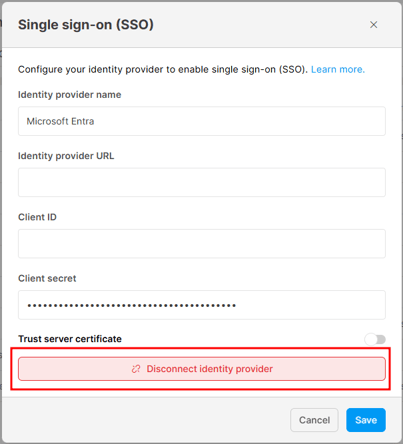
❗All currently signed-in admins will be signed out within approximately 5 minutes (the access token lifetime) and will need to sign in again with a password
FAQ
Q: What happens to existing SSO accounts when the provider is disconnected?
A: They lose access. Before disconnecting, disable SSO for each admin and set a password. If admins had passwords before SSO was enabled, those passwords will work again.
Q: What happens if an admin account is disabled in the identity provider?
A: Safetica detects the change and terminates the session. The admin is signed out and redirected to the sign-in page within approximately 5 minutes.
Q: What happens if an admin account is disabled in Safetica console?
A: Safetica terminates the session. The admin is signed out and redirected to the sign-in page within approximately 5 minutes.
Q: I had a password before SSO was enabled. The SSO stopped working – can I use my old password?
A: No. Once SSO is enabled on your account, password sign-in is disabled. Another admin with the right permissions must disable SSO on your account first. You will then be able to sign in with your old password.
Q: Can I use multiple identity providers at the same time?
A: No. Only one identity provider can be configured at a time.
Q: Can I use SSO with Safetica Platform?
A: Safetica Platform uses Entra ID for SSO by default, and this cannot be changed.
Q: What happens if the identity provider is temporarily unavailable?
A: Admins who rely on SSO will not be able to sign in until the provider is back online.