![Logo landing page 232x64 with border.png]](https://support.safetica.com/hs-fs/hubfs/Marketing/Safetica_logo_/Logo%20landing%20page%20232x64%20with%20border.png?width=145&height=40&name=Logo%20landing%20page%20232x64%20with%20border.png)
How to uninstall Safetica Client from specific devices
Option 1: Uninstall from multiple devices
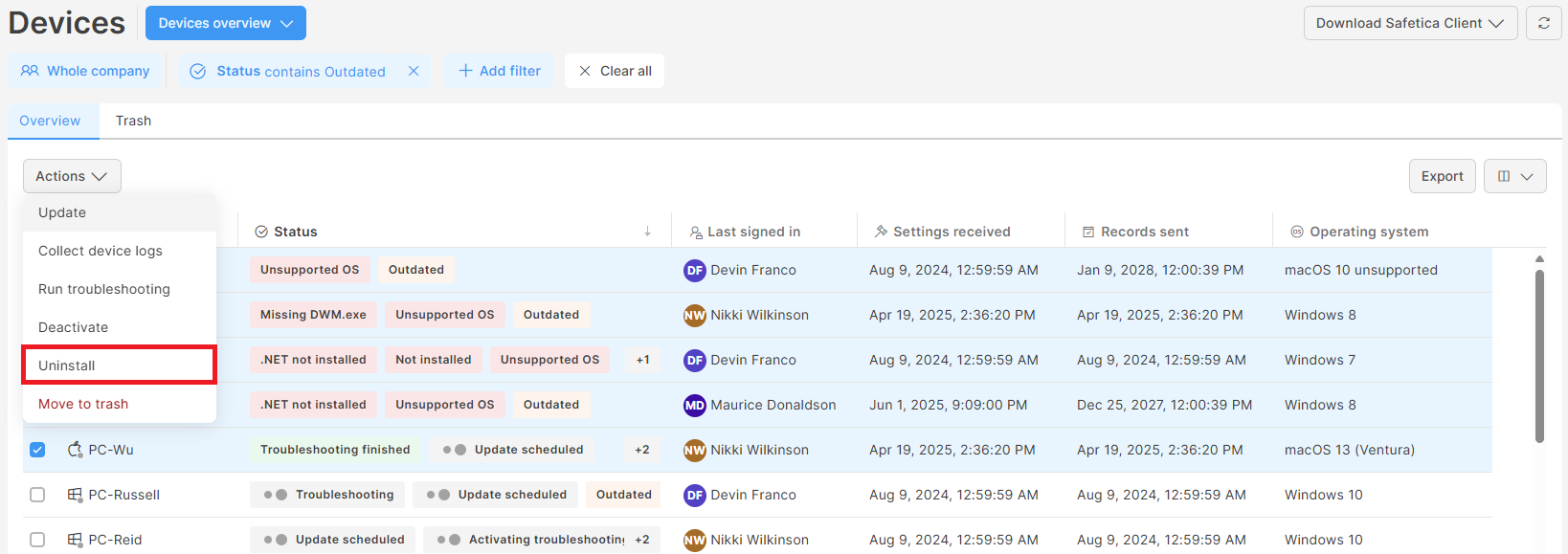
- Go to Devices > Overview tab.
- Select the device(s) from which you want to uninstall Safetica Client.
- Click the Actions drop-down and select Uninstall. Uninstallation will be scheduled.
- Once the device shows the status Waiting for restart, restart it to complete the process.
Option 2: Uninstall from a single device
- Go to Devices > Overview tab.
- Click the specific device to open its detail.
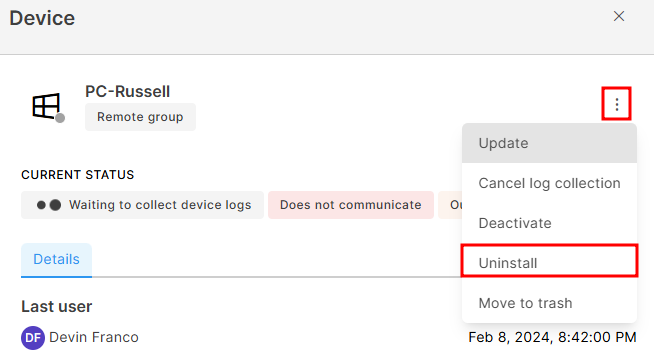
- Click the three dots icon
 and select Uninstall.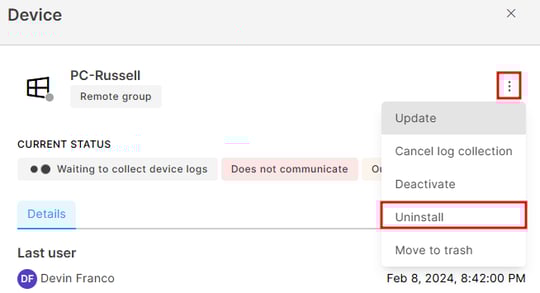
❗If you are having trouble uninstalling Safetica Client via Safetica console, you can try to uninstall it locally on the problematic device. Learn more here (the article is only available for Safetica partners).
FAQ
Q: How can I check that Safetica Client is properly uninstalled from a macOS device?
A: To check that Safetica Client is uninstalled from a macOS device, you can:
1. Go to System preferences > Privacy & Security > Full Disk Access.
2. Check if the following services are present: STClassiTagger, STContentService, STCService, and STFileMonitor.
3. If none of them are listed, Safetica Client has been successfully uninstalled from the device.