![Logo landing page 232x64 with border.png]](https://support.safetica.com/hs-fs/hubfs/Marketing/Safetica_logo_/Logo%20landing%20page%20232x64%20with%20border.png?width=145&height=40&name=Logo%20landing%20page%20232x64%20with%20border.png)
Update steps
You should update the Outlook add-in when a new manifest.xml is available.
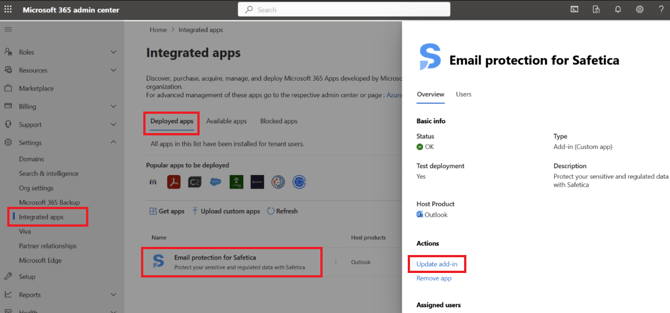
- Go to Microsoft 365 admin center.
- In the left navigation panel, click Settings > Integrated apps.
- On the Deployed Apps tab, find and click the add-in named Email protection for Safetica.
- Click Update add-in.
5. Under Choose how to upload app, select Provide link to manifest file, and enter the URL for your region:
-
-
EU data center: https://outlookaddin.cdn.cloudprotection.safetica.com/manifest.xml
- US data center: https://outlookaddin.cdn.us.cloudprotection.safetica.com/manifest.xml
-
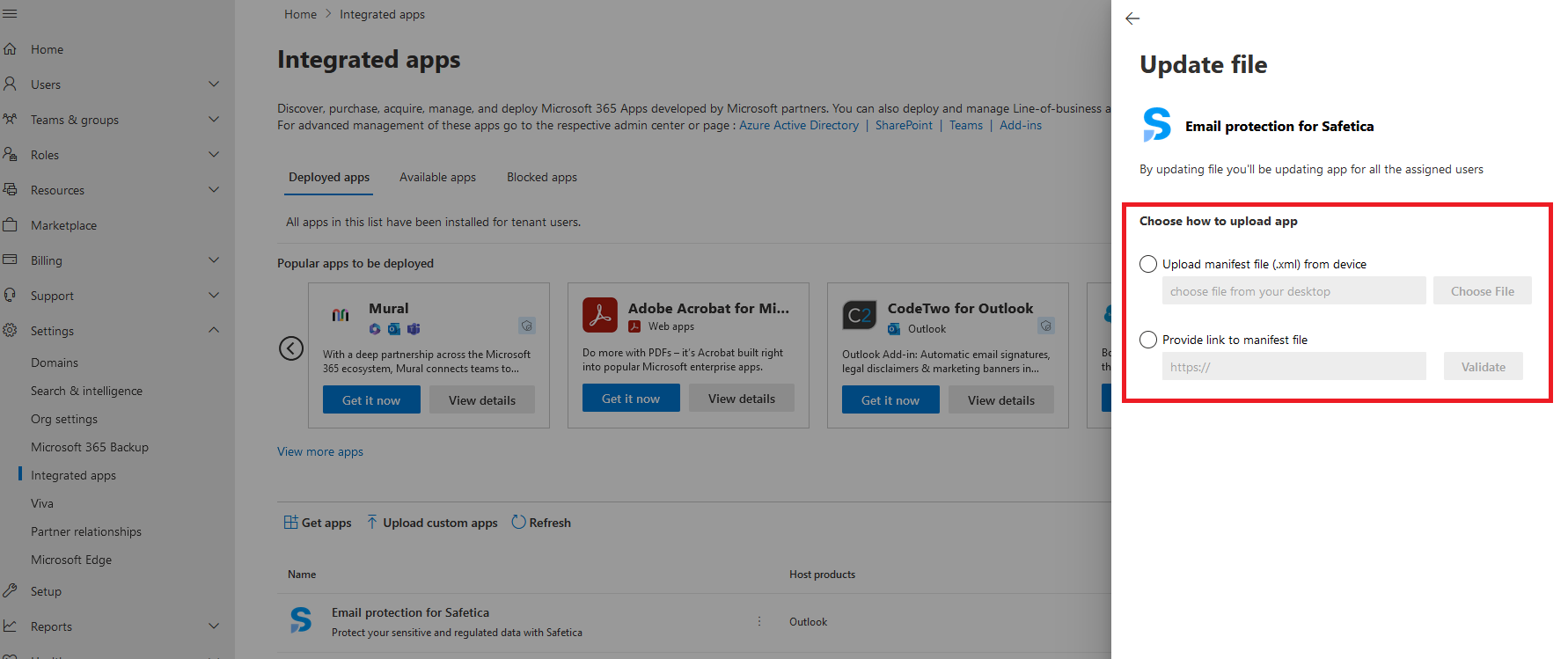
6. Once the manifest uploadeds, click Next.
7. Review the add-in’s permissions and click Accept and update.
Troubleshooting
Issue: You see an error when trying to update the Outlook add-in
Cause: This usually means you’re already using the latest manifest version. The update fails because the linked manifest is the same one already installed.
Solution: Do not update the Outlook add-in, it is already up to date.