![Logo landing page 232x64 with border.png]](https://support.safetica.com/hs-fs/hubfs/Marketing/Safetica_logo_/Logo%20landing%20page%20232x64%20with%20border.png?width=145&height=40&name=Logo%20landing%20page%20232x64%20with%20border.png)
Applies to: Safetica On-Prem
In Safetica Platform, records are stored in Azure and do not require archiving.
✍️Do you want to schedule regular automatic archiving? Learn more here.
Introduction: What is one-time manual archiving
During one-time manual archive creation, older records from the Safetica database are archived and may be deleted (depending on settings), which helps to free up space on the Safetica server. The archiving does not recur automatically. Each archive must be created manually.
❗During archive creation, devices may be temporarily disconnected from the Safetica server. Once archiving is complete, the connection is immediately re-established.
Archive permissions
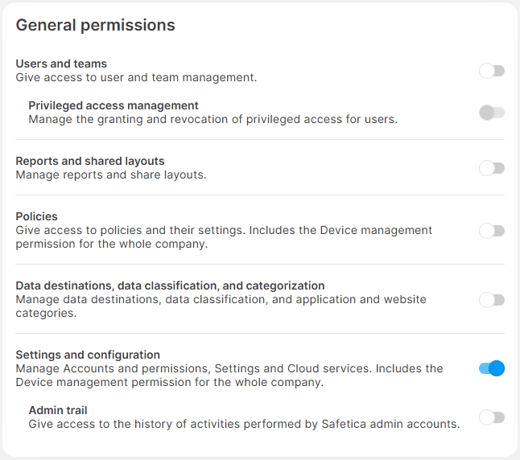
- Manage archives: Available only to Safetica admins who have the Settings and configuration permission.
- This controls access to Settings > Archives in the Safetica console.
- You can enable/disable the permission in Settings > Accounts and permissions.
How to create a database archive
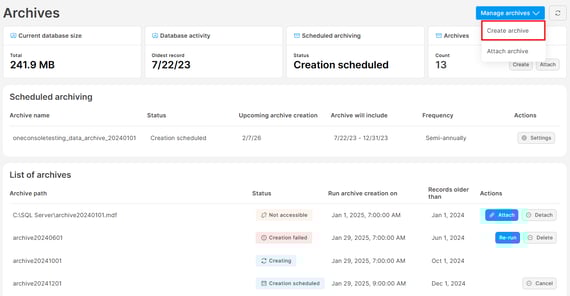
- Go to Settings> Archives in the Safetica console.
- Click Manage archives and select Create archive.
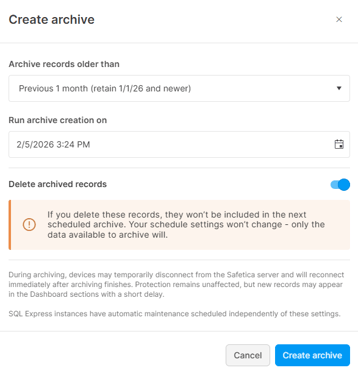
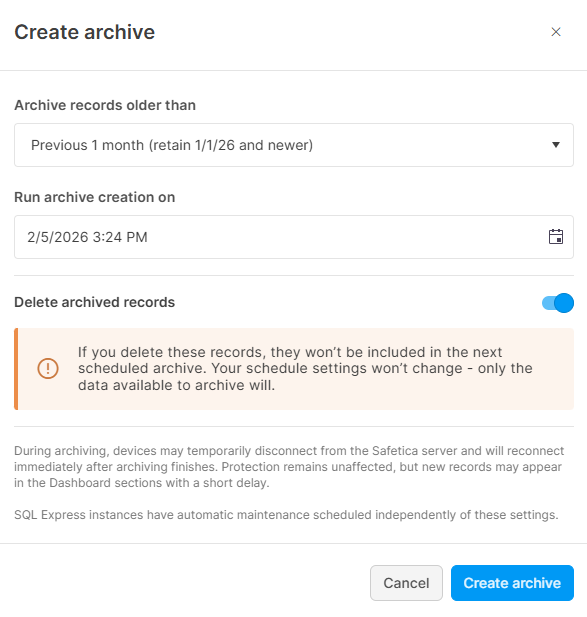
- You can configure the following:
- Archive records older than: Set the retention period (1, 3, 6, or 12 months). Records older than the selected period, counted from the start of the current month, will be archived.
- Run archive creation on: Specify the exact date and time when the archive should be created.
- Delete archived records: Select if after records are archived, they should also be deleted from Safetica console. You can still attach the archive later and browse the archived records if needed.
- If you have scheduled archiving set up and you delete some records, they won't be included in the next scheduled archive. Your schedule settings won't change - only the data avilable to archive will.
- If you have scheduled archiving set up and you delete some records, they won't be included in the next scheduled archive. Your schedule settings won't change - only the data avilable to archive will.
- Click Create archive.
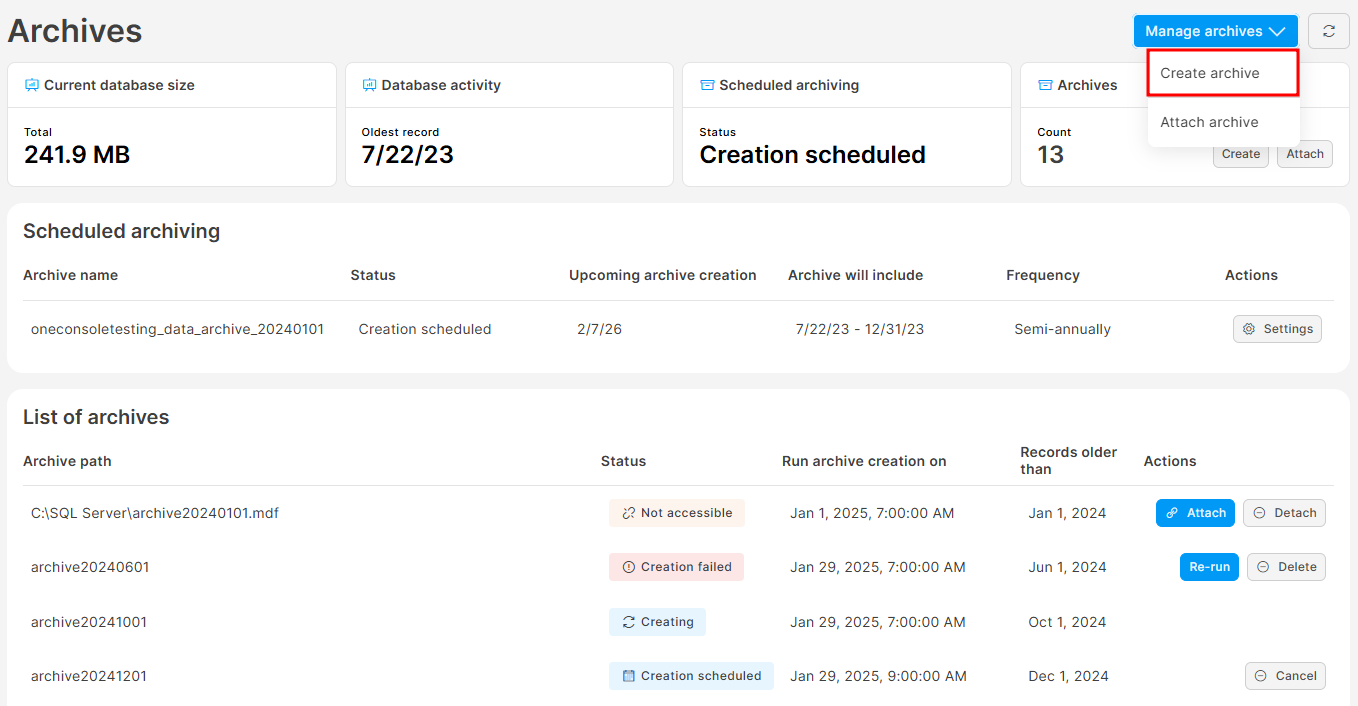
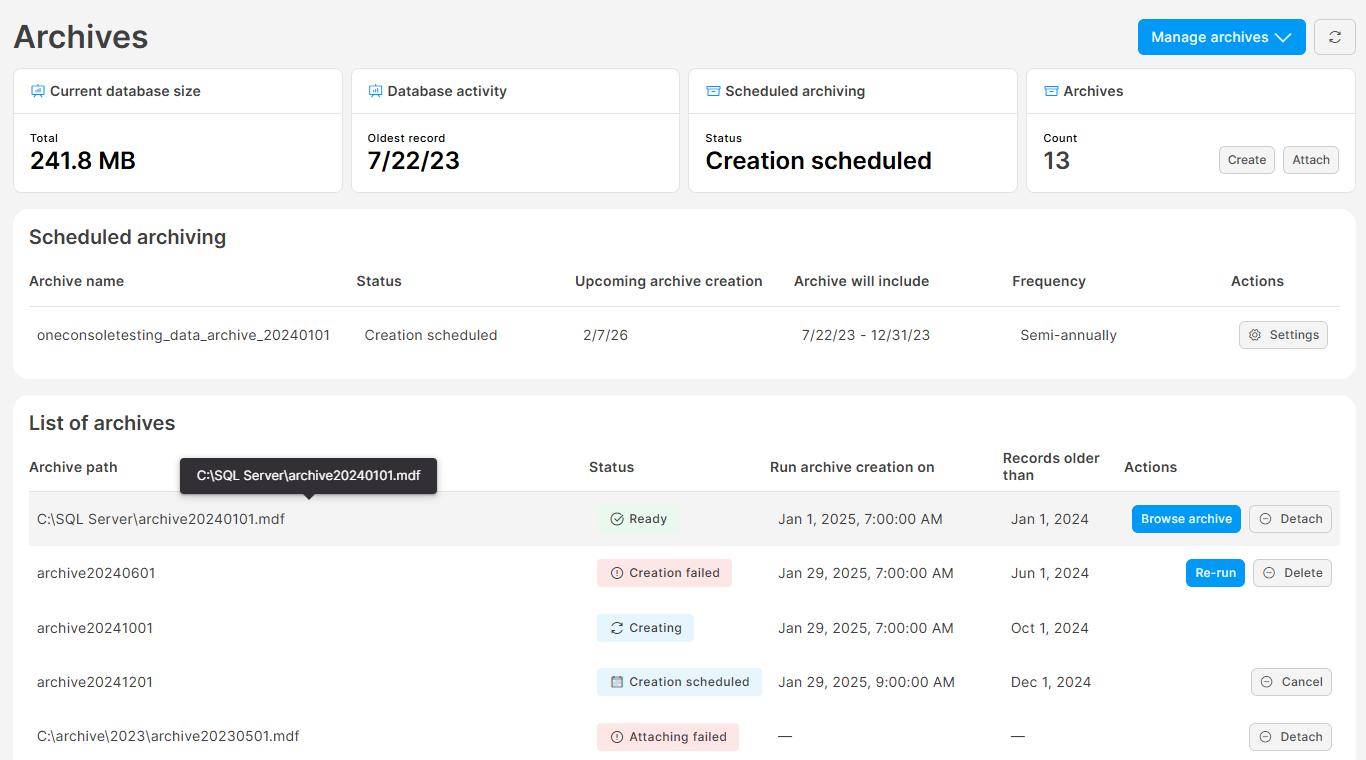
- The archive and its status will appear in the List of archives.
- Once the archive creation is run and finished, the archive’s status changes to Ready, and it will be available for browsing.
✍️When you update Safetica server to a newer version, all Ready archives will become Outdated. Learn how to update an outdated archive here.
Example: On June 20, the admin decides to set up one-time archive creation. They select to archive and delete all records older than the previous 1 month. They set the archive creation to run on July 5. What records will be archived and deleted from the database?
Since the admin created the archiving task on June 20, all records older than May 1 will be archived and deleted. Records from May 1 and newer will be retained.
How to cancel manual archive creation
Manual archive creation (status: Scheduled) can be canceled by clicking the Cancel button. However, archive creation already in progress (status: Creating) cannot be canceled.
What to do when archive creation fails or cannot be run
Re-run the creation: If archive creation fails or can't be run at the given time, the archive status will change to Failed, and you can manually re-run the creation process by clicking the Re-run button. (Note: The execution window for archive creation is 10 minutes. For example, if archive creation is set for midnight and the server comes online by 0:09, the archive will be created as planned. However, if the server comes online at 0:10 or later, the archive creation will fail.)
Delete the failed archive: You can also delete Failed archives by clicking the Delete button. The archive file will be permanently deleted from the server. This action cannot be undone.
Where to find the created archive
- Physical archive files are stored at the default location of your SQL server. This location cannot be changed.
- You can see the archive path when hovering your mouse over an archive.
How to manage created archives
Learn how to manage (attach, browse, update, detach) created archives here.
Archive statuses
Learn more about archive statuses here.
FAQ
Q: Which types of SQL servers do archives support? What SQL server editions are compatible with archives?
A: Archives support both the Microsoft SQL Server Express and the Microsoft SQL Server.
Q: What are the limitations of Microsoft SQL Server Express regarding database size and record retention?
A: Microsoft SQL Server Express is suitable for smaller companies, but it has some limitations. Depending on the version, the maximum database size (MDF file) is typically 10 GB (older versions) or up to 50 GB (SQL Server 2025 Express and newer. Learn how to upgrade to 2025 version here).
By default, when 80% of this size limit is reached, the system automatically deletes the oldest records until the database is less than 70% full. As a result, record retention in this case is not time-based but instead depends on the size of the stored logs.