![Logo landing page 232x64 with border.png]](https://support.safetica.com/hs-fs/hubfs/Marketing/Safetica_logo_/Logo%20landing%20page%20232x64%20with%20border.png?width=145&height=40&name=Logo%20landing%20page%20232x64%20with%20border.png)
Applies to: Safetica Platform
Product plans: Standard | Premium | Enterprise (see: Limits by plan)
Looking for the Safetica On-Prem version? See: Safetica On-Prem: How to add and delete admin accounts
Introduction
Safetica allows you to register admin accounts for the console and assign them permissions to view records and modify settings.
Safetica Platform uses a system of registration emails, and it is the registered person who creates their password.
✍️You can learn more about the Accounts and permissions section (including how to work with permissions) in this video.
Permissions to register and delete admin accounts
Managing admin accounts and their roles is available only to Safetica admins who have the Settings and configuration permission.
How to register a new account
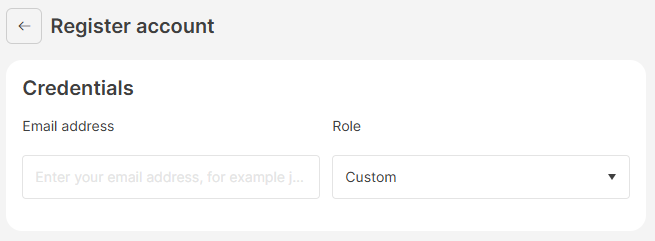
Safetica Platform uses registration emails to register new admin accounts. To register a new account:
- Go to Settings > Safetica settings > Accounts and permissions and click Register account.
- Enter the email address to which the registration email will be sent and which will be used to sign in to the Safetica console.
- Select the Role for the admin account (you can choose from Auditor or Custom ). Learn more about roles here.
✍️ The Auditor role is predefined: its permissions are fixed and can't be edited. When you need more granular control, choose Custom.
4. If you selected the Custom role, the full list of permissions expands, and you can set each one individually. Learn more about permissions here.
5. Click Save. A registration email is sent, and the account appears in your admin accounts list.
What happens after registration email is sent
Once you send the registration email, the new account goes through two states:
-
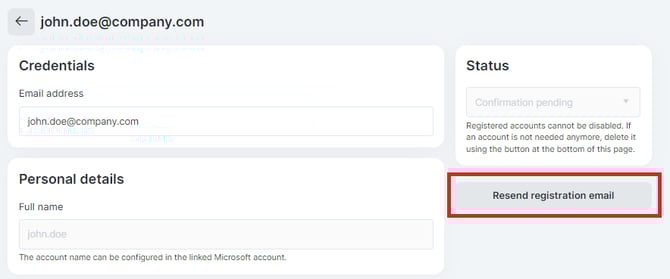
Confirmation pending: The registration email has been sent but the person hasn't completed registration yet. You can click Resend registration email if needed.
-
Enabled: The invited person has finished registration and can now sign in.
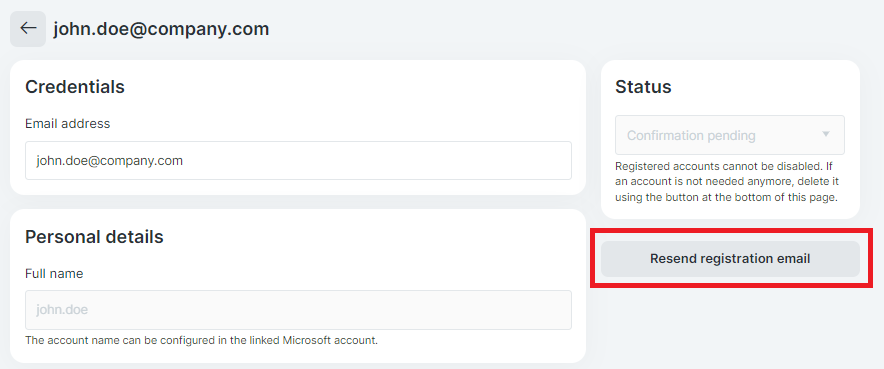
✍️ Microsoft account required. The invited person must click Access Safetica in their registration email. They'll need a Microsoft account to finish setup. If their email isn't linked to one, they can create a Microsoft account during the registration process.
More about roles
Account roles let you control what each Safetica admin account is allowed to do. You can configure individual permissions manually for the account, or you can assign one of two predefined roles. Learn more about roles here.
More about permissions
Permissions control what each admin can see and change in the Safetica console. You set them when registering an account and can update them at any time. Learn more about permissions here.
How to delete an admin account
- Go to Settings > Safetica settings > Accounts and permissions.
- Click the account you want to delete.
- Click the Delete button at the bottom of the page.