![Logo landing page 232x64 with border.png]](https://support.safetica.com/hs-fs/hubfs/Marketing/Safetica_logo_/Logo%20landing%20page%20232x64%20with%20border.png?width=145&height=40&name=Logo%20landing%20page%20232x64%20with%20border.png)
Applies to: Safetica On-Prem
In Safetica Platform, records are stored in Azure and do not require archiving.
✍️Do you want to manually create a one-time archive? Learn more here.
Introduction: What is scheduled archiving
Scheduled archiving creates database archives automatically on a recurring basis. During each run, Safetica:
- Archives older records into an archive file.
- Deletes those archived records from Safetica database.
This helps you:
- Free up space on the Safetica server/database.
- Preserve older records (especially useful if you use the Microsoft SQL Server Express that deletes records due to size limits).
- Microsoft SQL Server Express has a maximum database size of 50 GB (10 GB for versions older than 2025. Learn how to upgrade to 2025 version here). By default, when 80% this size limit is reached, the system automatically deletes the oldest records until the database is less than ~70% full.
- Keep the Safetica environment running smoothly – faster loading of sections and overall responsiveness when working in the console.
- Keep a predictable record retention window in the Safetica console (e.g., keep the previous 6 months of records immediately available to view in Safetica console).
- Avoid repeatedly running manual, one-time archive jobs.
- Keep older records available for review later by attaching and browsing archives.
❗During archive creation, devices may be temporarily disconnected from the Safetica server. Once archiving is complete, the connection is immediately re-established.
Archive permissions
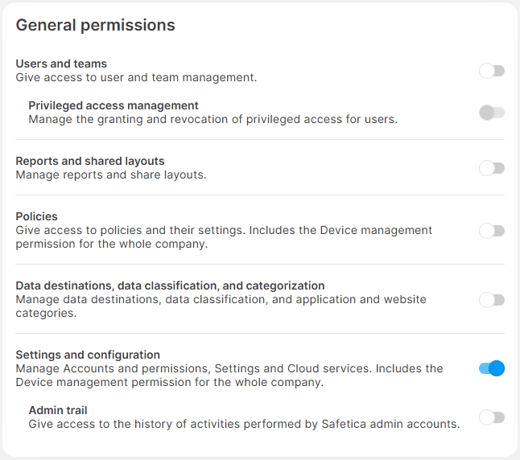
- Manage archives: Available only to Safetica admins who have the Settings and configuration permission.
- This controls access to Settings > Archives in the Safetica console.
- You can enable/disable the permission in Settings > Accounts and permissions.
Prerequisites
Before you enable scheduled archiving, make sure that:
- You are using Safetica On-Prem.
- Your MS SQL Server has enough free space in the location where archives are stored.
- You understand that scheduled archiving runs only on weekends (Safetica controls the exact time). Learn more about the times here.
How to set up scheduled archiving
You can create an archiving schedule using:
- Default configuration (recommended for most environments), or
- Expert mode (if you need different retention period / archive creation frequency)
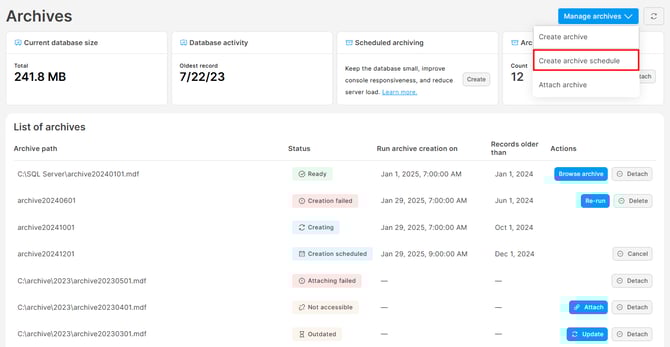
- Go to Settings > Archives in the Safetica console.
- Click Manage archives and select Create archive schedule.
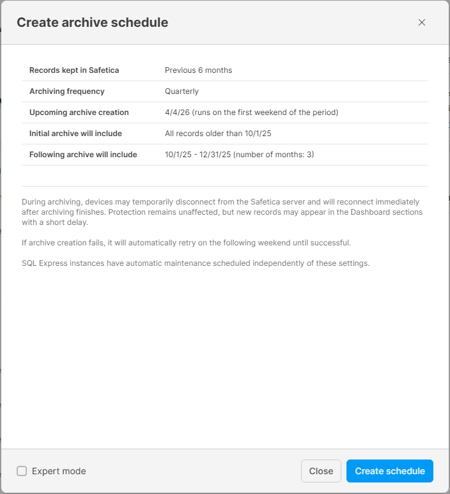
- Keep the default configuration if that works for you:
- Records kept in Safetica console (and database): Previous 6 months
- Archiving frequency: Quarterly
- Or check the Expert mode to customize settings:
-
- Keep in Safetica console (retention):
- Choose how long records remain available in the Safetica console (previous 1, 3, 6, or 12 months).
- Older records are archived and deleted from Safetica console and database.
- You can still access older records later by attaching and browsing the archive.
- Archiving frequency:
- Choose how often Safetica creates archives: Monthly, Quarterly, Semi-annually, or Annually.
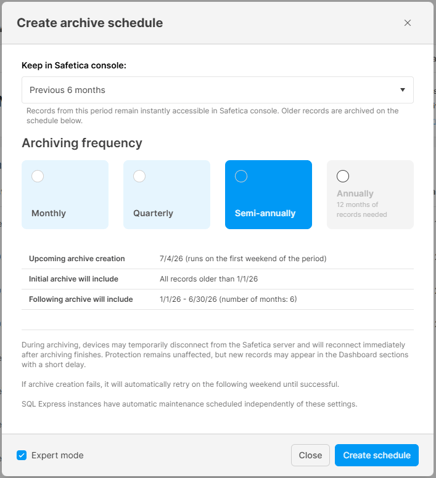
- Choose how often Safetica creates archives: Monthly, Quarterly, Semi-annually, or Annually.
- Keep in Safetica console (retention):
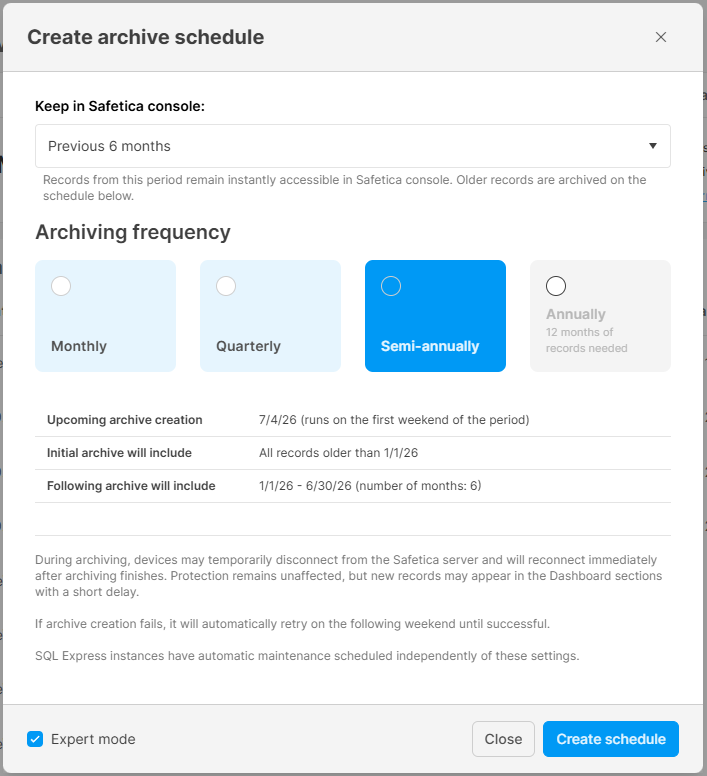
✍️Some Archiving frequency options may be unavailable depending on your retention settings. Scheduled archiving archives and deletes records at the same time, so some combinations do not make sense.
Example: If you keep 6 months in the console, you cannot archive annually, because an annual archive would require keeping at least 12 months of records before it can run.
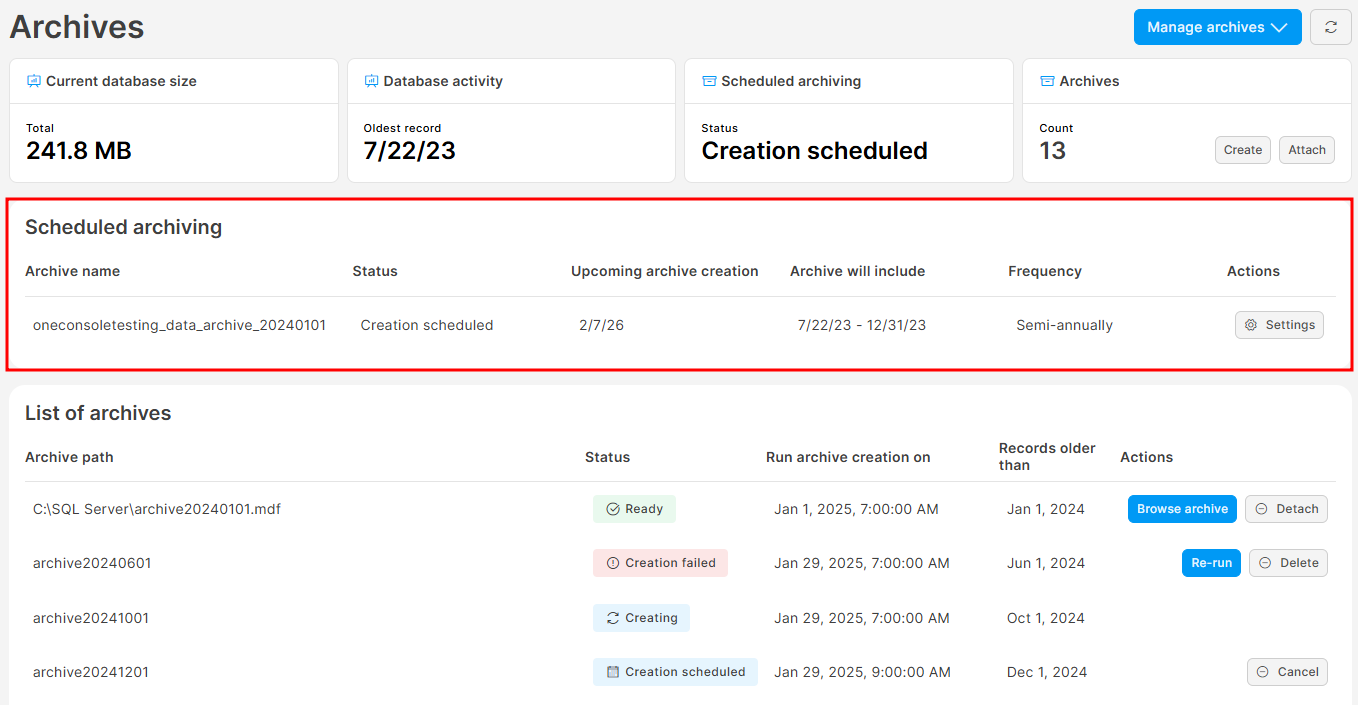
5. Click Create schedule.
6. The schedule appears in the Scheduled archiving table. You can see the upcoming archive creation date and the record period it will include.
How scheduling works
- You cannot set an exact start date/time: You configure what should happen (retention + frequency). Safetica controls when exactly it runs.
- Runs only on weekends - 10PM on Saturdays and Sundays - to reduce impact during business hours:
- Monthly: first weekend of the month
- Quarterly: first weekend of the quarter
- Half-yearly: first weekend of the half-year period
- Annually: first weekend of the year
What happens after a scheduled archive run
After a successful run:
- Archived records are deleted from the Safetica database and are no longer visible in Safetica console.
- Each new archive appears in Settings > Archives > List of archives.
- Each archive progresses through statuses until they become Ready.
- Once Ready, admins can attach and browse the archive in a separate “archived data” view.
✍️When you update Safetica server to a newer version, all Ready archives become Outdated and must be updated before browsing.
Where to find the created archives
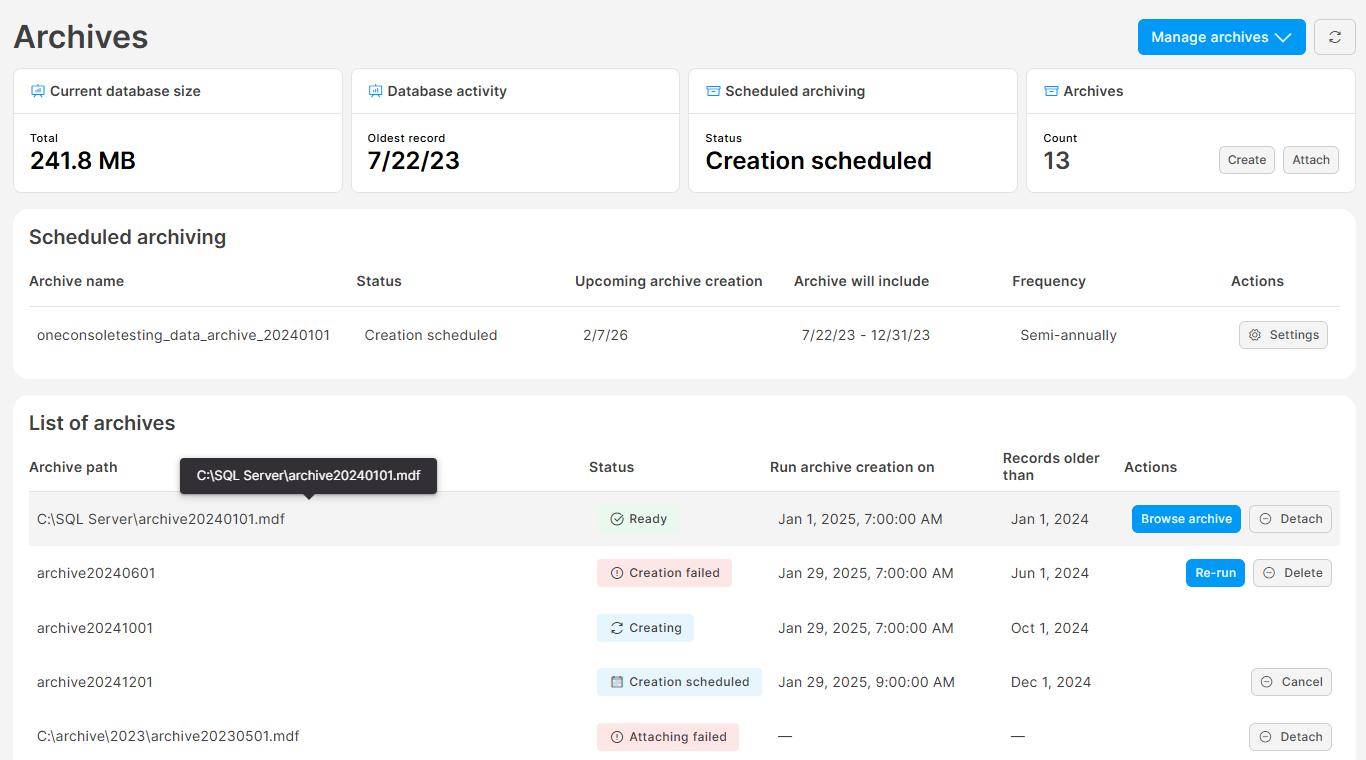
- Archive schedule: In Settings > Archives > Scheduled archiving.
- Individual created archives: In Settings > Archives > List of archives.
- Physical archive files:
- Archives are stored at the default location of your SQL server. This location cannot be changed.
- You can see the archive path when hovering your mouse over an archive.
What happens when archive creation fails
Automatic retries: If a scheduled run fails or can't be run, the archive status will change to Failed, and Safetica will retry as soon as possible (the same weekend, if possible, or on the following weekends until it succeeds).
Delete a failed archive: You can delete Failed archives by clicking the Delete button. This permanently deletes the archive from the server. This action cannot be undone.
Initial archives (catch-up archiving)
If your database contains more historical records than your selected retention target, Safetica may need multiple runs to “catch up”.
Example:
- Today is 1.1.2026.
- Your oldest records are from: 22.7.2023
- You set up to keep previous 6 months in Safetica console
- You set up the Archiving frequency: Quarterly
Safetica creates initial archives in larger historical chunks to catch up:
- 22.7.2023 – 31.12.2023 (catch up for year 2023)
- 01.1.2024 – 31.12.2024 (catch up for year 2024)
- 01.1.2025 – 31.3.2025 (catch up for year 2025 – first quarter – when Safetica cannot pack the whole year, it will switch to the set up archiving frequency)
- 01.4.2025 - 30.6.2025 (catch up for year 2025 – second quarter. After this, the initial archiving will stop, so that the previous 6 months remain in the console)
Notes:
- Once one initial archive finishes, the next one starts only on a weekend. If it is not a weekend, Safetica waits for the next weekend.
- After the catch-up completes, scheduled archiving continues with the regular frequency.
How to edit scheduled archiving
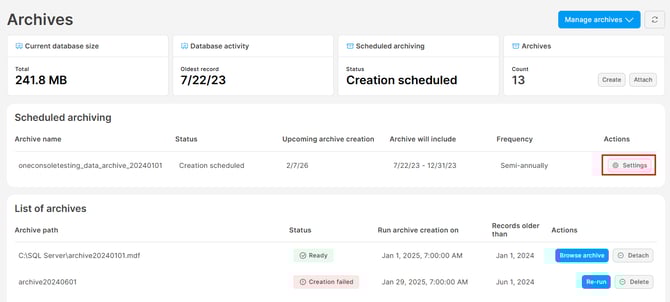
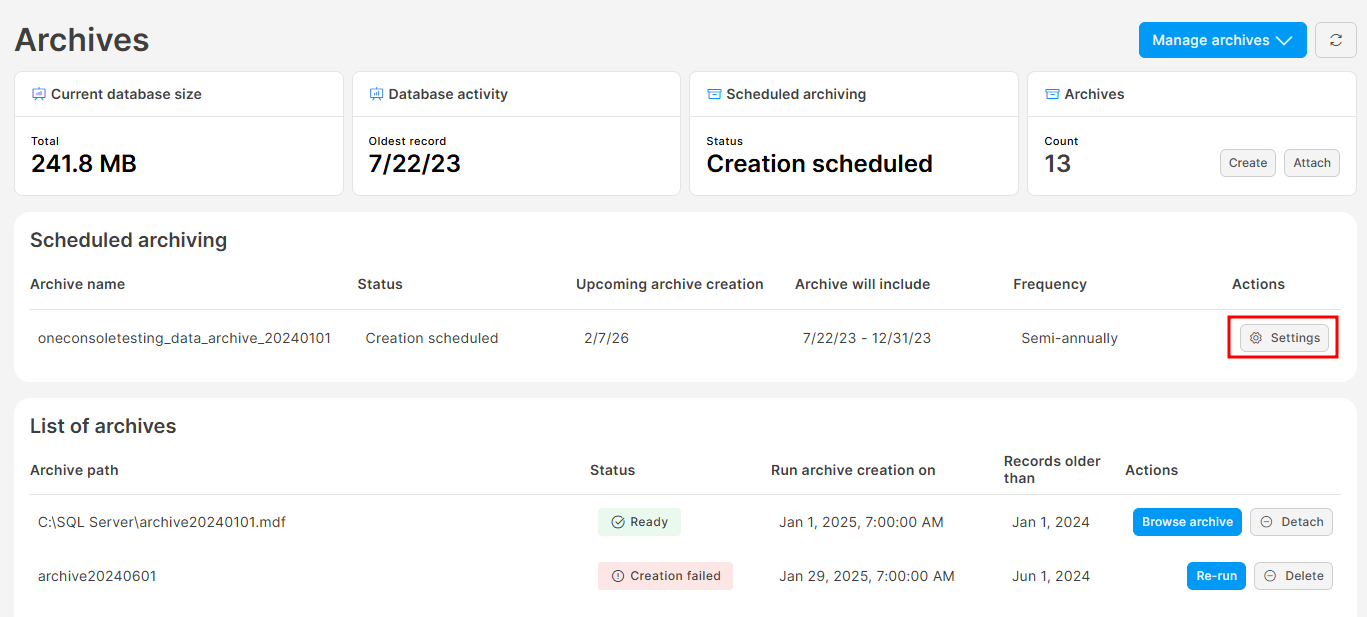
- Go to Settings > Archives.
- In the Scheduled archives table, click Settings next to the schedule.
- Check Export mode.
- Update Keep in Safetica console and/or Archiving frequency as needed.
- Click Update settings.
How to stop scheduled archiving
- Go to Settings > Archives.
- In the Scheduled archives table, click Settings next to the schedule.
- Click Stop scheduled archiving.
How to manage created archives
Learn how to manage (attach, browse, update, detach) created archives here.
Archive statuses
Learn more about archive statuses here.
FAQ
Q: Can I have multiple archive schedules set up at the same time?
A: No, you can have only one archive schedule set up.
Q: Is there an “archive-only” mode? Can I archive without deleting the records?
A: Not for scheduled archiving. Scheduled archiving always archives and deletes together to keep the database size under control.
For one-time manual archiving, you can choose to archive records without deleting them.
Q: Can I choose the exact time when scheduled archiving runs? Can I force scheduled archiving to run during weekdays?
A: No. Scheduled archiving is run automatically on weekends only. You cannot set an exact start time or force weekday runs.